


Answer
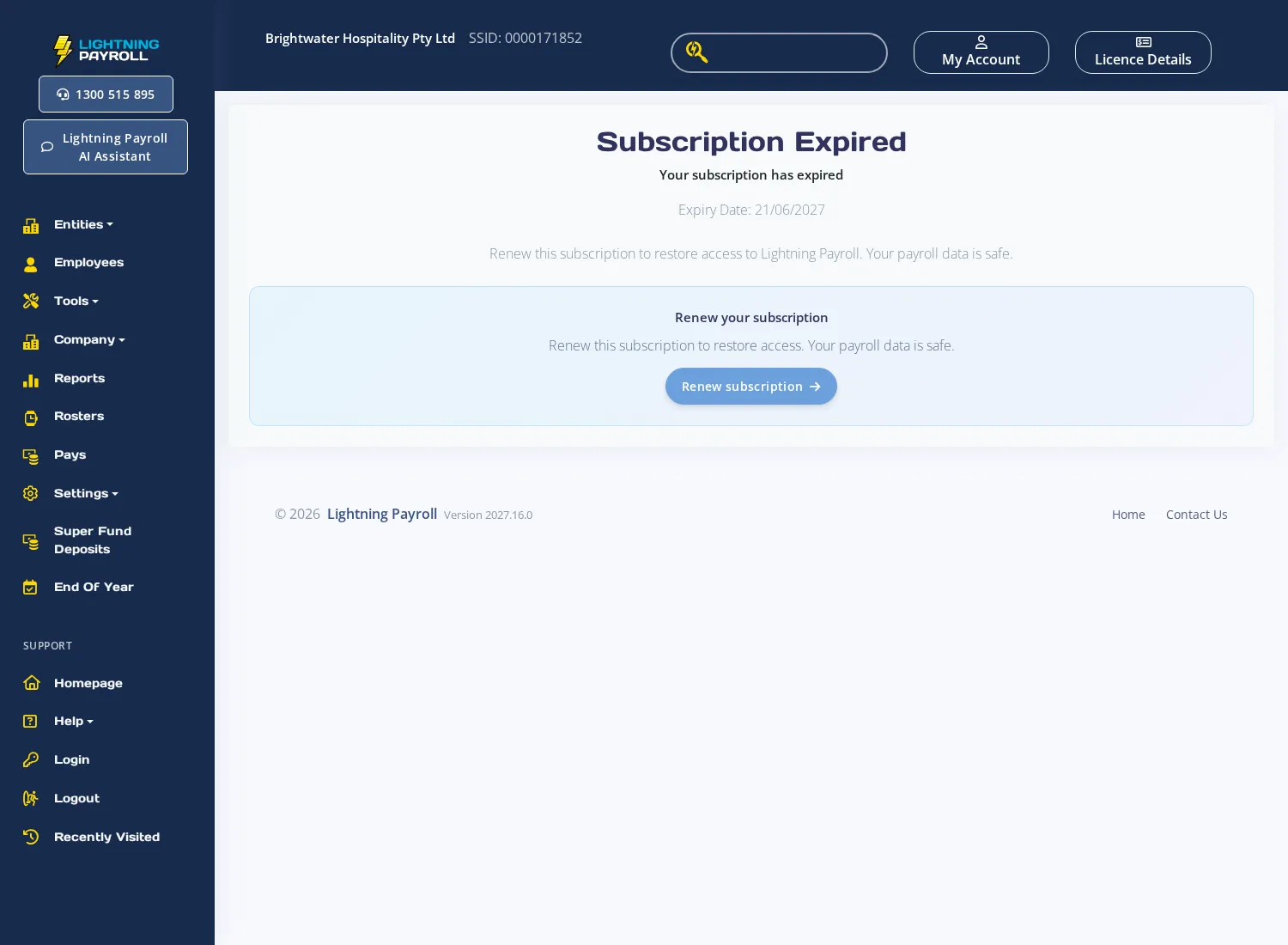
When your Lightning Payroll online (web/mobile) app subscription expires, you are shown a full-screen Subscription Expired page. The page displays your subscription's expiry date and a prompt to renew. All of your payroll data remains intact - nothing is deleted when a subscription expires.
The first time you open the app after your subscription expires, you get a 7-day read-only period (a "You Are Currently In Read-Only Mode" message with a countdown). You can view your data but cannot make changes. When the countdown finishes, the Subscription Expired page below replaces the app until you renew.
Renewing as the account admin
If you are the account admin (the primary subscription holder), a Renew subscription button appears on the expired screen. Clicking it opens a secure, pre-authenticated link to the Lightning Payroll storefront so you can complete renewal without logging in again. Once payment is processed, the online app detects the change automatically and restores full access within a few minutes. If you renew after your expiry date, your new subscription starts from the day you pay. If your subscription was renewed automatically but payment has not yet been received, you may instead be given 7 days of full access, and if you pay within 6 weeks (4 weeks for a monthly subscription) of the expiry date you keep your original renewal date.
Renewing from a trial
If your free trial has ended, the same screen appears with a Choose a plan button. Clicking it takes you to the Lightning Payroll pricing page where you can select a subscription.
If your subscription is managed by a reseller or accountant
If your account is managed through a reseller or accounting partner, the renew button is replaced with a message directing you to contact them. You cannot self-serve a renewal in this case - your reseller manages your billing.
If you are a sub-user (not the account admin)
Sub-users see a prompt to contact the account admin. You can use the Ask admin button to send a renewal request directly to the admin's email address, or copy the request text to send it another way.
Desktop app
In the Lightning Payroll desktop app, an expired subscription triggers an in-app renewal prompt. Clicking Renew subscription sends a secure magic-login link to your registered email address. Open that email on any device, click the link, and complete renewal on the storefront. The desktop app does not display the storefront URL inline for security reasons.
For details on the read-only grace period, data retention requirements, and read-only subscription options, see What Happens When My Subscription Expires?

