


Answer
How Do I Set Up PayID For Super Payments Using Ozedi?
PayID is an Ozedi payment method that uses the New Payments Platform (NPP) and a dedicated PayID email address for your client. After you send the super remittance from Lightning Payroll, you then send the money yourself from your bank to Ozedi using that PayID.
PayID can still be a fast option, but it is less automated than PayTo because you must manually make the payment from your bank after each remittance. It is often preferred by businesses that want to control the bank payment themselves rather than authorising automatic deductions.
Need help with Ozedi?
T | 1300 737 614
E | [email protected]
Step 1: Register Your Ozedi Portal Access
- Register for the Ozedi portal using the link below.
- Activate your account from the email sent by Ozedi.
- Sign in to the Ozedi dashboard.
Step 2: Create Your Ozedi Account
- In Ozedi, create an Account.
- Enable the SuperStream service for that account.
- Add at least one contact.
Important: Your Ozedi account is your main (overarching) account. Each business or ABN you process in Lightning Payroll must be set up as a separate client under this account.
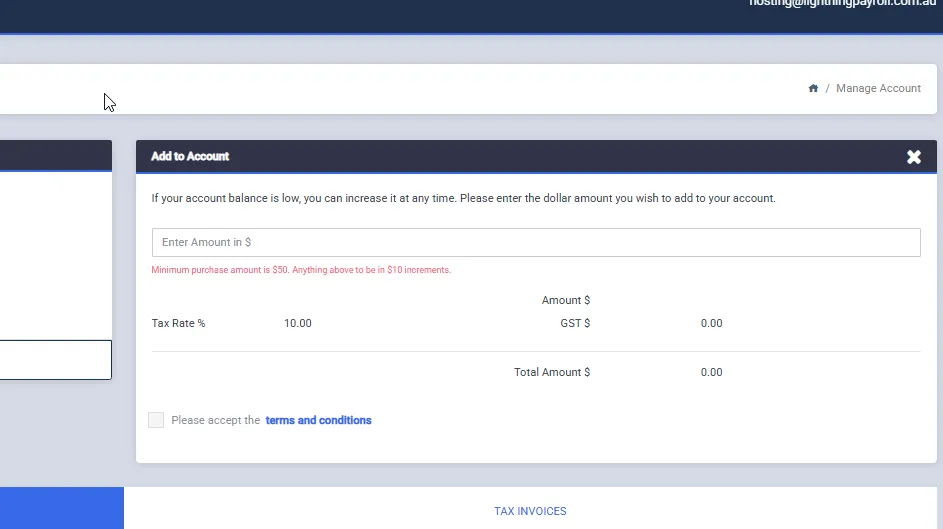
Step 3: Add Funds To Your Ozedi Account
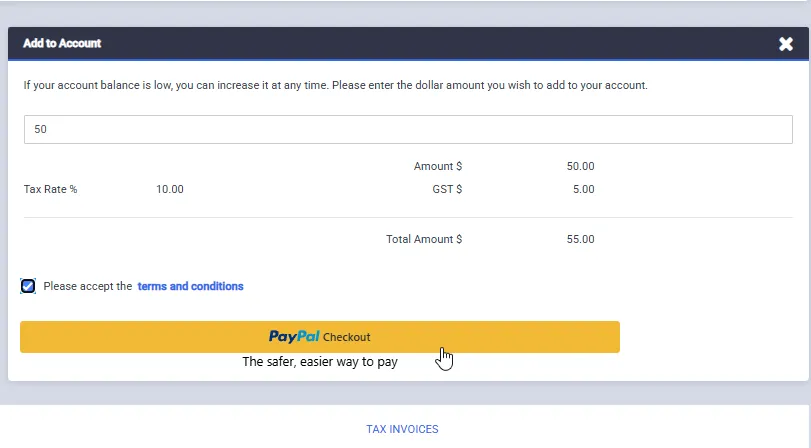
- Go to Accounts > Manage Account > Add to Account.
- Enter the amount you wish to add.
- Accept the terms and conditions.
- Click Add to Account to complete the payment.
The account balance shown in Ozedi is used to pay for the Ozedi SuperStream service. It is not used for the actual super contributions.
You can add funds using:
- PayPal account
- Credit card via PayPal guest checkout
Important: Ozedi is a prepaid service. You must have a sufficient account balance before you can create a client or process super payments.
Step 4: Add Your Business As A Client And Choose PayID Transfer
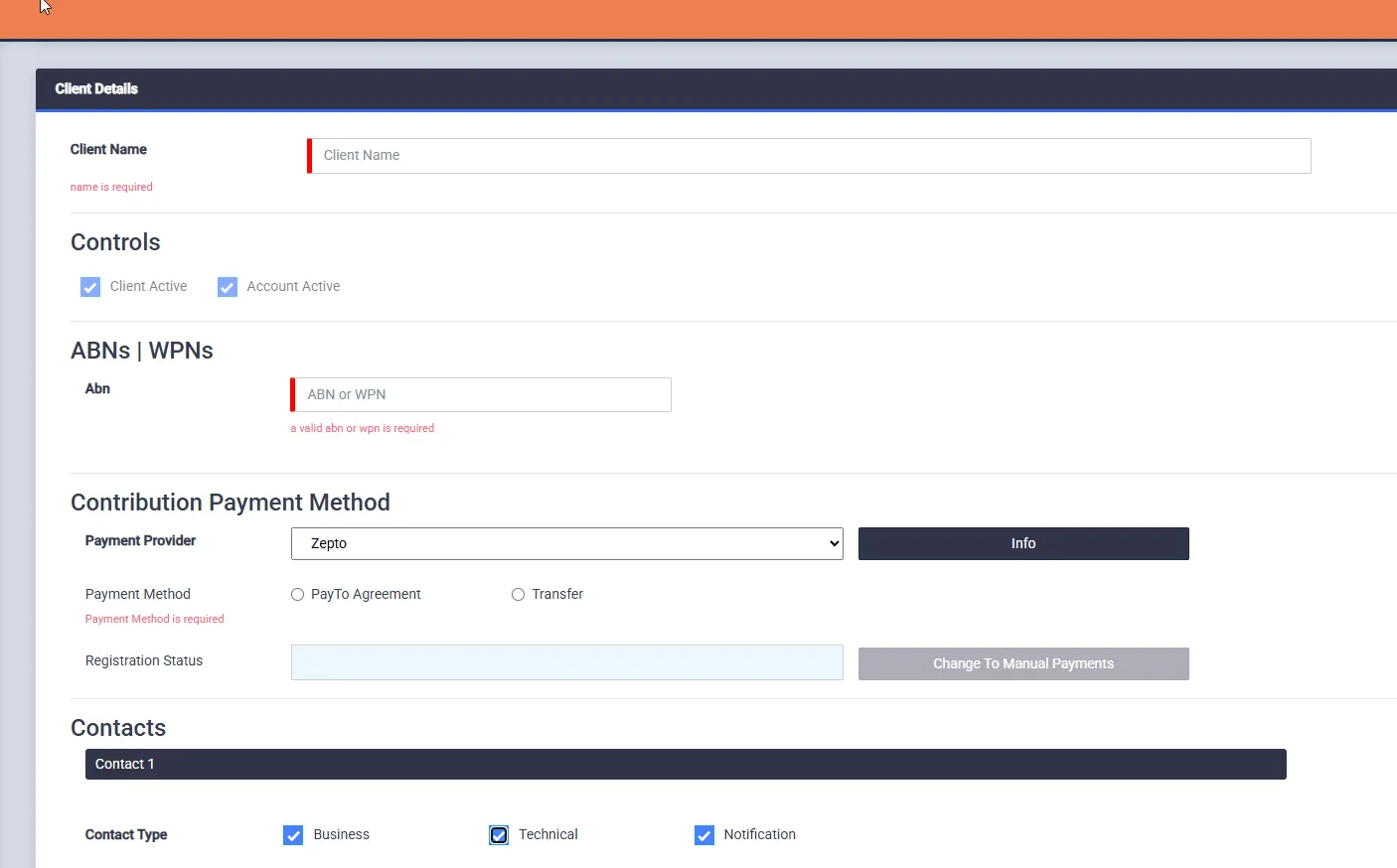
- Go to Manage Service > Manage Clients.
- Click + Add.
- Enter the client details, including the business name and ABN or WPN.
- For the payment provider, select Instant Payments (Zepto) - Transfer.
- Add at least one client contact and enable notifications if required.
- Save the client.
Important: You must create a separate client in Ozedi for each company or ABN you use in Lightning Payroll.
Step 5: Wait For Ozedi To Generate The Transfer Details
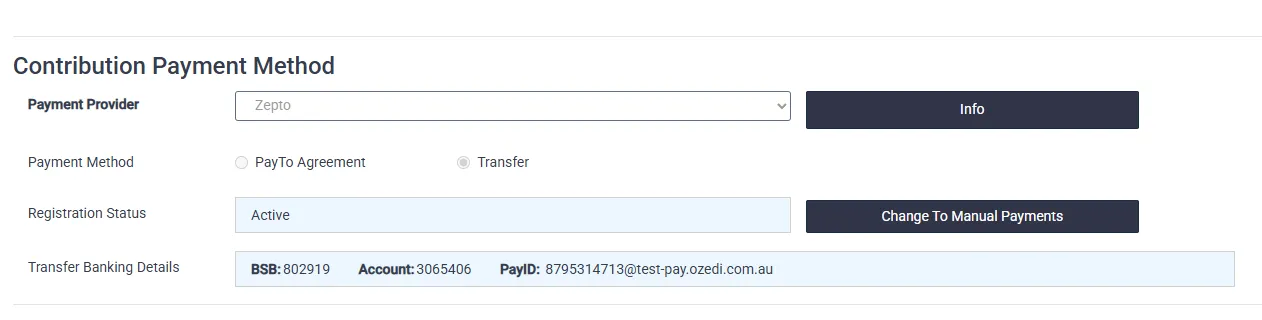
- After saving the client, Ozedi will prepare the transfer details for that client.
- Wait a few minutes, then edit the client again.
- Confirm the client now shows as Active.
- Locate the client's PayID email address. Ozedi may also provide a BSB and account number.
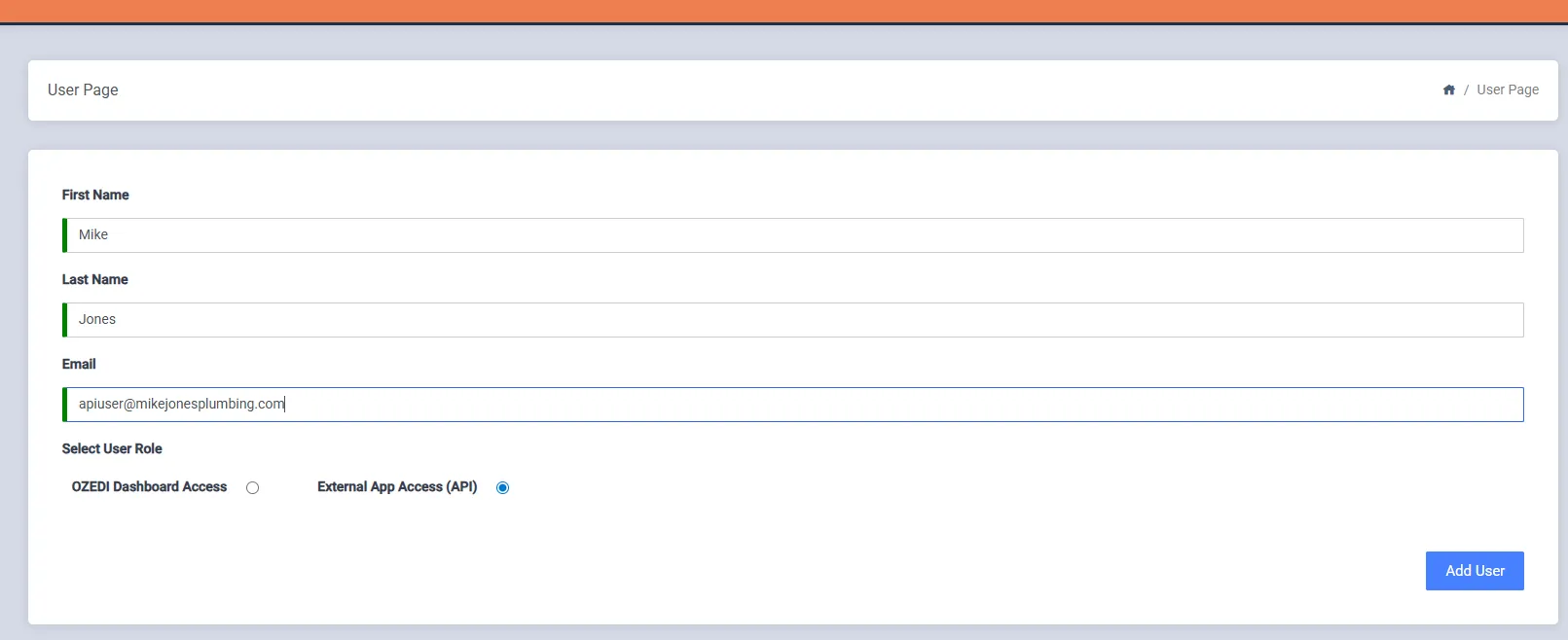
Step 6: Create An API User In Ozedi
This user allows Lightning Payroll to connect securely to Ozedi. It is not your normal dashboard login.
- Go to Accounts > Manage Account.
- Open the Manage Users tab.
- Click + Add.
- Enter the user details.
- Select External App Access (API).
- Save the user and complete the password setup from the email Ozedi sends.
Important: The API user email address must be different from your main Ozedi login email. Using the same email can prevent the connection from working correctly.
Step 7: Enter Your Ozedi Details In Lightning Payroll
- In Lightning Payroll, go to Company > Ozedi Superstream.
- Enter your:
- Ozedi Client ID
- API User Email
- API User Password
- Ozedi Account Number
- Save the changes.
Important: The API user email, API password, and Ozedi account number are typically the same across all companies, but the Client ID must match the specific client created in Ozedi for that business.
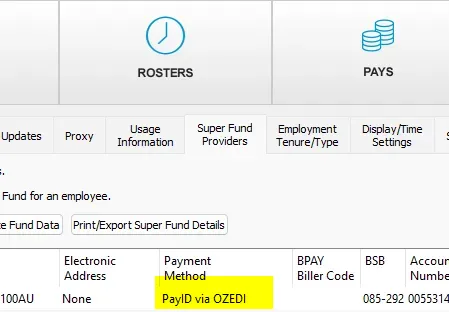
Step 8: Set The Super Fund Payment Method To PayID
- Go to Settings > Super Fund Providers (Settings > Super Funds in the online app).
- Edit the relevant super fund provider.
- Select PayID via OZEDI as the payment method.
- Save the fund provider.
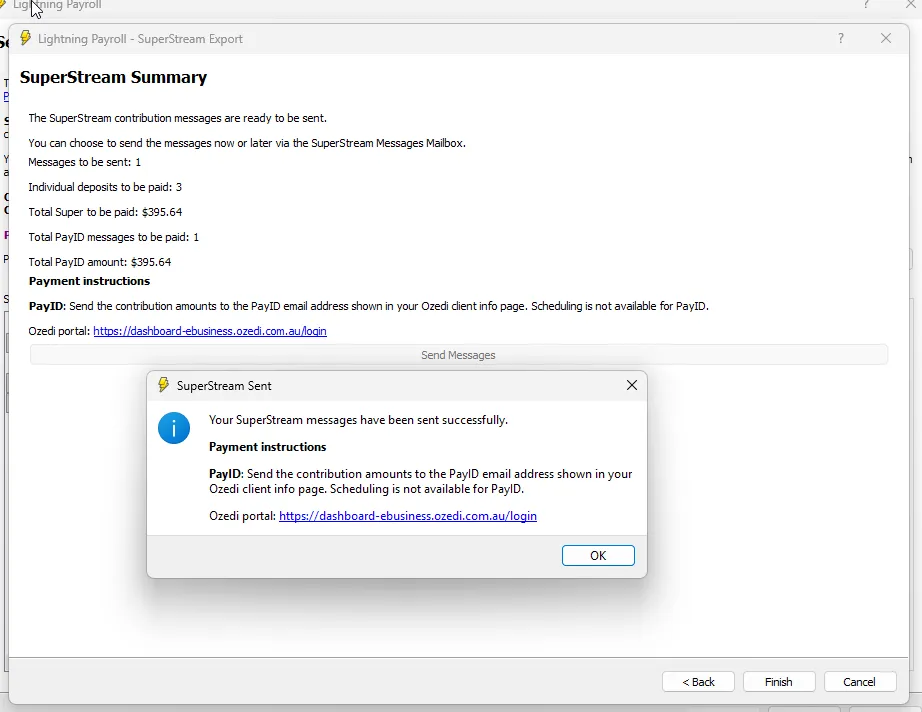
Step 9: Send The Remittance From Lightning Payroll
- Create and review your super contribution batch in Lightning Payroll.
- Send the remittance through Ozedi.
- Wait for the success message confirming the remittance was sent.
Step 10: Send The Funds To Ozedi By PayID
- Open your banking app or internet banking.
- Send the payment to the client's Ozedi PayID email address.
- Check the amount to pay on the SuperStream Summary (or the PayID Payment Report). Make sure each payment exactly matches the amount shown.
Important: How many payments you send depends on the Combine Ozedi PayTo/PayID contributions into one payment per method option on the Payday Super screen.
- If it is ticked, all PayID contributions are combined into one message. Send a single PayID payment for the combined total. For example, if Fund A is $1,250.00 and Fund B is $980.00, send one PayID payment of $2,230.00. (This option is ticked by default, and Lightning Payroll remembers your last choice.)
- If it is not ticked, there is one message for each super fund. Send one separate payment for each super fund provider, and do not send one combined total. For example, send $1,250.00 for Fund A and a separate $980.00 for Fund B.
Once Ozedi receives the funds, it forwards the payments to the relevant super funds.
Why businesses choose PayID: PayID can be a good option if you want a fast NPP payment method but still prefer to manually control when the funds leave your bank account. Unlike PayTo, it does not automatically debit your bank account.
Tip: Each Lightning Payroll company must use its own Client ID from Ozedi, even if all companies share the same API login and Ozedi account.

