


Answer
Advanced Departmental Options is a desktop setting that changes how Lightning Payroll splits the cost of a pay across your departments. Instead of applying a fixed percentage to each employee, it works the split out from what was actually worked and paid. You tag shifts, pay rates, allowances and bonuses with a department, and each pay is split according to those tags. It is available in Lightning Payroll desktop version 2027.415 and later.
The same screens also have Job and Activity fields. These are saved with each pay, but no report, export or dashboard shows Job or Activity figures at the moment. Everything below is about departments.
The old way: department percentages on the employee
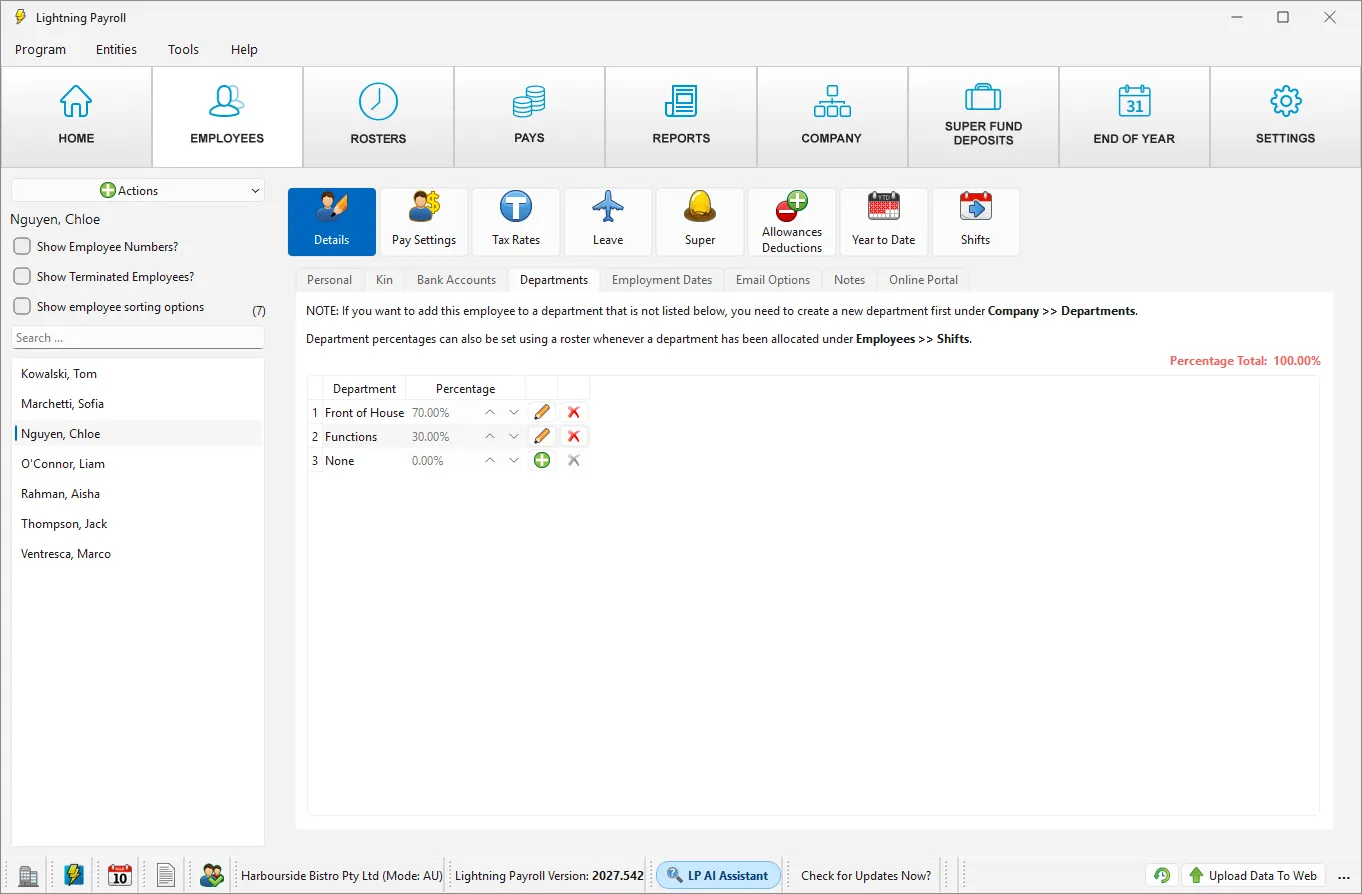
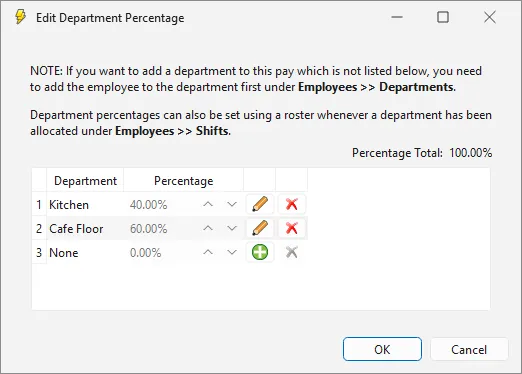
This is how departments have always worked. You set a percentage for each department on the employee under Employees >> Details >> Departments, for example Front of House 70% and Functions 30%. That split is copied onto every pay, whatever shifts the employee worked that week. To change one pay, click Department % in the pay editor.
The new way: tags on the work itself
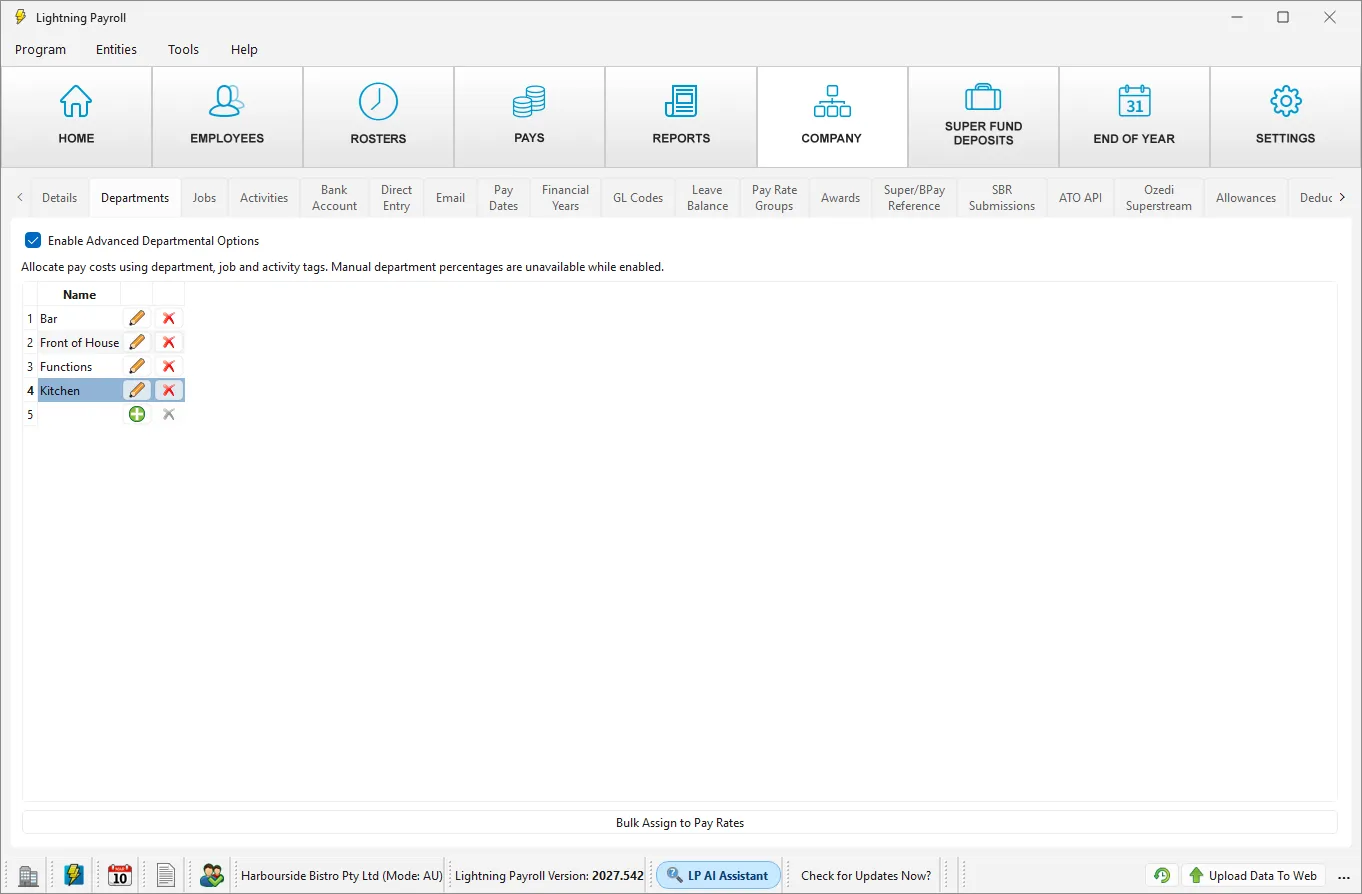
With Advanced Departmental Options on, you tag the things that generate cost:
- the company shift (Company >> Shifts)
- company pay rate groups and an employee's own special pay rates
- allowances
- bonuses
Each time you open the Pays screen, Lightning Payroll rebuilds the pending pays. It looks at the dollars each tagged shift, rate, allowance and bonus produced and turns them into department percentages for that pay. An employee who spends Monday in the Kitchen and Saturday on a function is costed to Kitchen for Monday's hours and Functions for Saturday's hours, without anyone editing a percentage.
Old way and new way side by side
- Where the split comes from. Old way: a fixed percentage on the employee. New way: tags on shifts, pay rates, allowances and bonuses.
- Does it follow the actual work? Old way: no, every pay gets the same split. New way: yes, the split changes with the shifts and rates on each pay.
- Changing one pay by hand. Old way: Department % in the pay editor. New way: the Department % button is unavailable while the option is on. Change the tag instead, or correct a completed pay with Tools >> Retrospective Tool.
- Shift level. Old way: each employee's own Department Allocation under Employees >> Shifts. New way: the Department on the company shift, copied to every employee on that shift. The employee's Department Allocation is ignored.
- What is tracked. Old way: department only. New way: department, plus Job and Activity fields that are saved but not yet reported on.
- Where it is set up. Old way: desktop or online app. New way: the desktop app only. The online app has no screens for the tags.
- Reports. Both feed the same Departmental Analysis report, GL postings, Pay Report Builder and dashboards. The Employee Report Builder always uses the employee's percentages.
Which one should I use?
Use department percentages if:
- each employee works in a fixed mix of departments all year, for example an office manager who is 60% Admin and 40% Sales
- you do not roster shifts, or your shifts are not tied to a department
- you need to adjust the split on an individual pay by hand
- you also enter or edit pays in the online app (see below)
Use Advanced Departmental Options if:
- staff move between departments from shift to shift and the cost should follow the actual hours
- penalty rates, function rates or allowances belong to a particular department
- you want GL postings and departmental reports to match what happened on the roster
If you are not sure, start with department percentages. You can turn Advanced Departmental Options on later, and off again, without losing your tags. Pays that are already completed keep the split they had.
A worked example
Harbourside Bistro pays seven staff weekly. In the week ending 1 November 2026 the restaurant ran a wedding function on the Saturday. The Wedding Function shift is tagged Functions, the kitchen shifts are tagged Kitchen, the bar shifts are tagged Bar and the lunch and dinner floor shifts are tagged Front of House. Total gross for the week is $7,052.55.
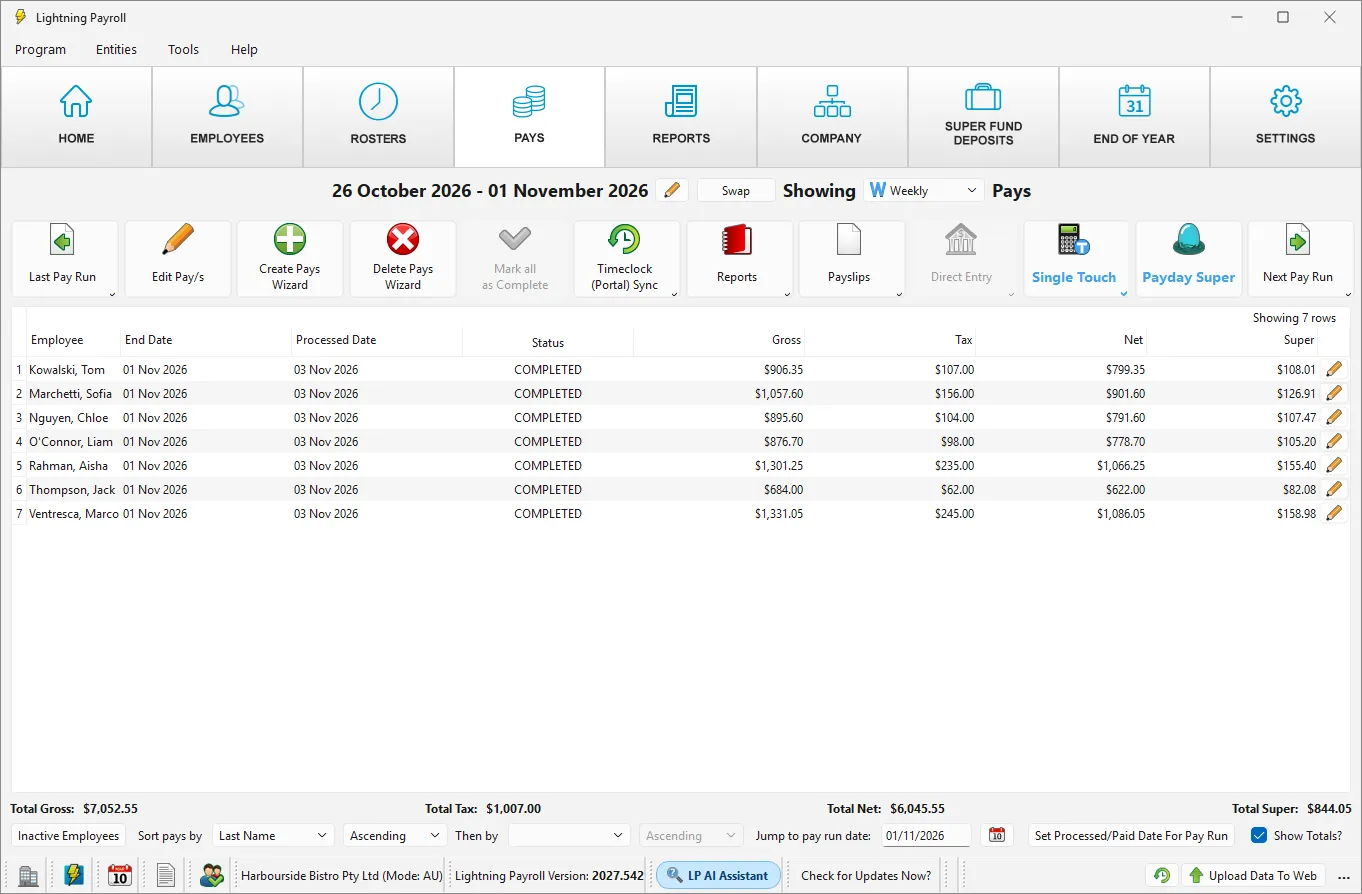
With no one editing any percentage, the department split for that pay run is:
- Kitchen: $3,538.65
- Bar: $1,412.55
- Front of House: $1,099.35
- Functions: $1,002.00
The four amounts add up to the $7,052.55 gross. Under the old way, the front-of-house supervisor, who is set to 70% Front of House and 30% Functions, would have been split 70/30 every week, even in a week with no function.
One detail in this example is worth noticing. The sous chef and the kitchen hand are paid a special Function Rate that is tagged Kitchen. A tag on a pay rate wins over the tag on the shift, so their wedding hours are costed to Kitchen even though the Wedding Function shift is a Functions shift. See How Do I Tag Pay Rates, Allowances And Bonuses With A Department?
Before you turn it on
- Create your departments first under Company >> Departments. See How Do I Setup Departments?
- If you use the Department Allocation on employees' shifts under Employees >> Shifts, tag the matching company shifts with a Department. The Department Allocation stops being used as soon as the option is on.
- Tag every shift and pay rate that matters. Anything that is not covered by a tag goes to the employee's highest percentage department, or to Unassigned if the employee has no percentages. See Why Is My Advanced Departmental Options Split Not What I Expected?
- Nothing is changed automatically on past pays. Completed pays keep the split they had.
When you are ready, follow How Do I Turn On Advanced Departmental Options And Tag Shifts?
If you also use the online app
The tags can only be set up in the desktop app. Pays for these companies are best completed in the desktop app: the online pay editor has no way to show or change the tag-based split, and it can refuse to save some of these pays. See Why Is My Advanced Departmental Options Split Not What I Expected? for details.
Please note: assigning departments changes how the cost of a pay is allocated on reports and GL postings. It does not change gross pay, tax, super or KiwiSaver.
See also: How Do Department Tags Appear In Reports And GL Postings? and What Happens If I Turn Off Advanced Departmental Options?

