


Answer
With Advanced Departmental Options on, each pay's department split is calculated from the tags on shifts, pay rates, allowances and bonuses. Most of the time the result is what you would expect. This article explains the situations that surprise people, and what to do about each one. For the basics, see What Are Advanced Departmental Options And Should I Use Them?
When the split is worked out
The split is worked out for every pending pay each time you open the Pays screen. It is not worked out again while you edit a pay, or when you save the pay with Save + Close, which completes it. Keep this in mind for the sections below.
The Department % button is greyed out
This is deliberate. While the option is on, Department % in the pay editor is unavailable, because the split is worked out from the tags.
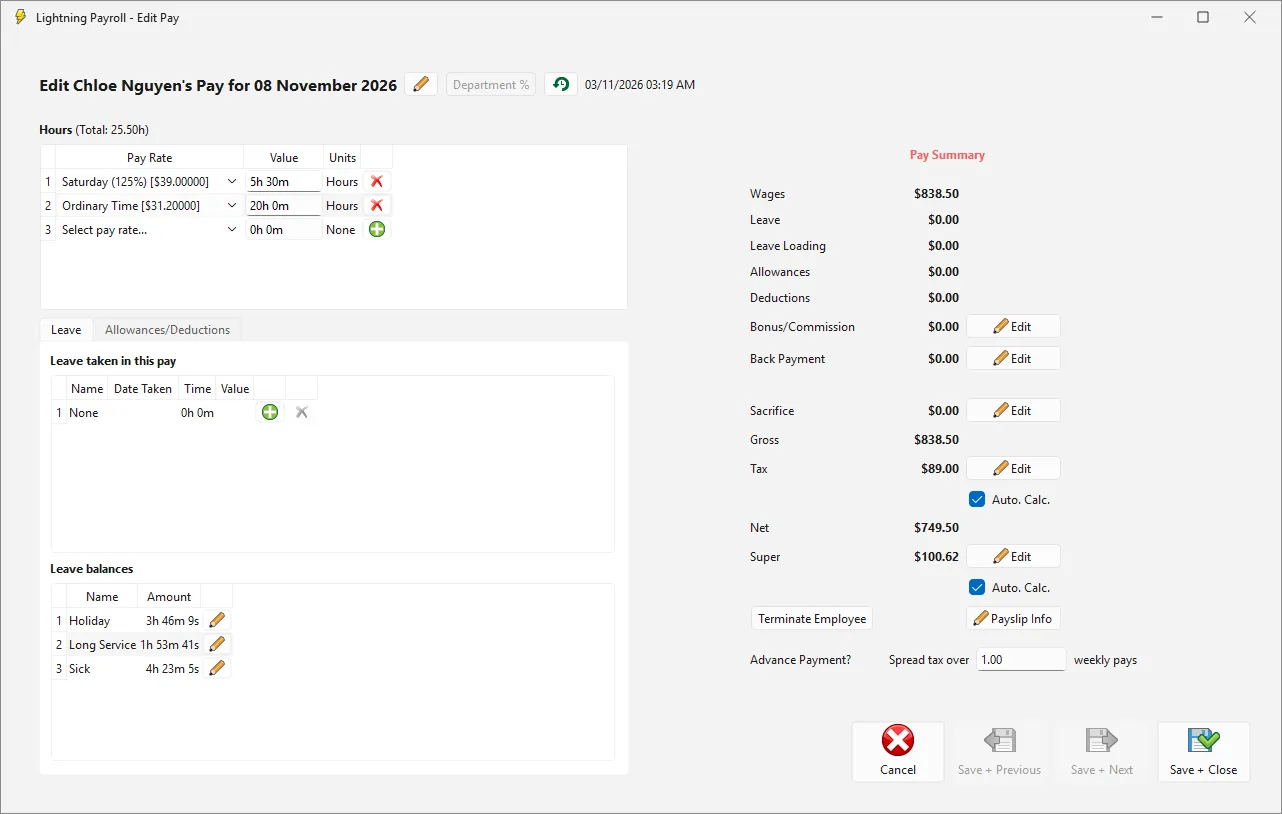
- To change where a pending pay's cost goes, change the Department tag on the shift, pay rate, allowance or bonus, then open the Pays screen again.
- To correct the department split on completed pays, use Tools >> Retrospective Tool. See How Do I Use the Retrospective Tool to Change Past Pays in Bulk?
- If you need to set percentages by hand on individual pays, turn the option off. See What Happens If I Turn Off Advanced Departmental Options?
Part of a pay is Unassigned, or went to the wrong department
Only costs that are covered by a tag are allocated by the tags. Anything else is a remainder, and the remainder is handled like this:
- If the employee still has department percentages under Employees >> Details >> Departments, the remainder is added to the employee's highest percentage department, even if they did not work there that week.
- If the employee has no department percentages, the remainder is Unassigned. It appears as Department Unassigned on GL postings grouped by department, and as Unassigned Department on payroll dashboards. On the Departmental Analysis report it is counted in the total but not shown in any department. See How Do Department Tags Appear In Reports And GL Postings?
- If nothing on the pay carries a Department tag at all, the pay uses the employee's department percentages as before, or is fully Unassigned if there are none.
The costs that most often end up in the remainder are:
- hours that are not on a tagged rostered shift or a tagged pay rate, for example an employee's standard hours when they are not rostered
- leave from an approved leave request, including requests made in the employee portal. Leave entered as a leave shift on the roster takes that shift's tags.
- a bonus with no tag, or one added by hand in the pay editor
- NZ mode only: the 8% PAYG holiday pay, the minimum wage top-up, and the part of annual holidays on a roster shift that is paid above the employee's ordinary rate (when their average weekly earnings rate is higher)
To fix it, tag the shift, pay rate, allowance or bonus that the cost came from. See How Do I Tag Pay Rates, Allowances And Bonuses With A Department? If the cost never carries a tag, such as NZ PAYG holiday pay, leave an employee department percentage in place so the cost falls back to a department you choose.
An Unassigned line of $0.00 can appear on a pay that is split evenly three ways. It is a rounding leftover and can be ignored.
Something I added in the pay editor is in the wrong department
Hours, bonuses, back payments and termination payments that you add in the pay editor do not change the split. When you save the pay, the added amount is shared across departments in the same proportions the pay already had. For example, a pay that was 100% Kitchen when you opened it stays 100% Kitchen even if you add hours at a rate tagged Bar.
- For hours or a bonus that should go somewhere else, put them on the roster or on the bonus setup with the right tag, open the Pays screen again so the pending pay is rebuilt, then save the pay.
- Pays made with the Create Pays Wizard without Create Full Pay? ticked, for example a back payment on its own, use the employee's department percentages, or are Unassigned if the employee has none.
- For a pay that is already completed, correct the department split with Tools >> Retrospective Tool.
Departments add up to more than the pay, with a negative Unassigned line
This can happen when an employee has salary sacrifice or a pre-tax deduction and their pay is split across two or more departments. The tagged amounts are worked out before the sacrifice or deduction, but the pay's gross is after it, so the departments add up to more than the gross. GL postings grouped by department then show a negative Department Unassigned line that brings the total back to the correct gross.
The pay itself is correct: gross, tax, super (KiwiSaver in NZ) and net are not affected. Only the department split on reports is out. If you need the departments to add up for a completed pay, set the percentages with Tools >> Retrospective Tool so they total 100%.
An employee's hours show in a different department from their shift
A tag on a pay rate wins over the tag on the shift. If the employee is paid at a rate tagged Kitchen, those hours cost to Kitchen even when the shift is tagged Functions. Check the Department on the pay rate under Employees >> Pay Settings >> Special User Defined Pay Rates or Company >> Pay Rate Groups.
Super and tax do not follow a department's wages exactly
Lightning Payroll splits the whole pay, including tax, super (KiwiSaver in NZ) and net pay, in proportion to the pay's gross. A department that has a lot of overtime, or allowances that are not included in super, can therefore show a share of super that is a little different from what you would calculate by hand on that department's wages. Gross pay, tax and super on the pay itself are not affected.
I changed a shift's tag and my old rosters changed
Editing the Department on a company shift updates every employee who is on that shift, and the Department column on rosters, including rosters from earlier pay runs, shows the new tag. Pays that are already completed keep the split they had, so past costs do not change. Pending pays use the new tag the next time you open the Pays screen.
Bulk Assign did not change a rate, allowance or bonus
Bulk Assign to Pay Rates only changes an employee's own special pay rates. It does not change company pay rate group rates, allowances, bonuses or shifts. See How Do I Bulk Assign A Department To Employee Pay Rates?
The Department Allocation on an employee's shift is ignored
The Department Allocation field under Employees >> Shifts is still shown, but it is not used while Advanced Departmental Options is on. Tag the company shift under Company >> Shifts instead. If you used Department Allocation before turning the option on, those employees' splits change to the company shift tags, or to their department percentages if the shift has no tag.
Employee Report Builder shows a different split
The Employee Report Builder groups by each employee's current percentages under Employees >> Details >> Departments, not by the tags. Use the Pay Report Builder or GL postings to see the tag-based split.
I cannot delete a department
A department that is set on a shift, pay rate, allowance or bonus, or on hours, allowances or bonuses in a pay, cannot be deleted, and Lightning Payroll shows a Cannot Delete Department message. Remove the department from those shifts, rates, allowances and bonuses first.
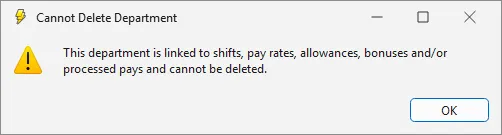
If the department has been used on pays, rename it instead of deleting it. A department that is only linked through employee percentages or a pay's department split can be deleted after two confirmations, but that removes it from every pay, including completed pays, and those amounts then show as Unassigned. Delete departments in the desktop app, which runs these checks.
The Jobs and Activities tabs are missing, or still showing, after switching company
If you work with more than one company, the Jobs and Activities tabs can keep the state of the company you first opened the Company screen with. Close Lightning Payroll and open it again, then go to the Company screen, and the tabs will match the company you are working in. Moving to another screen and back does not fix it. Your Jobs and Activities are not affected.
If you also use the online app
- The tags can only be set up and changed in the desktop app.
- Saving or completing a pending pay in the online app can fail with an error about the Pay Department when the tags put part of the pay in a department the employee is not assigned to under Employees >> Details >> Departments. Complete that pay in the desktop app instead.
- An employee added to a shift in the online app does not pick up the shift's tags until the shift is saved again. Add employees to tagged shifts in the desktop app.

