


Answer
When Advanced Departmental Options is on, the department split on each pay comes from the tags on shifts, pay rates, allowances and bonuses. That split feeds the same reports, GL postings and dashboards that already use departments, so the reports themselves work as before. This article shows where the tagged split appears, using a worked example. For how the tags are set up, see How Do I Turn On Advanced Departmental Options And Tag Shifts?
The example is Harbourside Bistro, an Australian restaurant with four departments: Kitchen, Front of House, Bar and Functions. In NZ mode the super figures are employer KiwiSaver instead.
Departmental Analysis report
- Click Reports in the main navigation.
- Under the Pay section, click Departmental Analysis.
- Set the Start Date and End Date.
- Tick Include Super? (in NZ mode, Include KiwiSaver (Employer)?) if you want employer contributions in the figures.
- Click OK.
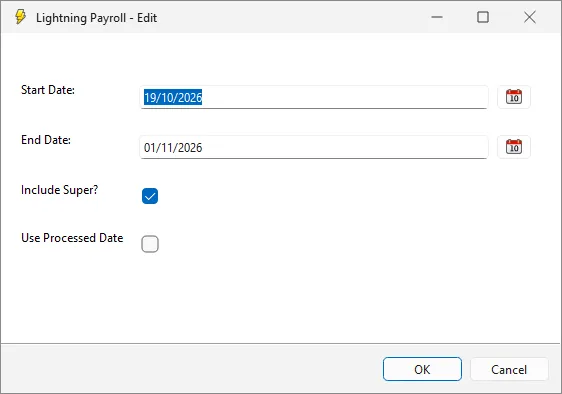
For the two pay runs from 19 October to 1 November 2026, with super included, the report shows each department with the employees in it, the amount for each employee and the department's share of the total.
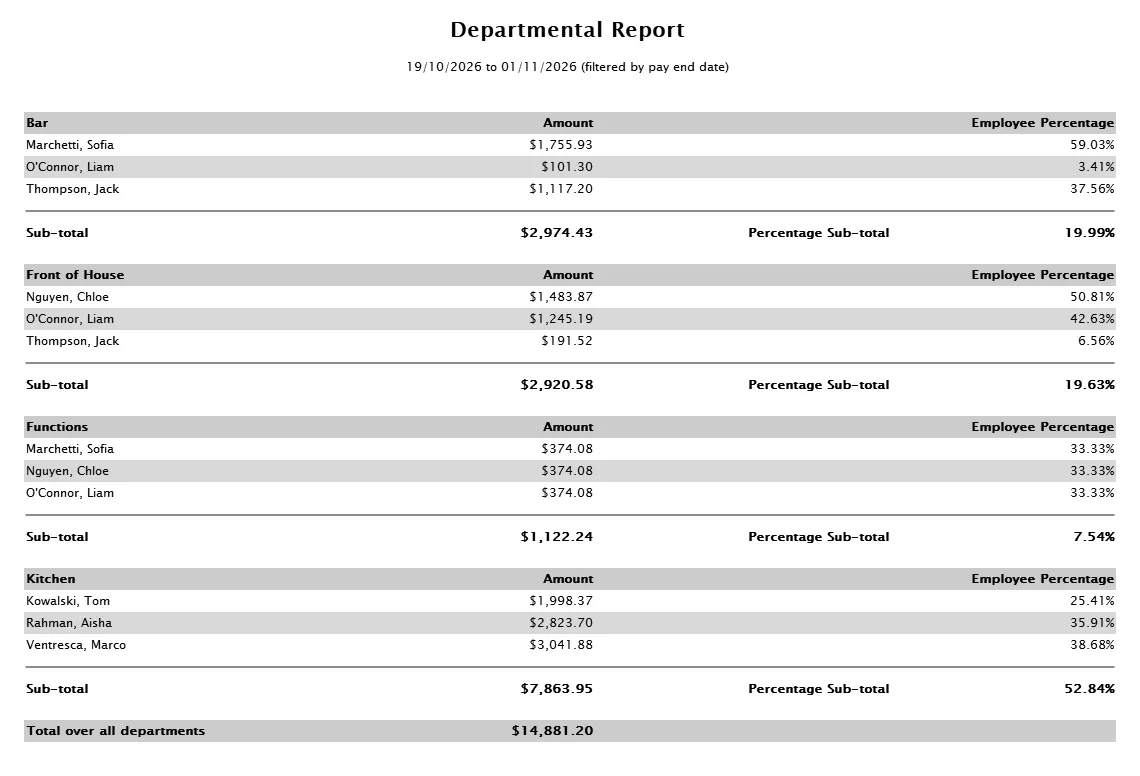
- Bar: $2,974.43 (19.99%)
- Front of House: $2,920.58 (19.63%)
- Functions: $1,122.24 (7.54%)
- Kitchen: $7,863.95 (52.84%)
- Total over all departments: $14,881.20
Functions shows only three people, even though five staff worked the wedding. The other two, the sous chef and the kitchen hand, are paid a Function Rate that is tagged Kitchen, so their wedding hours appear under Kitchen. A tag on a pay rate wins over the tag on the shift.
When the sections do not add up to the total
In this example every shift and pay rate has a Department, so the four sections add up to the total. If part of a pay has no department, for example an untagged shift for an employee with no department percentages, that part is counted in Total over all departments but is not shown in any department section. The sections then add up to less than the total. Only a pay with no department split at all is listed under Unassigned Department.
To see the missing amount, run the GL postings report grouped by department (below), which shows it as Department Unassigned. To stop it happening, give every shift and pay rate a Department, or keep a department percentage on employees who have costs that cannot be tagged, such as NZ PAYG holiday pay, so those costs go to that department. For the full steps on this report, see How Do I Run a Departmental Analysis Report?
GL postings split by department
The GL postings report turns a pay run into journal entries, and can split each entry by department. You can run it in two ways:
- For one pay run: go to Pays, open the pay run, click Reports and choose GL Postings (PDF/Print Preview). The pay run needs at least one completed pay. There is no option to tick: when the pays have a department split, the report is grouped by department automatically.
- For a date range: go to Reports, click GL Postings (By Date) under the Pay section, choose the dates and employees, tick Group By Department and click OK.
The report is titled Suggested GL postings. It opens with grand totals, then repeats the postings for each department. For the pay run for the week ending 1 November 2026, total gross wages were $7,052.55 and the wages posted to each department were:
- Kitchen: $3,538.65
- Bar: $1,412.55
- Front of House: $1,099.35
- Functions: $1,002.00
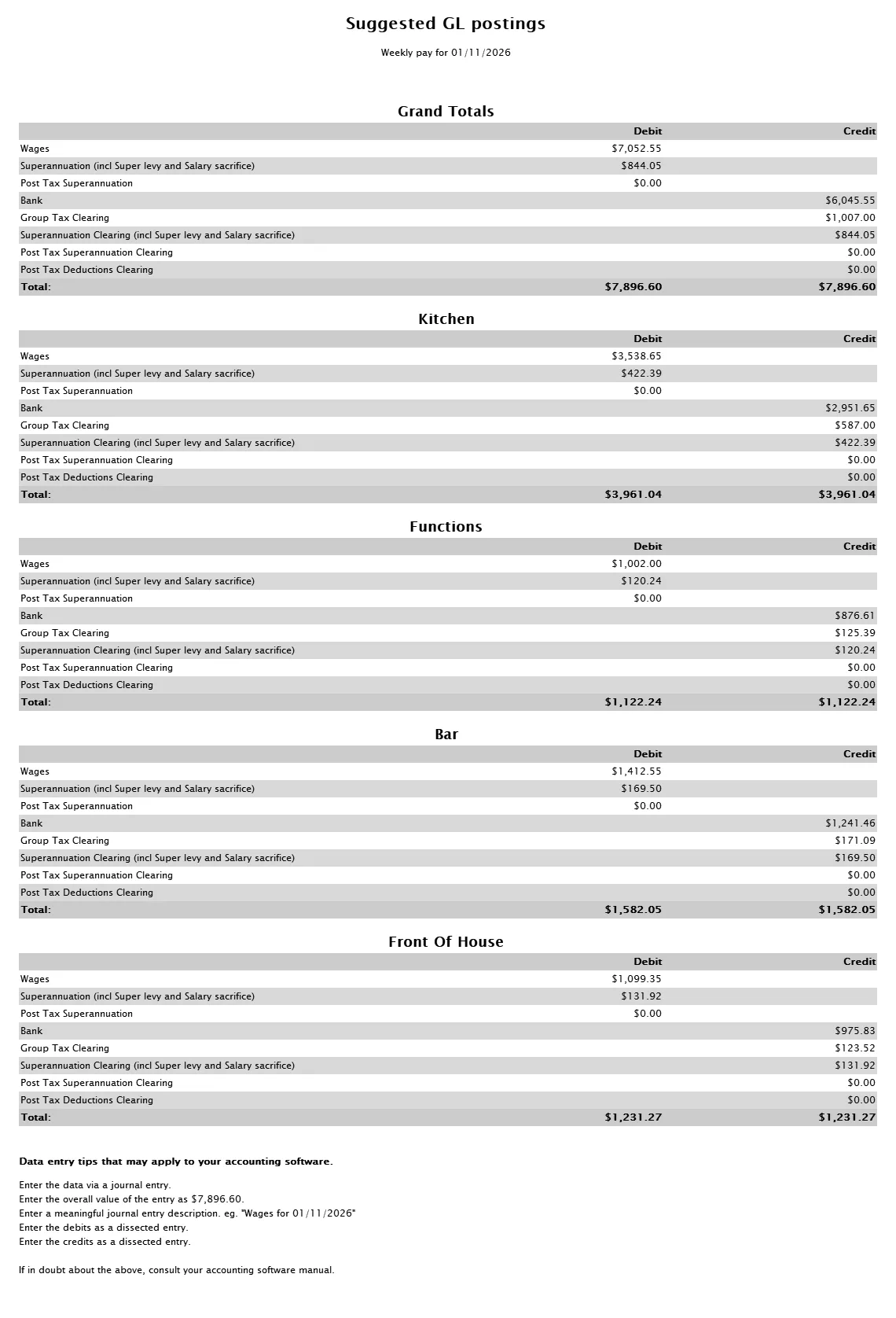
Any share of a pay that is not allocated to a department is shown in a separate Department Unassigned section and is still included in the grand totals. This example has none.
Please note: super (KiwiSaver in NZ), tax and net pay are split in the same proportion as each pay's gross. In the example, Kitchen's super of $422.39 is each pay's super multiplied by that pay's Kitchen percentage, added up. It is not the super worked out on Kitchen's wages alone.
Department account codes in your GL export
To give each department its own account code in the GL CSV, set it up once on the GL Codes screen.
- Go to Company >> GL Codes.
- Click the pencil icon beside the pay category, for example Wages.
- Tick Split By Department (When Applicable).
- Enter an Account Code for each department in the department codes table.
- Click Save.
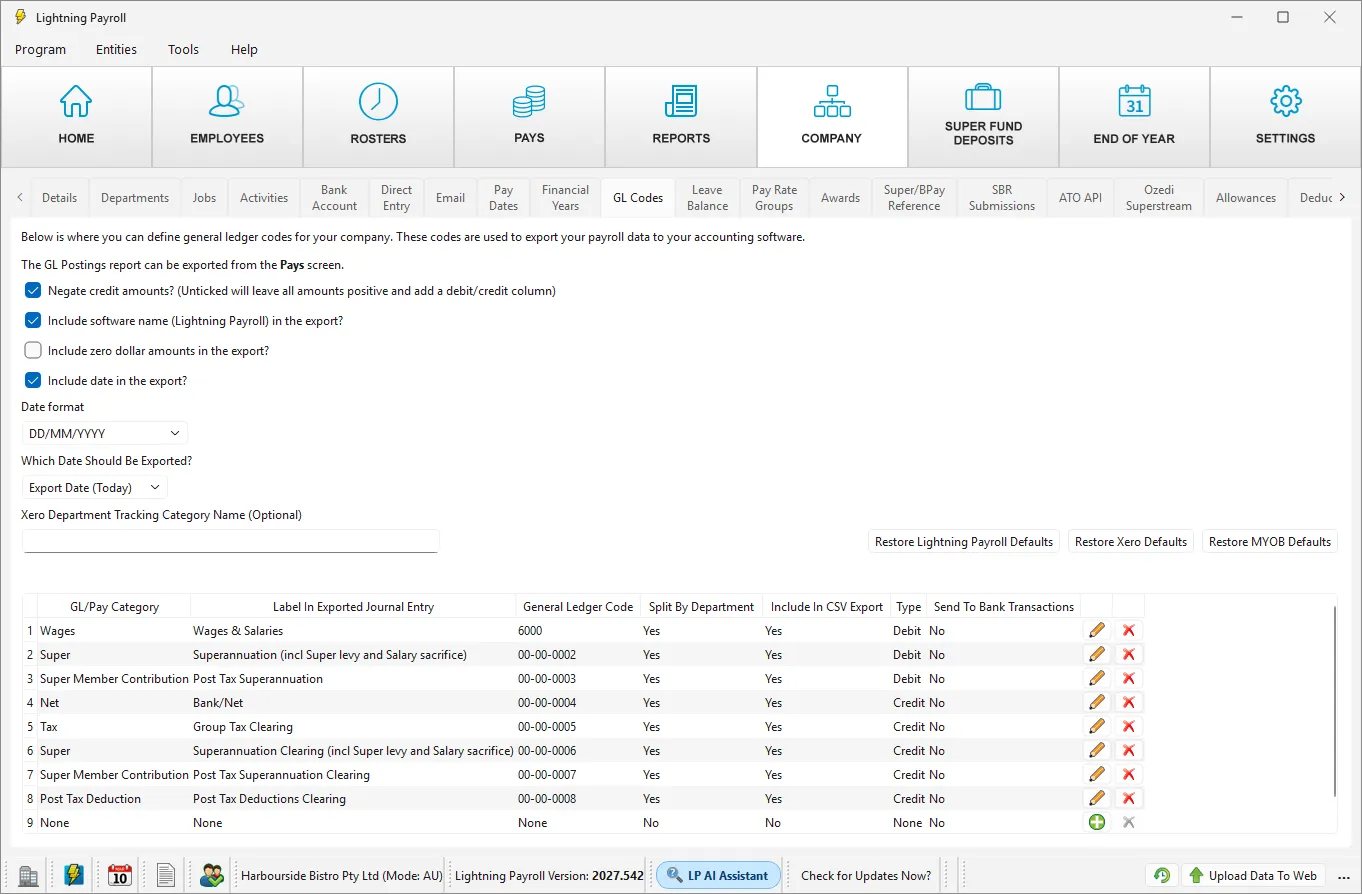
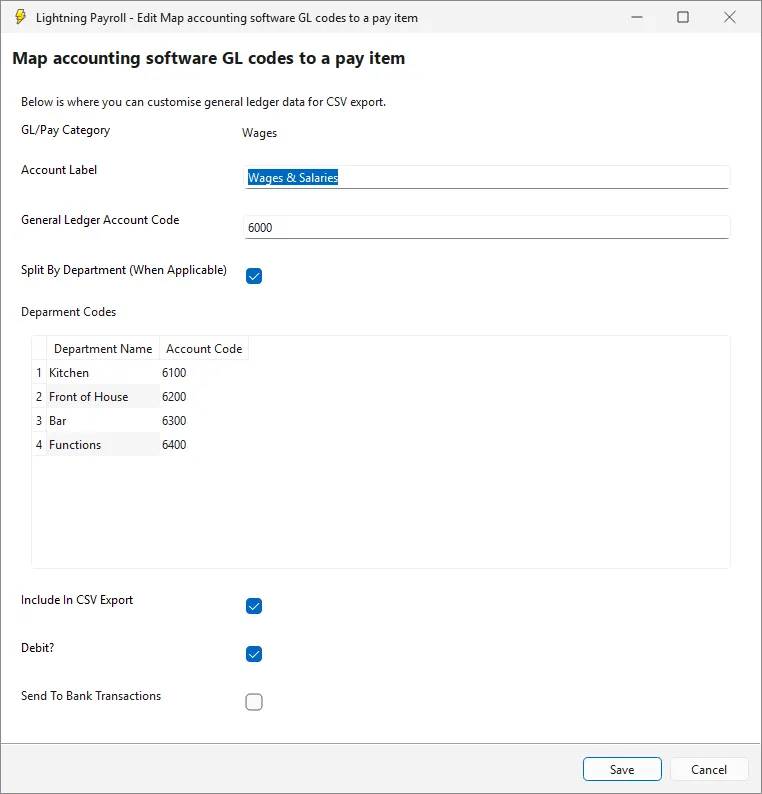
When you then choose Pays >> Reports >> GL Postings (CSV Export), the Wages category is exported as one line per department, with the department name added to the label. Each line below shows the account code, the label and the amount:
- 6100, Wages & Salaries - Dept: (Kitchen), 3538.65
- 6200, Wages & Salaries - Dept: (Front of House), 1099.35
- 6300, Wages & Salaries - Dept: (Bar), 1412.55
- 6400, Wages & Salaries - Dept: (Functions), 1002.00
A department with no account code of its own uses the pay category's main code, and any unassigned share is exported as its own line labelled Dept: (Unassigned). For the full GL setup and export steps, see How Do I Configure and Export GL (General Ledger) Files in Lightning Payroll To My Accounting Software? and How Do I Export GL Postings From A Pay Run?
The department split also flows into journals sent to Xero and MYOB. For Xero, enter your tracking category in Xero Department Tracking Category Name (Optional) on the GL Codes screen. Each department line is sent with the department name as its tracking option, so the option names in Xero must match your department names, and any unassigned share is sent as Unassigned. See How Do Department Assignments Work and Why Are Some Unassigned? for the Xero details.
Report Builder and saved custom reports
The Pay Report Builder (Reports >> Pay Report Builder) has a Group By Department option. It splits each money column across the departments saved on each pay, so with Advanced Departmental Options on it uses the tag-based split. Saved custom reports (Reports >> Launch Custom Reports) made from the Pay Report Builder work the same way.
The Employee Report Builder works differently. It always uses each employee's current percentages under Employees >> Details >> Departments and does not use the tags.
Payroll dashboards
The Department gross card on a payroll dashboard (Reports >> Dashboards in the desktop app) splits completed gross by each pay's department allocation, so it also follows the tags. Any share not allocated to a department shows as Unassigned Department. Australian customers can see how to add the card in How do I customise a payroll dashboard and see wages by department?
Job and Activity
The Job and Activity fields on the same screens are saved with each pay, but no report, export or dashboard shows Job or Activity figures at the moment, and GL postings are split by department only.

