Answer
How do I set up Payroll Dashboards in Lightning Payroll?
Payroll Dashboards put the answers to everyday payroll questions on one screen, and each card answers one question. In the online app, open Reports, scroll down to the Dashboards section and choose Payroll Dashboards. In the desktop app, open Reports and choose Dashboards under Custom Reports.
Pages are shared by everyone who can open dashboards for the company, so if a colleague has already made one, it opens on that page. If no one has, the page says Start with a payroll question. If you can edit Reports, choose Create dashboard to build a page from scratch, or one of three ready-made templates: Payroll overview, Reporting and payments, or People and data quality. If no buttons appear, your login can view Reports but not edit them, so ask someone who can edit Reports to create the first page.
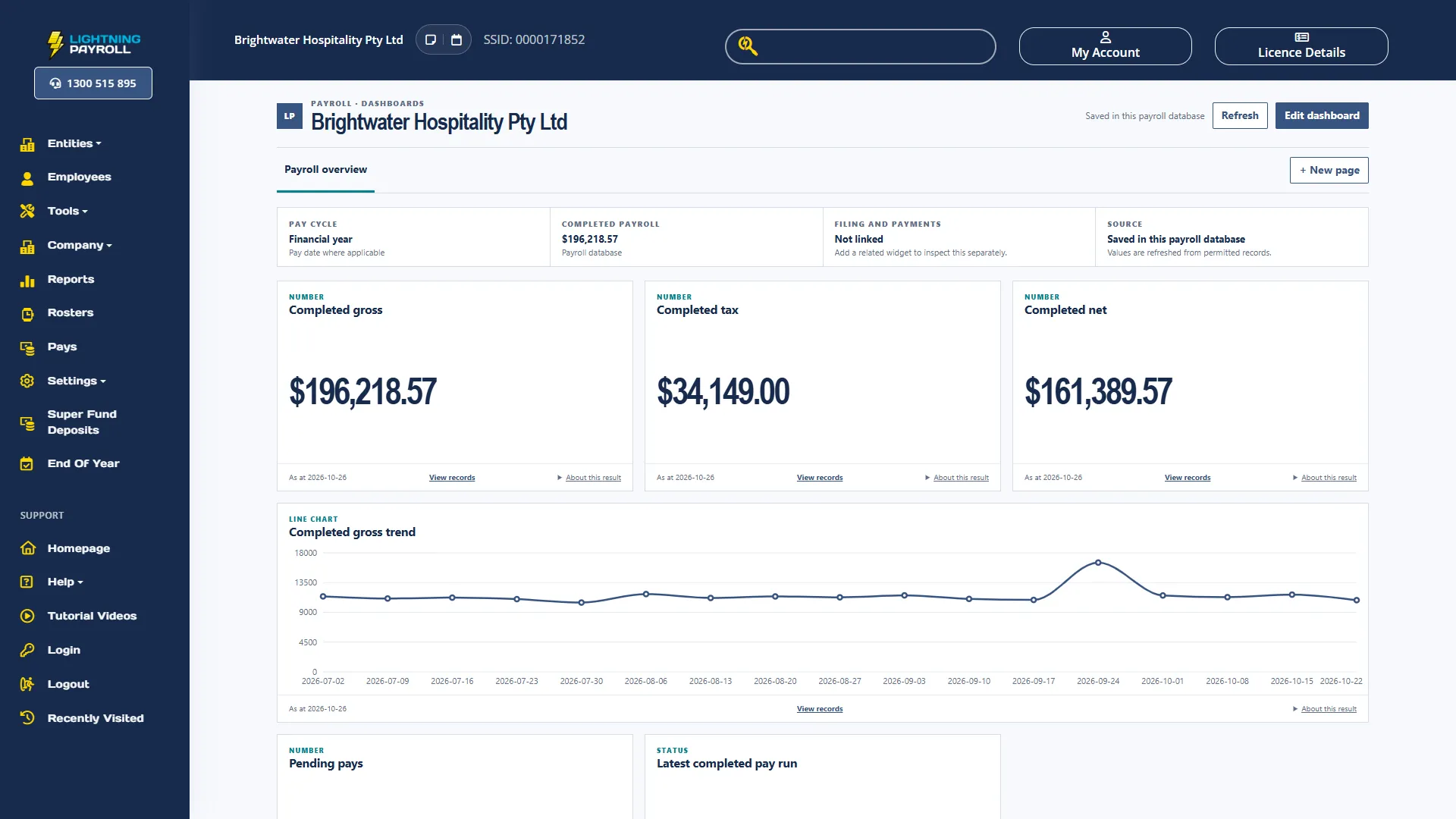
Start with Payroll overview. One click builds the whole page, saves it and opens it in edit mode, so choose View dashboard to see it as your team will. The page shows Completed gross, Completed tax and Completed net for the current financial year, a Completed gross trend with one point per pay date, Pending pays and Latest completed pay run. The strip across the top shows the page's period under Pay cycle. Filing and payments shows Not linked until the page has an STP or SuperStream card, which is expected.
Each pay counts once it is completed. Pays you have not completed yet stay out of the totals and the trend, and are counted in Pending pays when their pay date is in the period. Latest completed pay run shows the period end date of the newest pay run with completed pays, whatever the period, so its date can be outside the period or in the future.
Completed gross, tax, net and the trend match pays by pay date, which here means the pay run end date, the same date reports use by default. To match by the date each pay was finalised instead, change Date basis to processed date in the card's settings. Pending pays always uses pay date. Single Touch Payroll figures normally use processed date, so choose processed date when you compare a card with STP. A figure can also differ from a report run over different dates.
Open About this result on any card to see its date basis, the timezone used to work out today's date, and its source. The card footer shows the date the figures are as at. Opening or refreshing a dashboard never runs a pay calculation, lodges anything or moves money. In view mode cards refresh every minute and when you come back to the page, except Data validation, Leave balances and HR compliance, which refresh when the page opens or when you choose Refresh.