


Answer
The Job and Activity Analysis report shows what your pays cost for each job or each activity over a date range. It is in the desktop app only, and its button appears when Advanced Departmental Options is turned on. It uses the Job and Activity tags set on shifts, pay rates, allowances and bonuses. See How Do I Set Up Jobs And Activities In Lightning Payroll Desktop? if you have not set these up yet.
How to run the report
- Click Reports in the main navigation.
- Under the Pay section, click Job and Activity Analysis. It is listed below Departmental Analysis.
- Set the Start Date and End Date.
- Tick Include Super? (in NZ mode, Include KiwiSaver (Employer)?) if you want employer contributions included in the amounts.
- Tick Use Processed Date if you want pays filtered by the date they were processed rather than the pay end date.
- In Group by, choose Job (the default) or Activity.
- Click OK.


Reading the report
The report is titled Job Report or Activity Report. It has a section for each job (or activity), listing each employee whose pays have a share in it, with the Amount and the Employee Percentage. Each section ends with a Sub-total and a Percentage Sub-total, and the report finishes with Total over all jobs (or Total over all activities). This is the same layout as the Departmental Analysis report.
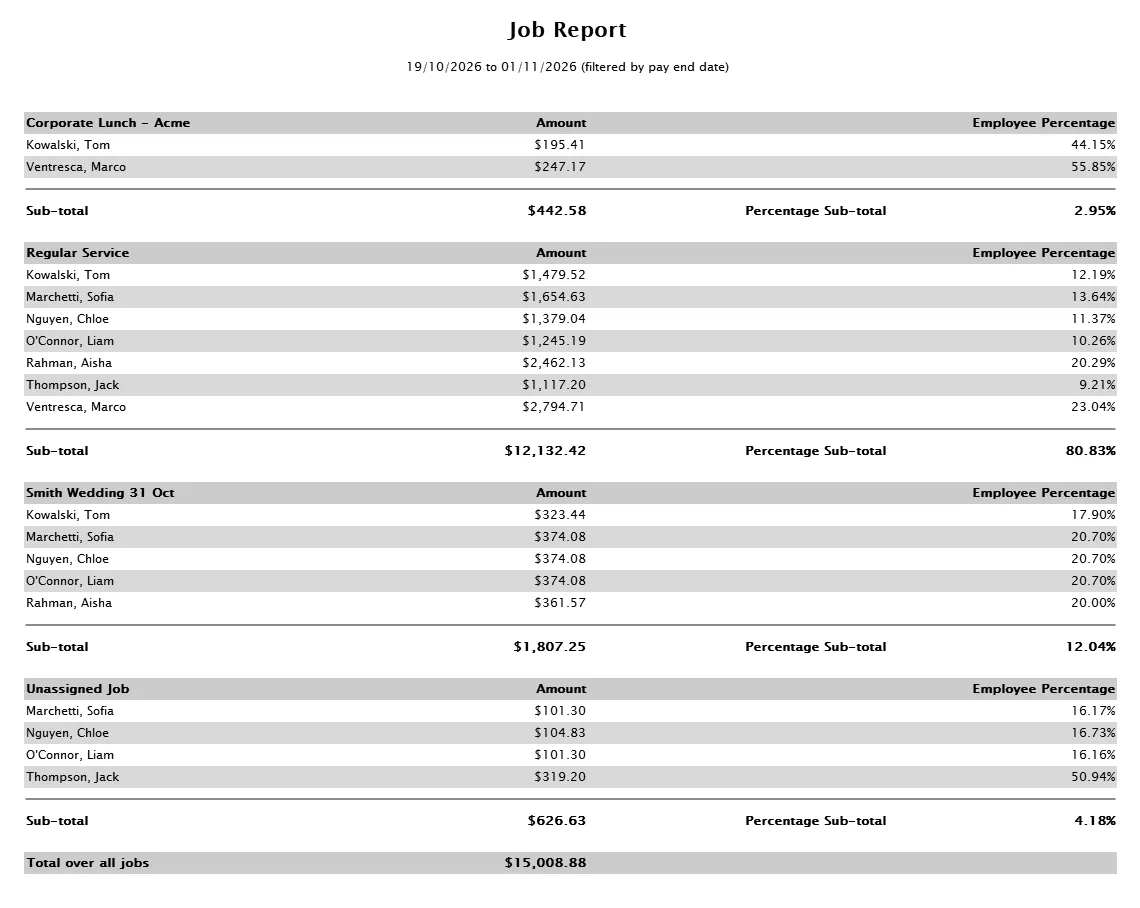
- Amounts are a share of each pay's cost. Each pay's cost, with super added when Include Super? is ticked, is split by that pay's job or activity shares. The report does not show hours.
- Unassigned Job or Unassigned Activity holds the part of a pay that no tag covers, for example leave from an approved leave request rather than a leave shift on the roster. The sections add up to the total.
- In NZ mode, employees paid PAYG holiday pay will show an Unassigned share, because the 8% holiday pay is not tagged to a job or an activity.
To reduce the Unassigned amounts
Tag the shift, pay rate, allowance or bonus that the cost came from. See How Do I Tag Pay Rates, Allowances And Bonuses With A Department? Pending pays pick up new tags the next time you open the Pays screen. Completed pays keep their split, and there is no tool to change the job or activity split of a completed pay. The Retrospective Tool can only change a department split.
Please note: GL postings, Xero and MYOB journals do not split by job or activity.
To build your own report by job or activity, see How Do I Group The Pay Report Builder By Job Or Activity? For departments, see How Do I Run a Departmental Analysis Report?

