


Answer
Jobs and Activities let you track pay costs by what the work was for, as well as by department. A job is usually a piece of work or a customer, such as a wedding or a corporate lunch. An activity is the kind of work done, such as food prep, service or stocktake. Jobs and Activities appear when Advanced Departmental Options is turned on. See How Do I Turn On Advanced Departmental Options And Tag Shifts? if you have not done that yet.
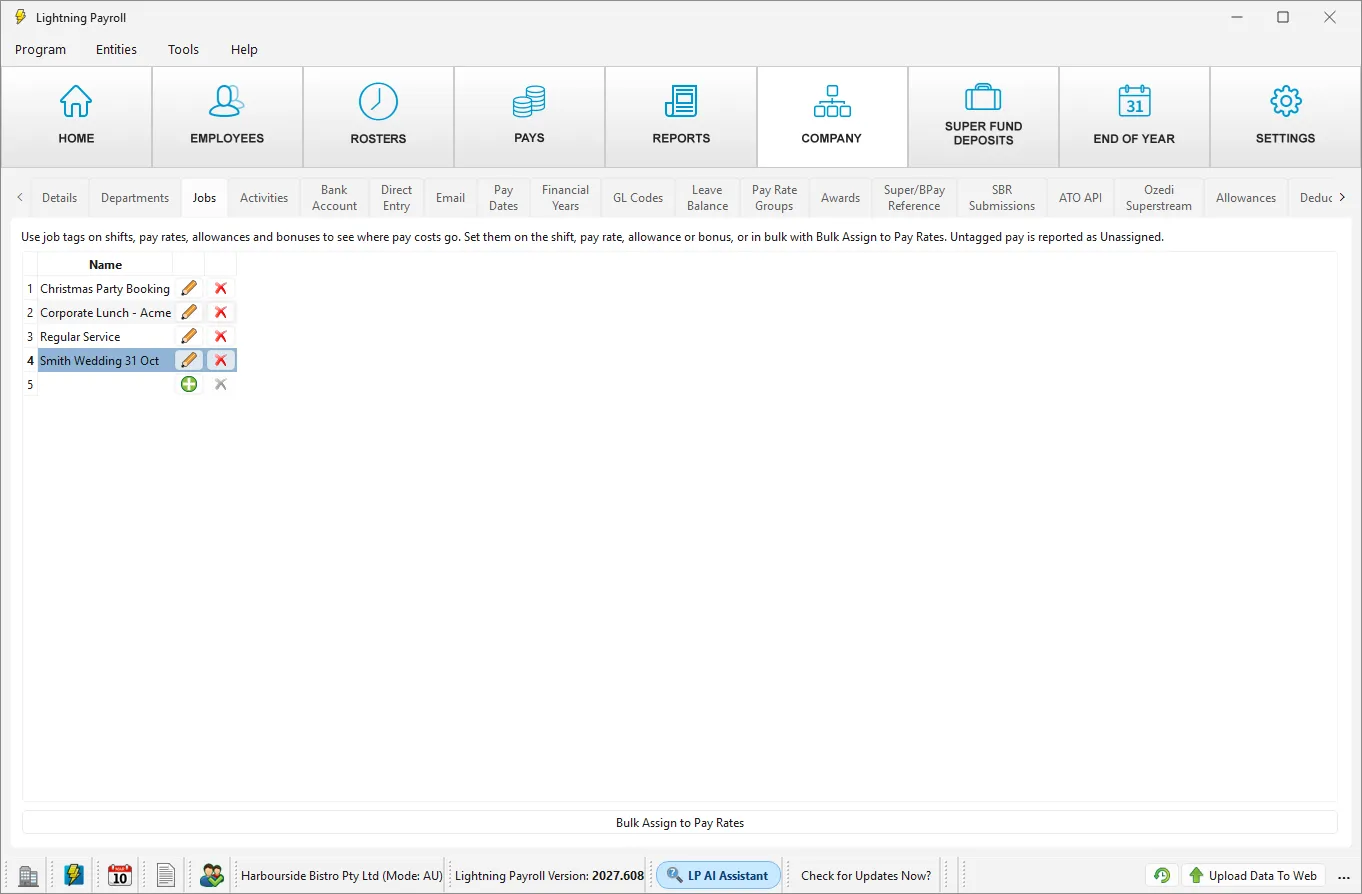
Create your jobs
- Go to Company >> Jobs.
- Click the green plus (+) icon at the bottom of the list.
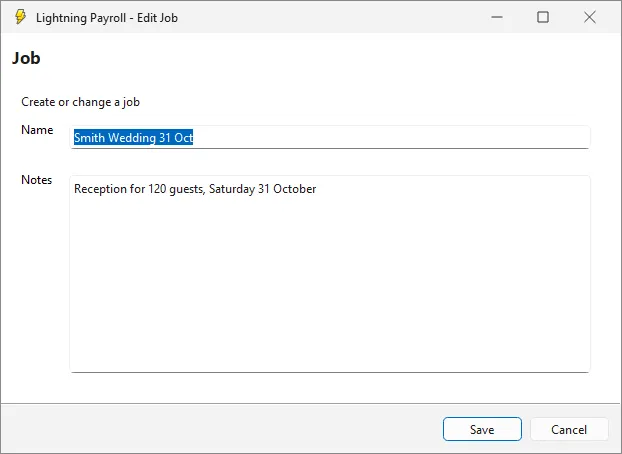
- Enter a Name. This is required, and each job needs a different name. You can add Notes if you want to record details.
- Click Save.
Create your activities
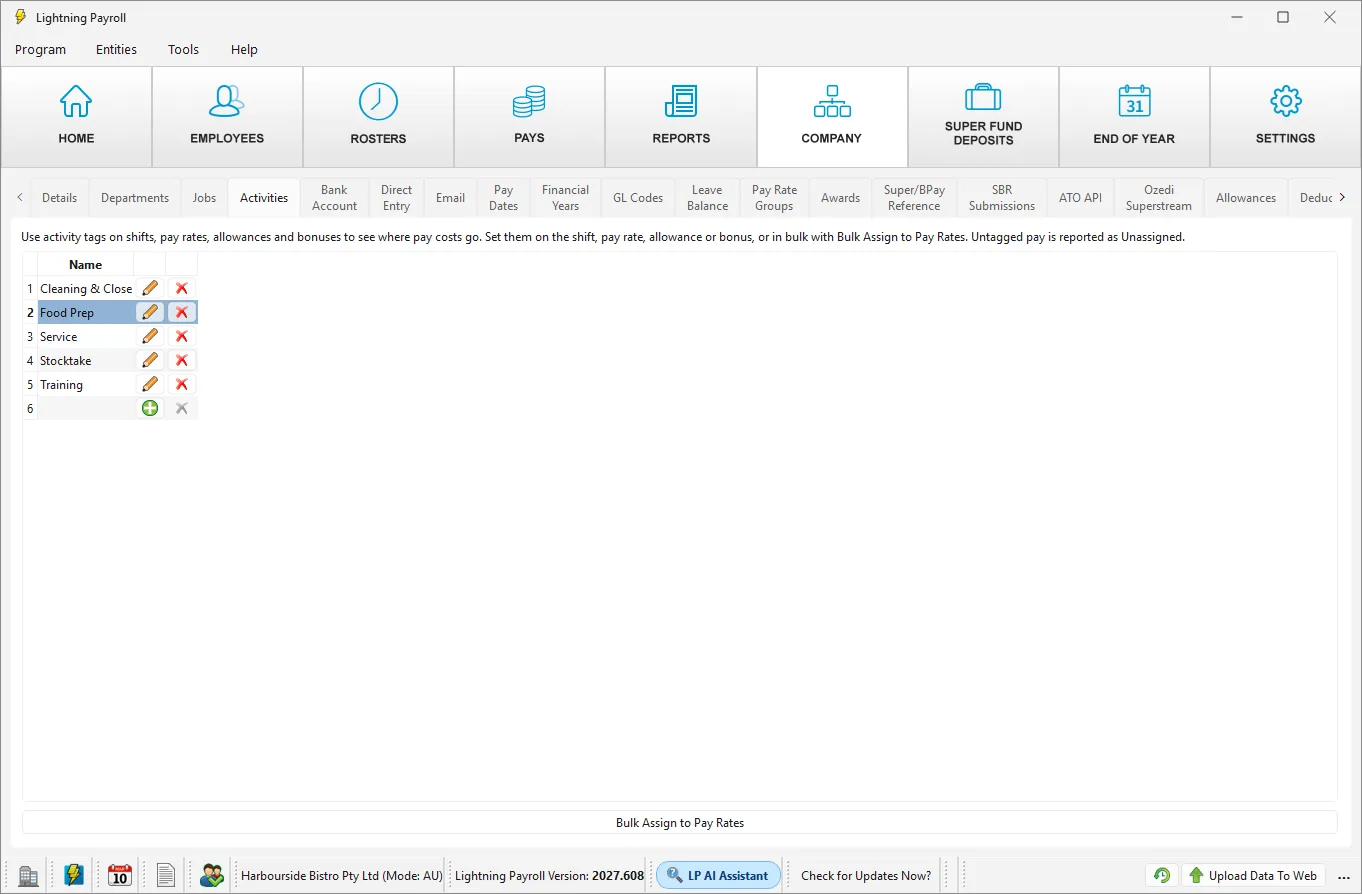
Go to Company >> Activities and use the green plus (+) icon in the same way. Activities also need a unique name and can have notes.
Tag shifts, pay rates, allowances and bonuses
Jobs and activities are used by tagging, in the same places you tag a department:
- company shifts under Company >> Shifts
- company pay rate groups under Company >> Pay Rate Groups
- an employee's special pay rates under Employees >> Pay Settings >> Special User Defined Pay Rates
- company allowances under Company >> Allowances
- an employee's allowances and bonuses under Employees >> Allowances & Deductions
Each of those forms has Department, Job and Activity fields in that order. A tag on a pay rate, allowance or bonus takes priority over the tag on the shift. See How Do I Tag Pay Rates, Allowances And Bonuses With A Department? To apply a job or activity to many employees' pay rates at once, select it on its tab and use Bulk Assign to Pay Rates. See How Do I Bulk Assign A Department To Employee Pay Rates?
Rename or delete a job or activity
Click the pencil icon to rename a job or activity. The new name applies everywhere it is used, including past pays. A job or activity that is used on shifts, pay rates, allowances, bonuses, pay items or processed pays cannot be deleted, and Lightning Payroll shows a Cannot Delete Job (or Cannot Delete Activity) message. Remove it from those shifts, rates, allowances and bonuses first. If it has been used on pays, rename it instead.
In the online app
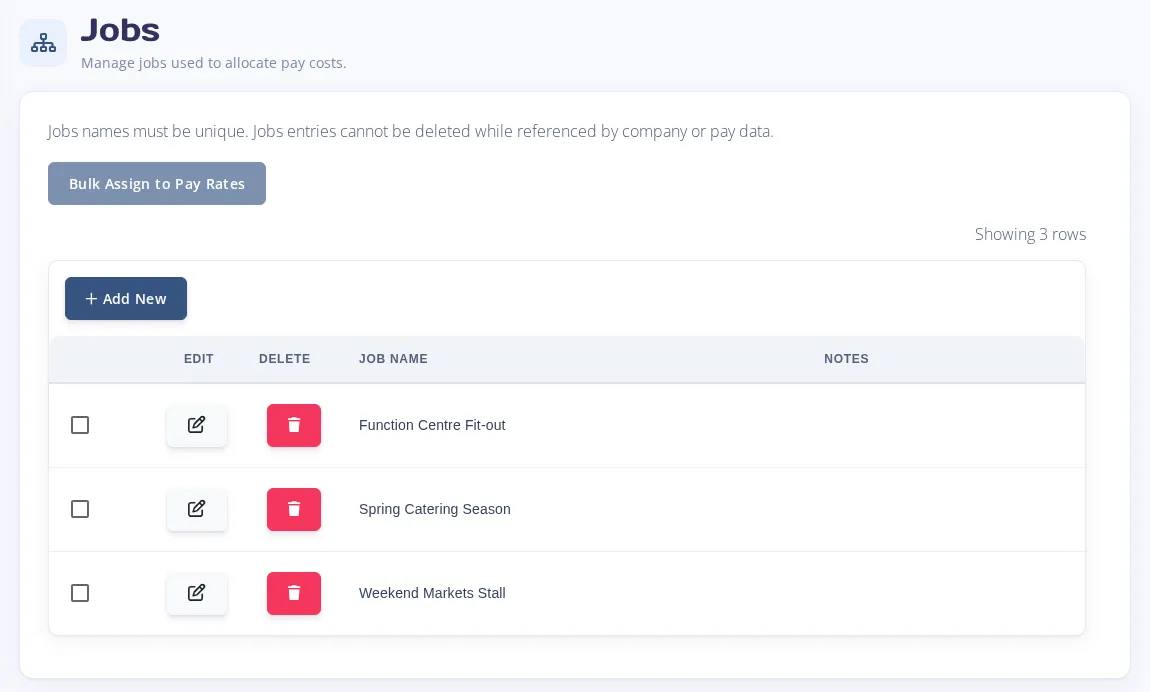
The online app has the same setup. Once Enable Advanced Departmental Options is ticked under Company >> Departments, Jobs and Activities appear in the Company menu. Add each job or activity there with a unique name. The Department, Job and Activity fields appear on the same forms, and the Jobs and Activities pages each have a Bulk Assign to Pay Rates button.
Where the results appear
Once pays are completed, see How Do I Run The Job And Activity Analysis Report? and How Do I Group The Pay Report Builder By Job Or Activity? Both are in the desktop app only.
Please note: jobs and activities do not change gross pay, tax or super. They only change how the cost of a pay is allocated on reports. GL postings and Xero and MYOB journals do not split by job or activity.

