


Answer
Advanced Departmental Options lets Lightning Payroll split each pay across your departments using tags on shifts, pay rates, allowances and bonuses, instead of a fixed percentage per employee. This article covers turning it on and tagging company shifts, which is the first and most important step. If you are still deciding whether it suits your business, read What Are Advanced Departmental Options And Should I Use Them? first.
All of these steps are done in the desktop app.
Step 1: Create your departments
Go to Company >> Departments and click the green plus (+) icon to add each department you want to report on, for example Kitchen, Front of House, Bar and Functions. If you already use departments, they are ready to use. See How Do I Setup Departments? for more detail.
Step 2: Turn the option on
- Go to Company >> Departments.
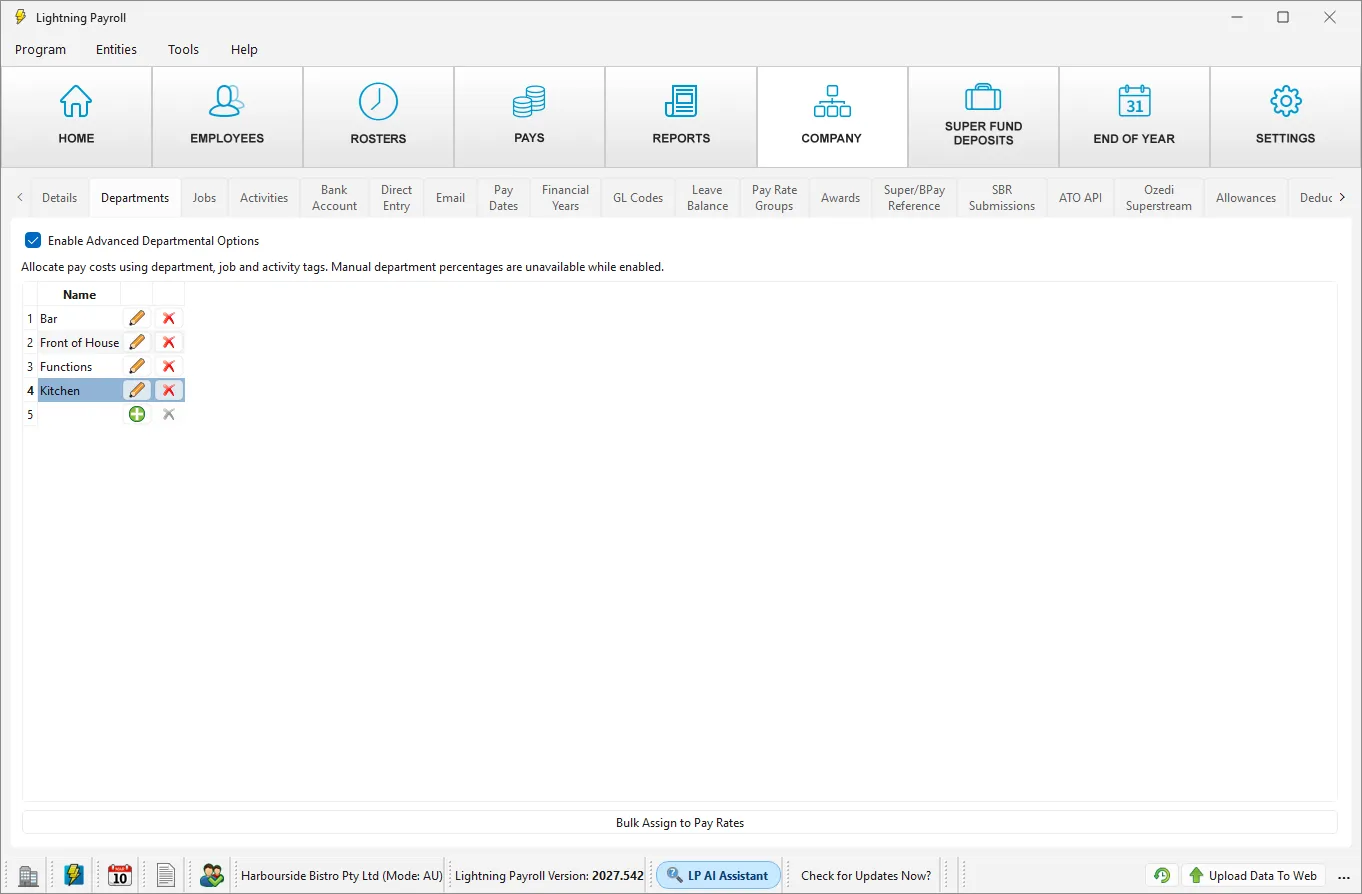
- Tick Enable Advanced Departmental Options at the top of the tab.
Two new tabs, Jobs and Activities, appear next to Departments, and Department, Job and Activity fields appear on company shifts, pay rates, allowances and bonuses. The Bulk Assign to Pay Rates button under the department list also becomes available once you click a department.
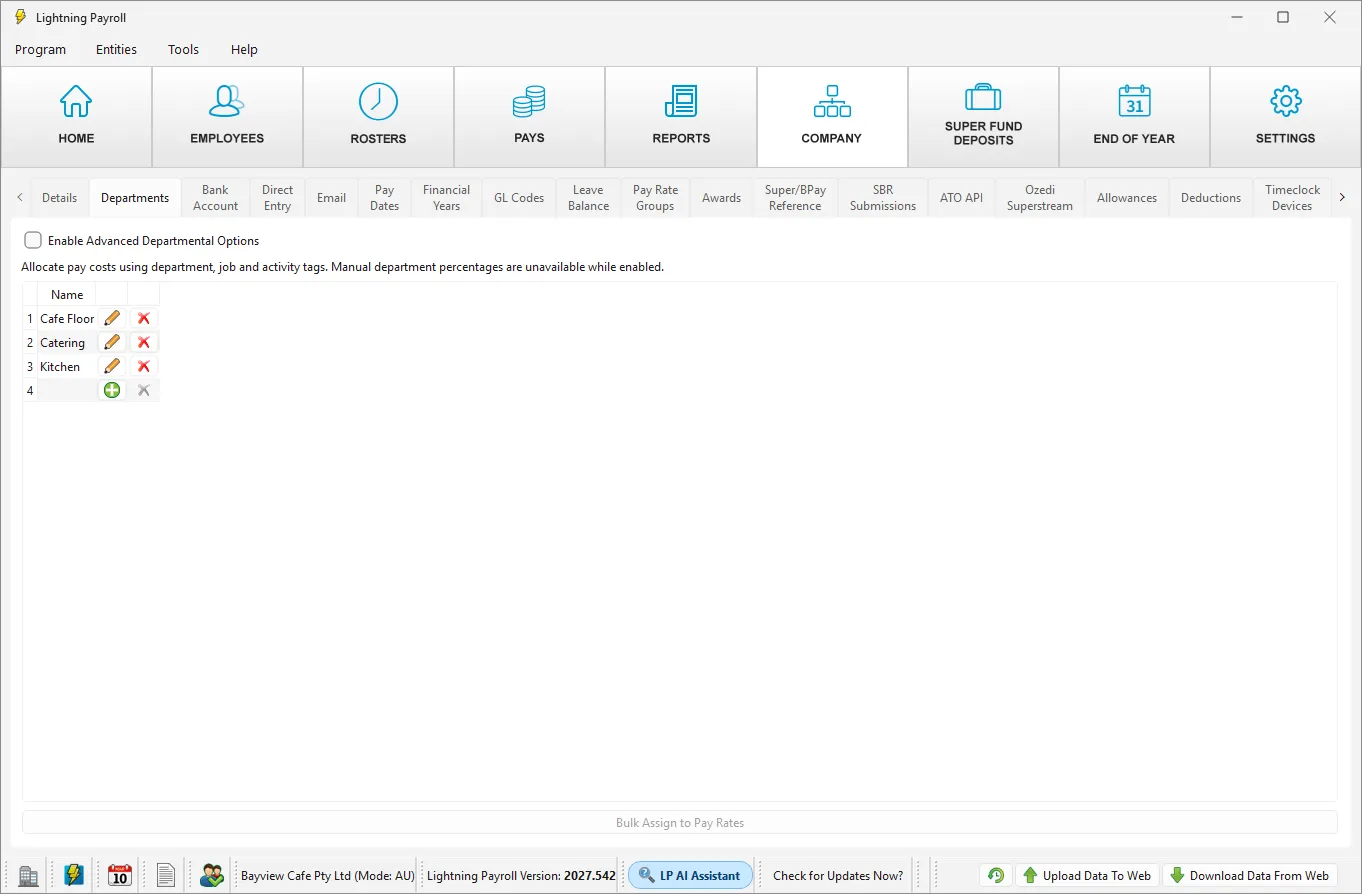
For comparison, this is the same tab for a company that has not turned the option on. There are no Jobs or Activities tabs and Bulk Assign to Pay Rates is greyed out.
Please note: while the option is on, the Department % button in the pay editor is unavailable, because the split is worked out from the tags.
If you work with more than one company and the Jobs and Activities tabs do not appear, or still show for a company that does not use the option, close Lightning Payroll and open it again. Going to another screen and back is not enough.
Step 3: Tag your company shifts
Company shifts are the shift types you roster, such as Kitchen AM Prep or Wedding Function. Tagging the shift means every employee rostered on it is costed to that department.
- Go to Company >> Shifts. The Shifts tab is towards the right-hand end of the Company tabs, after Timeclock Devices.
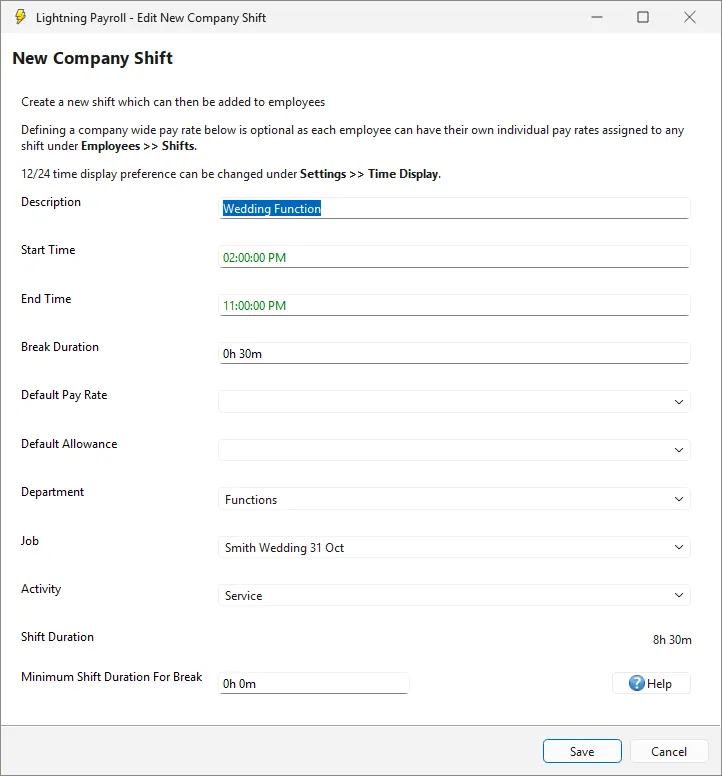
- Click the pencil icon beside the shift you want to tag, or the green plus icon to add a new shift.
- Choose a Department. The Job and Activity fields sit directly below it and are optional.
- Click Save.
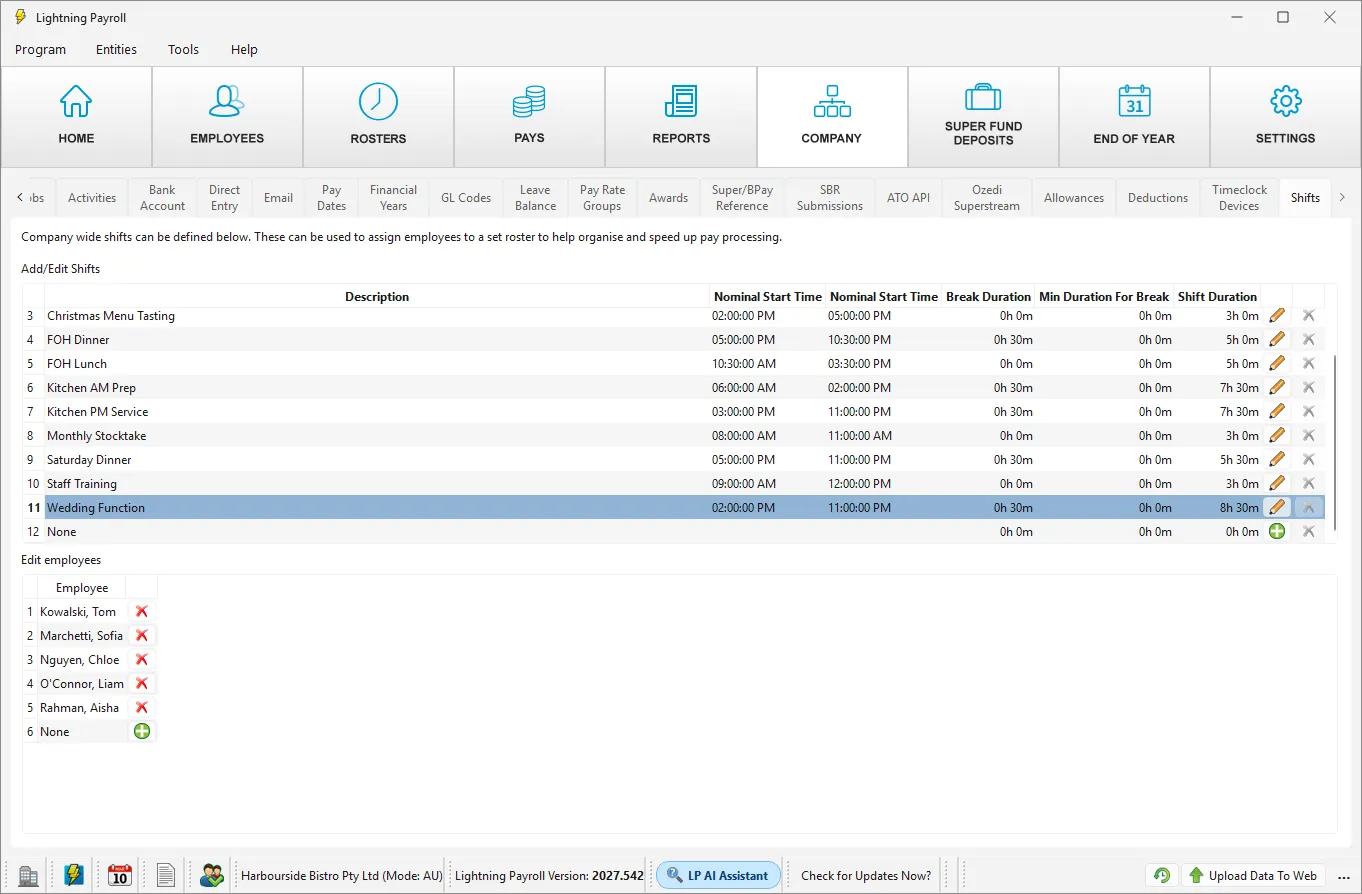
Make sure the employees who work the shift are listed under Edit employees at the bottom of the Shifts tab. Use the green plus icon to add anyone who is missing.
Lightning Payroll copies the shift's tags to every employee on that shift, and the copy is made whether or not the option is switched on. The tag on an employee's own copy of the shift cannot be edited separately. To change it, edit the company shift. To remove a tag, choose the blank entry at the top of the list.
Step 4: Roster the shifts and open the pay run
- Go to Rosters and roster the shifts as you normally would. See How Do I Set Up Rostered Shifts in Lightning Payroll Desktop?
- To check the tags, click Edit Shifts on the Rosters screen. The Department, Job and Activity columns show the tags that each rostered shift carries.
- Go to the Pays screen and open the pay run. Opening the Pays screen rebuilds each pending pay from the roster, and each pay's department split is worked out from the tags.
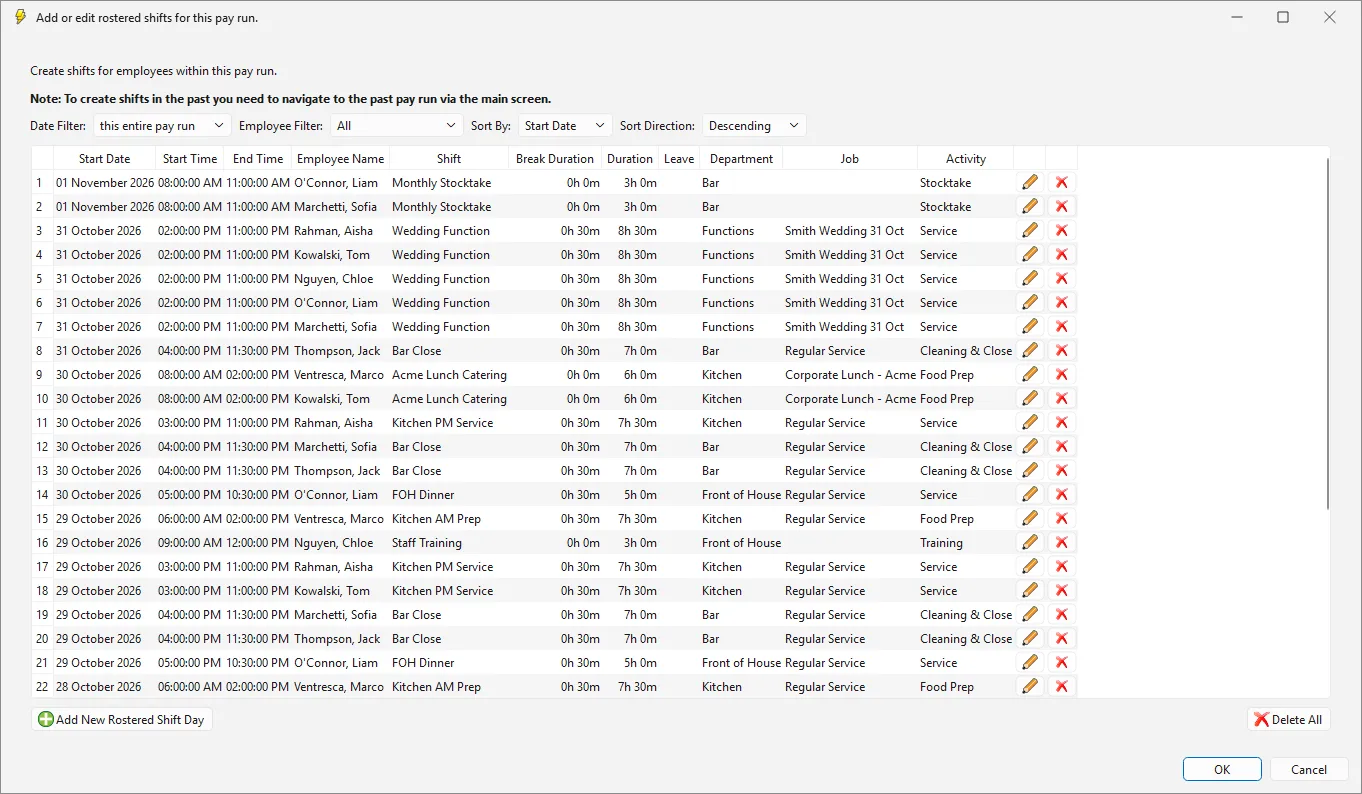
In this example the five staff on the Saturday Wedding Function show Functions, Smith Wedding 31 Oct and Service, while the bar attendant on Bar Close the same night shows Bar, Regular Service and Cleaning & Close.
Only pending pays pick up new tags. Pays that are already completed keep the split they had when they were completed. Hours or bonuses you add by hand in the pay editor do not change the split, so make your changes on the roster, rate, allowance or bonus before you edit and save the pay.
Shifts are not the only thing to tag
Shift tags cover the hours worked on rostered shifts. Pay rates, allowances and bonuses can carry their own tags, which take priority over the shift's tag. See How Do I Tag Pay Rates, Allowances And Bonuses With A Department? To apply one department to many employees' pay rates at once, see How Do I Bulk Assign A Department To Employee Pay Rates?
Please note: the Department Allocation field on an employee's own shifts, under Employees >> Shifts, is not used while Advanced Departmental Options is on, and the screen still shows it. Tag the company shift instead.
If you also use the online app: when you add an employee to a shift in the online app, they do not pick up the shift's tags until the shift is saved again. Add employees to tagged shifts in the desktop app, or open and save the shift again afterwards.
Once pays are completed, see How Do Department Tags Appear In Reports And GL Postings? to check the results.

