


Answer
Bulk Assign to Pay Rates applies one department to the special pay rates of several employees in a single step. It is available in the desktop app when Advanced Departmental Options is turned on. See How Do I Turn On Advanced Departmental Options And Tag Shifts? if you have not done that yet.
How to bulk assign a department
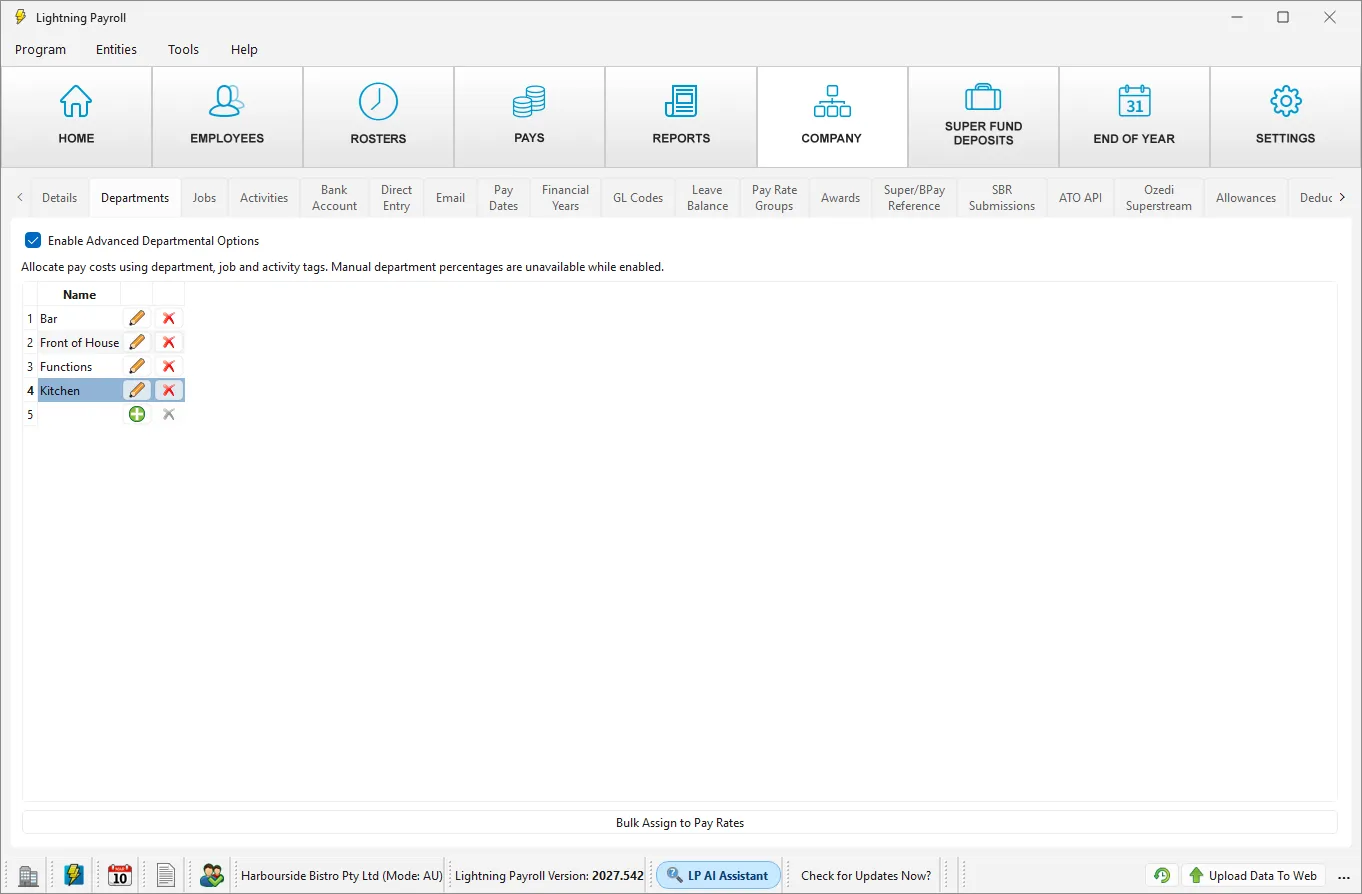
- Go to Company >> Departments.
- Click the department you want to apply. The Bulk Assign to Pay Rates button is greyed out until a department is selected.
- Click Bulk Assign to Pay Rates. A window titled Add employees opens.
- Tick each employee whose pay rates should carry this department. You can use Show department to narrow the list to employees who have a percentage in a particular department, and Select/Deselect All to tick everyone shown. The window shows how many employees you have selected.
- Click Select.
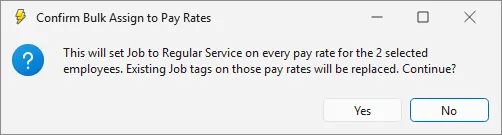
- Read the confirmation message carefully and click Yes to apply it, or No to cancel.
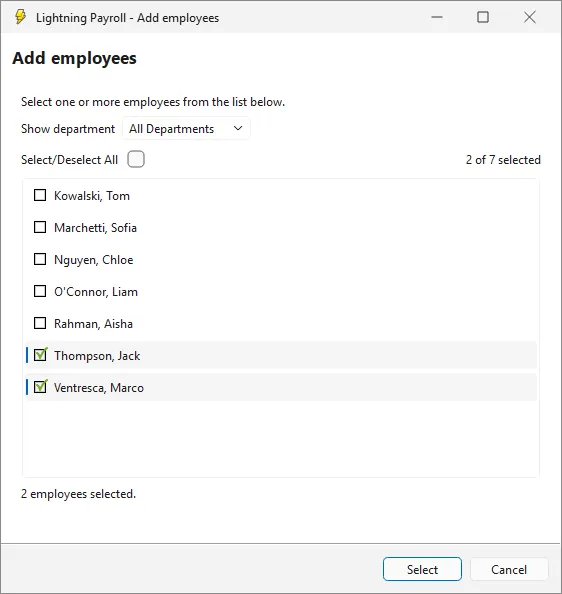
The same button is on the Jobs and Activities tabs, and works the same way for a job or an activity. The confirmation below was taken from the Jobs tab, so it names a job. From the Departments tab the message names the department instead, for example "This will set Department to Kitchen on every pay rate for the 2 selected employees."
Please note: terminated employees are included in the list, with "(terminated)" after their name. Leave them unticked unless you need their rates changed.
What Bulk Assign changes
- It changes the employee's own pay rates only. These are the rates listed under Employees >> Pay Settings >> Special User Defined Pay Rates.
- It does not change company pay rate group rates (Company >> Pay Rate Groups), allowances, bonuses or shifts. Tag those where they are set up. See How Do I Tag Pay Rates, Allowances And Bonuses With A Department?
- It replaces any department already set on those pay rates. The confirmation message warns you of this.
- It cannot clear a tag. To remove a tag, edit the rate and choose the blank entry.
- It is applied immediately. There is no undo button, so check the employees you have selected before you confirm.
- Pending pays pick up the new tag the next time you open the Pays screen. Completed pays are not changed.
Please note: the confirmation message says the department is set on every pay rate for the selected employees. In practice that means each employee's own special pay rates, as described above. An employee who is paid only from a pay rate group is not changed.
Example
At Harbourside Bistro, the front-of-house supervisor is paid her Saturday hours from the Saturday (125%) rate in the Weekend Penalty Rates pay rate group. If you select her in Bulk Assign for the Kitchen department, every rate on her own Special User Defined Pay Rates tab is set to Kitchen, but the Saturday (125%) rate keeps its Front of House tag, because it belongs to the pay rate group. To change that rate, edit it under Company >> Pay Rate Groups, and note that the change applies to everyone in the group.
If you need to change a single rate
Open the employee, go to Employees >> Pay Settings >> Special User Defined Pay Rates, click the pencil icon on the rate and choose a different department, or the blank entry to remove it.
See also: Why Is My Advanced Departmental Options Split Not What I Expected?

