


Answer
When Advanced Departmental Options is on, a department tag can sit on a company shift, a pay rate, an allowance or a bonus. This article covers the tags that are not on the shift. They matter because a tag on a pay rate, allowance or bonus takes priority over the tag on the shift it was worked on. If you have not turned the option on yet, start with How Do I Turn On Advanced Departmental Options And Tag Shifts?
Each of the forms below shows Department, Job and Activity fields once the option is on. Only the Department field is needed for department reporting. To remove a tag, choose the blank entry at the top of the list.
How the tags are combined
- Hours on a rostered shift paid at an ordinary rate take the tags of the shift.
- If the pay rate itself has a tag, the rate's tag is used for that field instead of the shift's tag. A rate with no Department takes the shift's Department.
- An allowance or bonus uses its own tag. If it has none, an allowance that came from a rostered shift uses the shift's tag.
- Anything with no tag at all is not assigned by the tags. See Why Is My Advanced Departmental Options Split Not What I Expected?
New tags are picked up by pending pays the next time you open the Pays screen. Completed pays are not changed.
Company pay rate groups
Use this for award and penalty rates that apply to many employees, for example a Saturday rate that always costs to Front of House.
- Go to Company >> Pay Rate Groups and select the group.
- Click the pencil icon on the rate you want to tag, or the green plus icon to add one.
- Choose the Department (and the optional Job and Activity), then click Save.
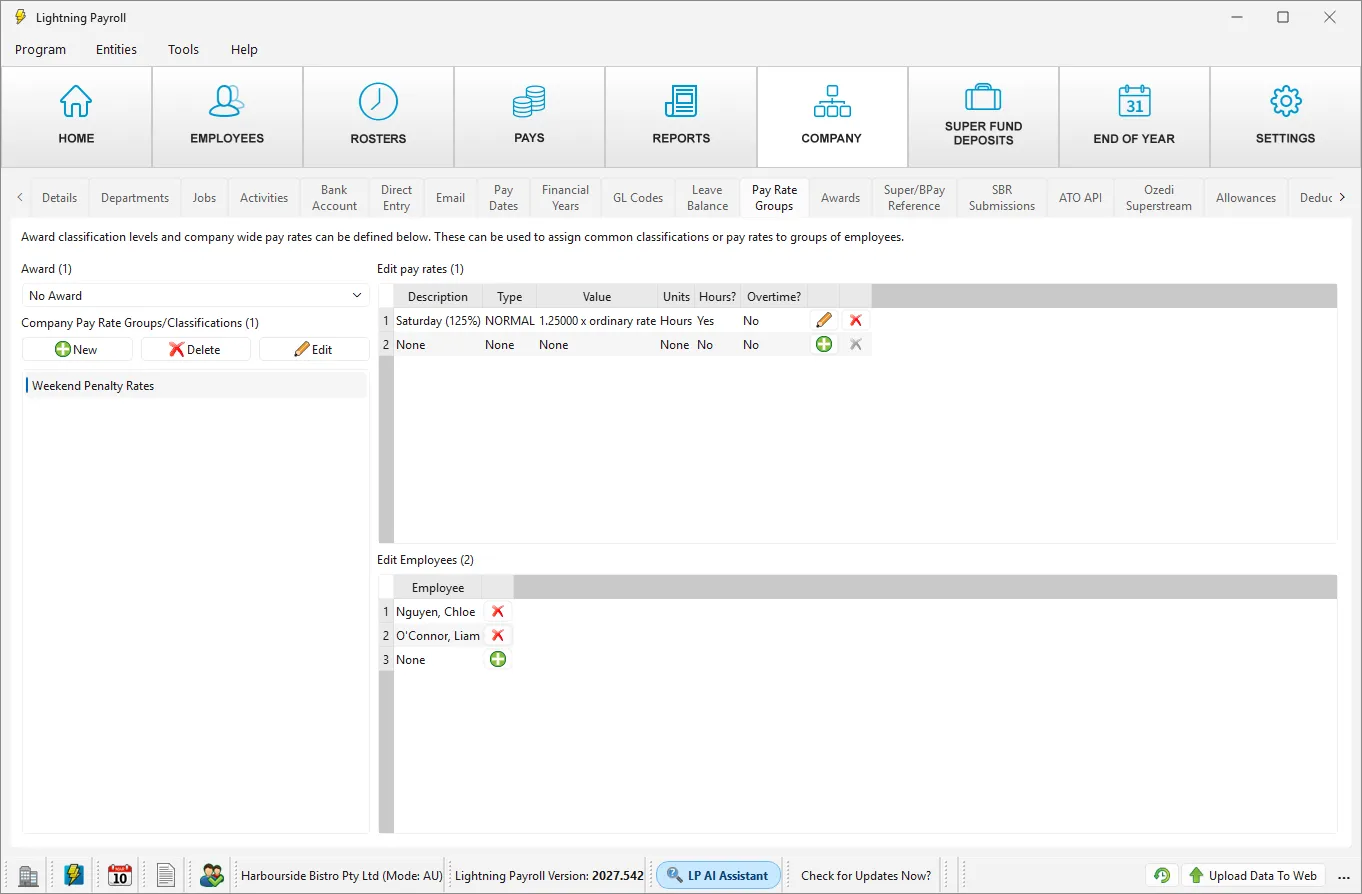
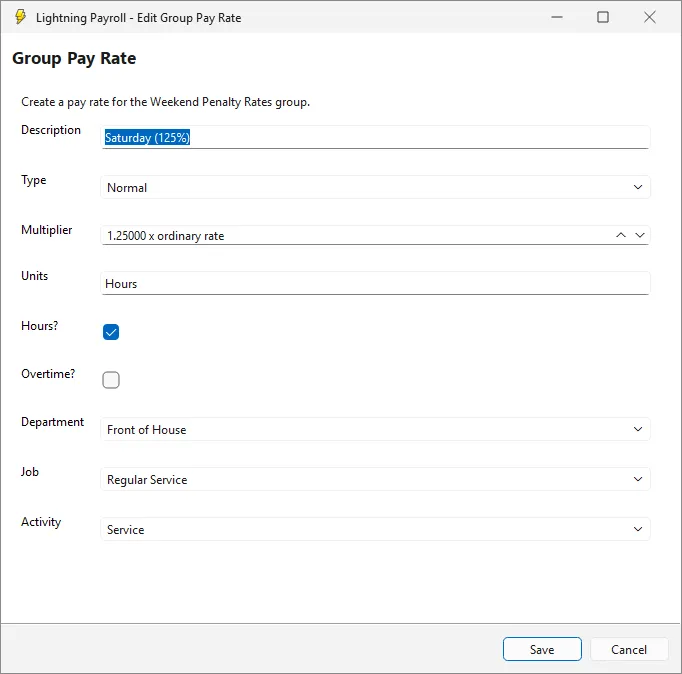
In this example the Saturday (125%) rate in the Weekend Penalty Rates group is tagged Front of House, so Saturday hours paid at that rate cost to Front of House for both employees in the group.
An employee's own special pay rates
Use this when one employee has a rate that belongs to a particular department, such as a function rate for a chef.
- Open the employee and go to Employees >> Pay Settings >> Special User Defined Pay Rates.
- Click the pencil icon on the rate, or the green plus icon to add one.
- Choose the Department, Job and Activity as needed, then click Save.
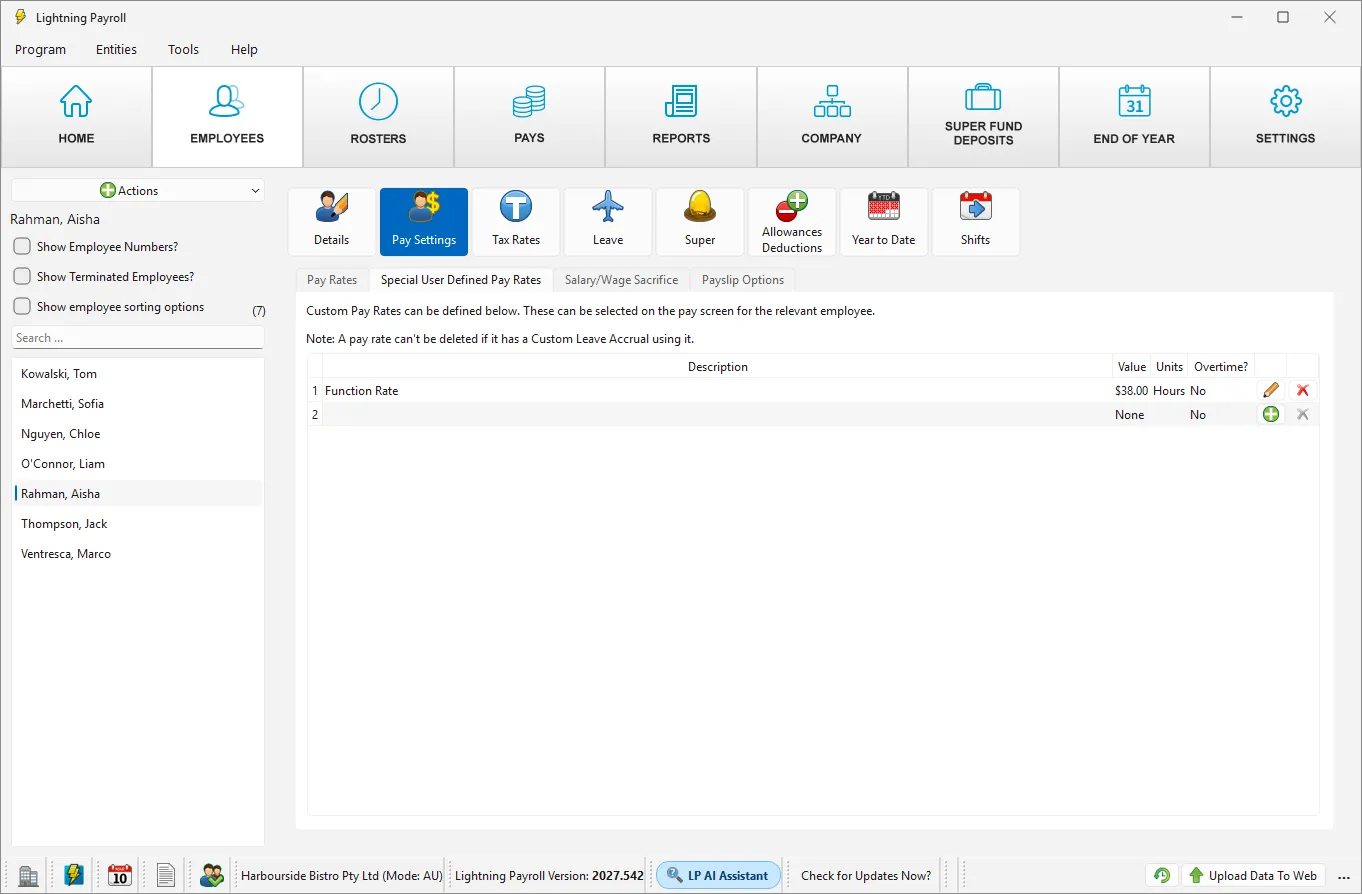
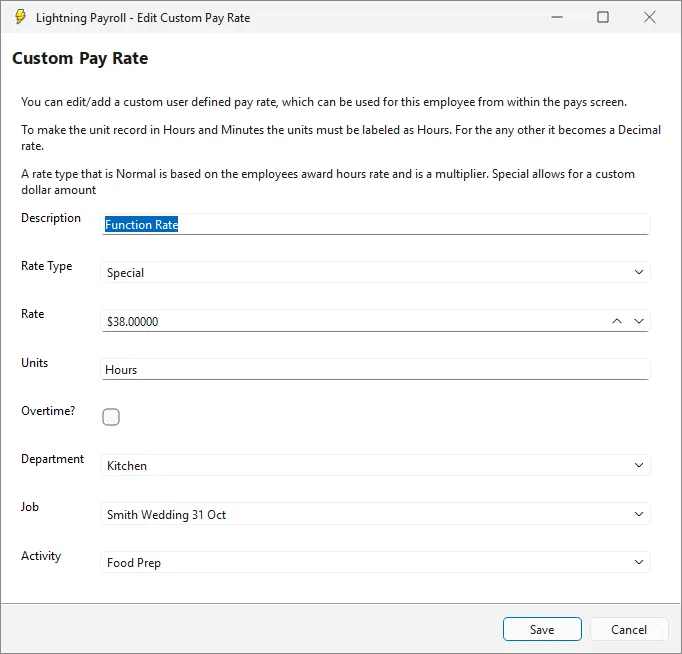
In this example the Function Rate is tagged Kitchen. The sous chef works the Wedding Function shift, which is tagged Functions, but her hours at the Function Rate are costed to Kitchen because the rate's tag wins. If you want those hours to cost to Functions, tag the rate Functions, or set the rate's Department to the blank entry so the hours take the shift's Department. Changing the tag does not change the rate or the pay amount.
Allowances
Company allowances are set up under Company >> Allowances, and an individual employee's allowances are under Employees >> Allowances & Deductions >> Allowances. In either place, click the pencil icon on the allowance (or the green plus icon to add one) and choose the Department, Job and Activity.
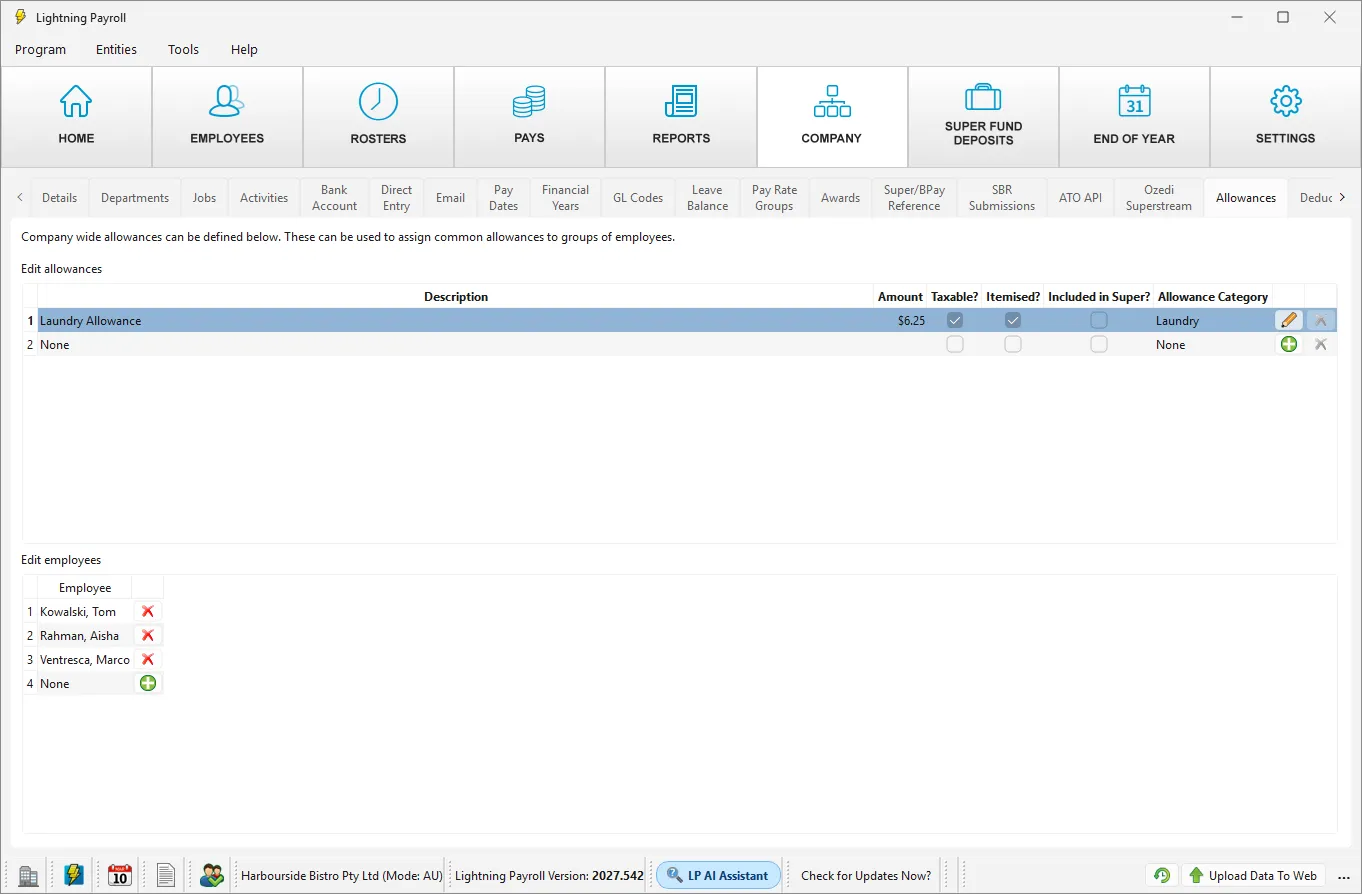
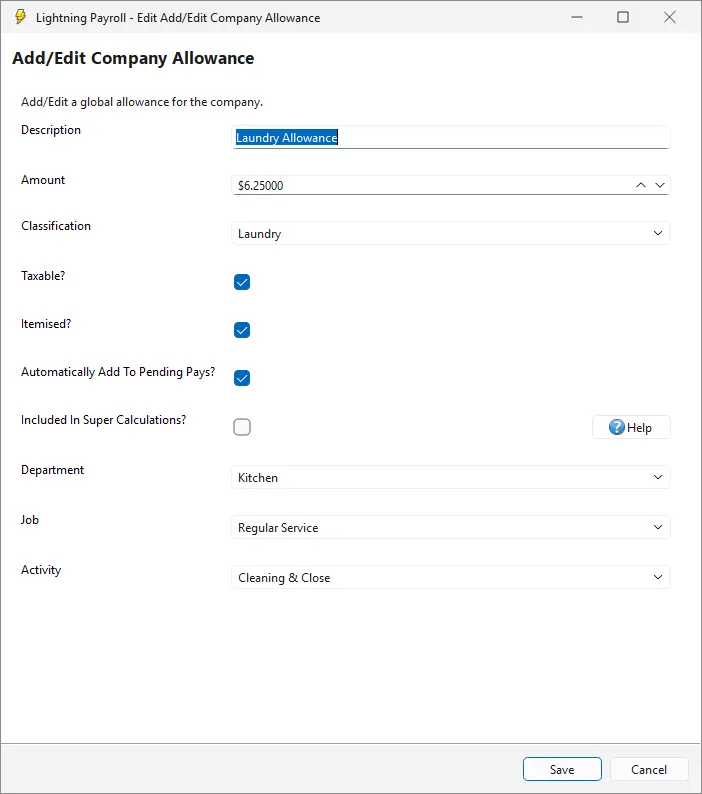
A Laundry Allowance that is tagged Kitchen, for example, is costed to Kitchen for every employee who receives it, even if they worked a Front of House shift that week.
Bonuses
Go to Employees >> Allowances & Deductions >> Bonuses/Misc., add or edit the bonus, and choose the Department, Job and Activity on the bonus form.
- If Automatically Add To Pending Pays? is ticked on the bonus, the bonus is added to each pending pay with its tag, and is costed to that department.
- A bonus you add by hand in the pay editor does not carry the tag. It is shared across departments in the same proportions as the rest of that pay.
Applying one department to many pay rates
If you have many employees whose own pay rates should all carry the same department, use Bulk Assign instead of editing each rate. See How Do I Bulk Assign A Department To Employee Pay Rates?
Please note: the tags on hours, allowances and bonuses that are already on a pay cannot be edited in the pay editor, and hours or bonuses you add in the pay editor do not change the pay's department split. Change the tag on the shift, rate, allowance or bonus itself, then open the Pays screen again so the pending pay is rebuilt before you edit and save it.

