


Answer
Australian companies can import a modern award from the Lightning Payroll award catalogue instead of setting up its rates by hand. Lightning Payroll staff check each award against the Fair Work award before publishing it. The import creates the award with a pay rate group for each classification and employment type you choose, and can also create the award's allowances, deductions and reimbursement categories and attach employees. Nothing is saved until you import.
In the Desktop App
- Go to Company >> Awards and click Import award....
- Choose award: select the award in the Published awards list and click Next.
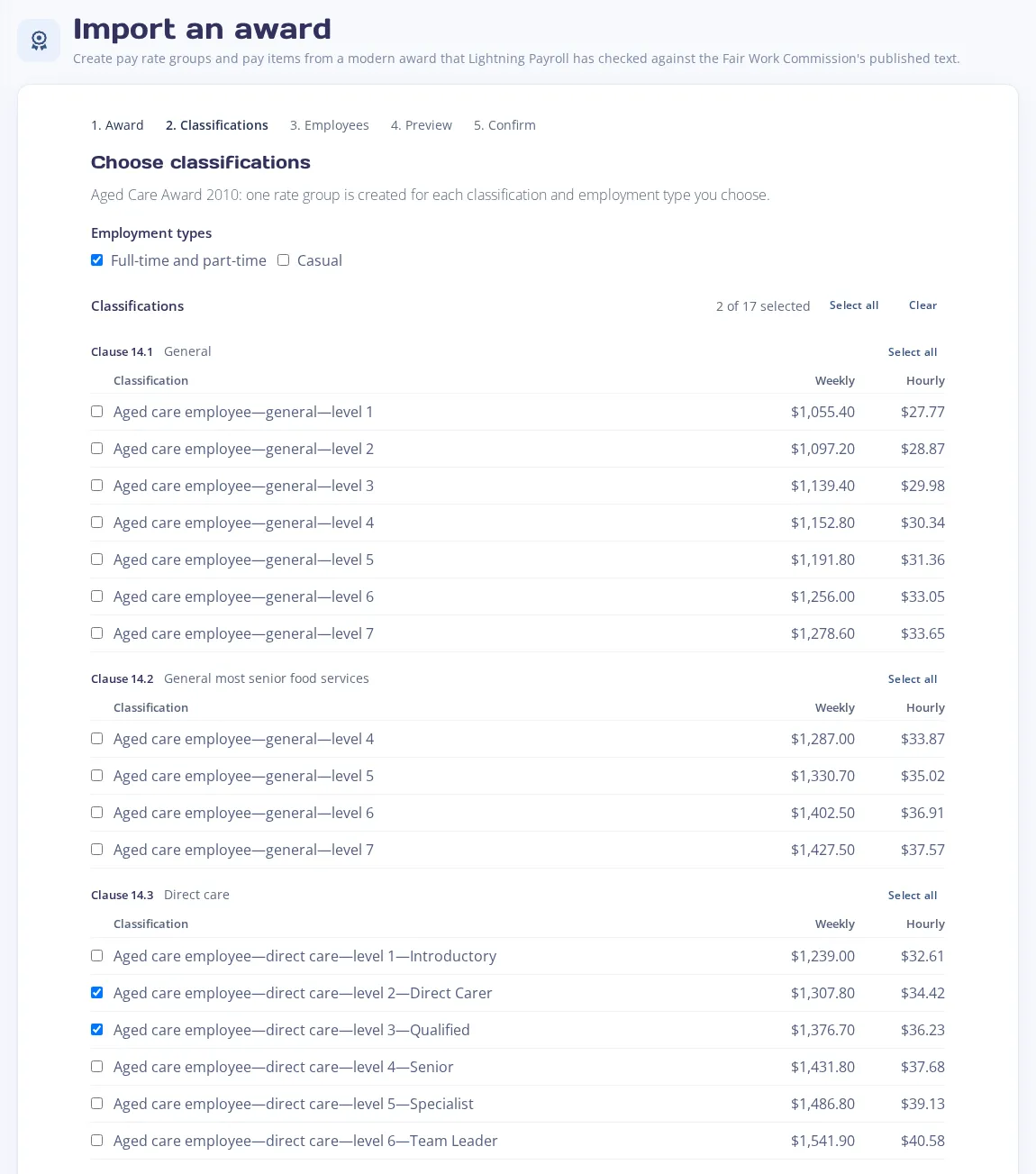
- Choose classifications: tick the classifications your employees are employed under, and next to Employment types tick FT/PT, Casual or both. Below the list, Also create the award's allowances, Also create the award's deductions (not applied) and Also create reimbursement categories are ticked by default; untick any you do not want. Where the award has them, Also import rates for offers Juniors (ticked by default) and Apprentices, and Supported wage offers one tick per band. If the award has all-purpose allowances, tick any your employees get (a leading hand, say) to also create rate groups whose rates include it.
- Choose employees: tick any employees to attach to the award. None are ticked by default.
- Check what will be created: review the Rates, Allowances, Check before importing, Employees, Deductions and Reimbursements tabs. Read the disclaimer, tick I have read this and accept it and click Next.
- Click Import award, then Close.
In the Online (Web/Mobile) App
- Go to Company >> Awards and click Import from award catalogue. You need edit access to Company.
- Award: choose the award and click Next.
- Classifications: under Employment types tick Full-time and part-time, Casual or both, then tick the classifications. Under Also include, Allowances, Reimbursement categories (enter actual expenses on pays) and Deductions (created, not applied to employees or pays) are ticked by default; untick any you do not want. If the award has all-purpose allowances, tick any your employees get to also create rate groups whose rates include it.
- Employees: tick any employees to attach, then click Next.
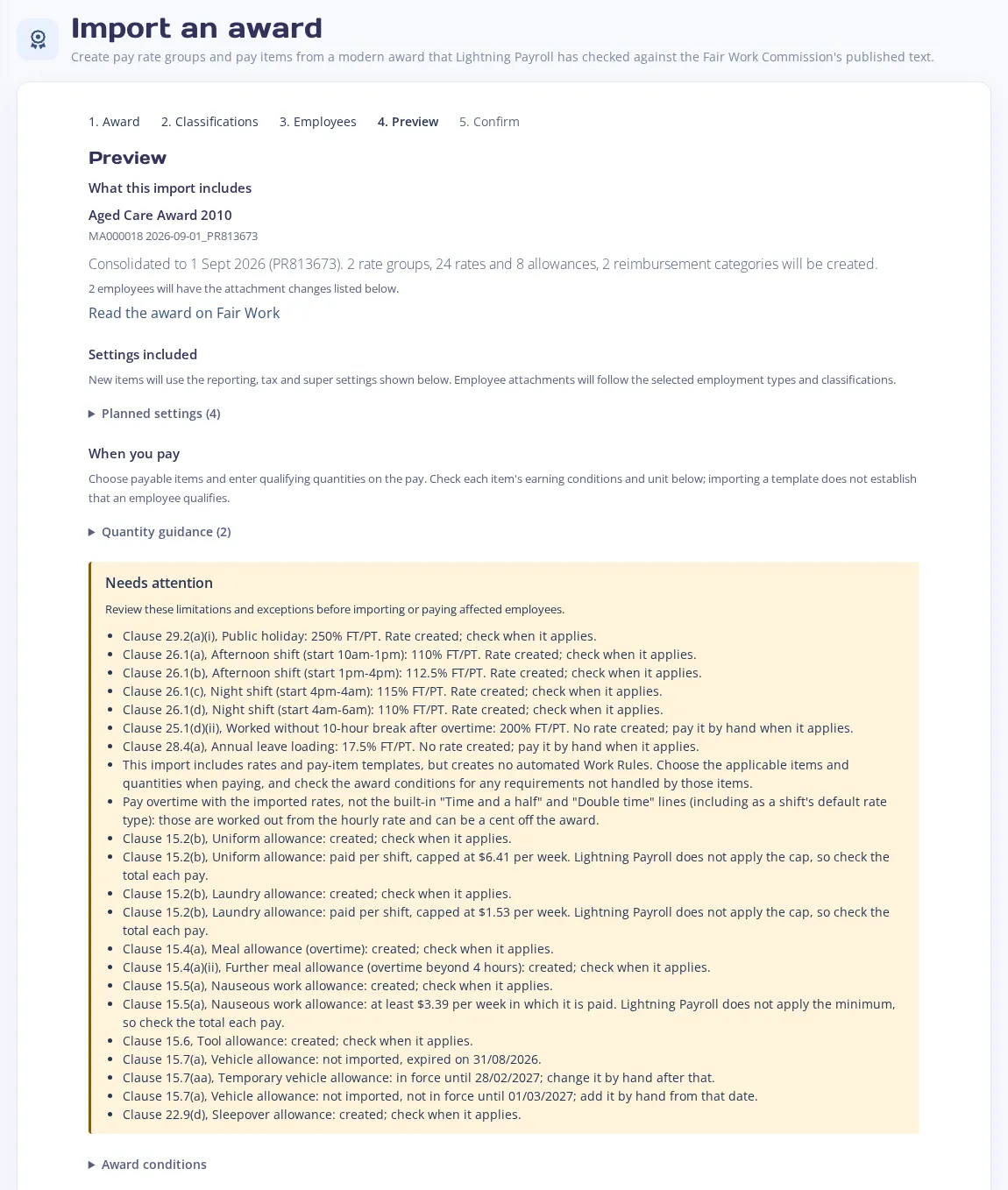
- Preview: check what will be created. Where the award has them, What to import offers Junior rates (by age), Apprentice rates and Supported wage rates (optional). Read anything listed under Needs attention, then click Next.
- Confirm: read the disclaimer, tick I have read this and accept it and click Import award.
Attached Employees
Each attached employee is added to the award's rate groups for their employment type (Casual for casual employees, FT/PT for everyone else) and to its allowances. If that is one rate group, it also becomes their classification and its Ordinary rate becomes their base ordinary rate, so their hourly rate can change; the preview shows any change. Nothing else they have is removed. To add classifications or attach more employees later, import the same award again: what is already imported is kept.
Allowances
The preview shows each allowance's amount, how it is paid, whether it is taxable and included in super, and whether it is added to pays automatically or only when you add it. For an allowance paid per hour, enter the qualifying hours as the quantity on the pay. Where the award pays it per started hour, part hours round up.
An allowance the award reports in gross pay is created with its itemised tick box (Is Itemised? in the online app) unticked, and the preview notes that it is reported to the ATO in gross pay, not as an allowance.
For an untaxed overtime meal (MD) or travel (RD) allowance, a second allowance with (taxable) after its name, before the bracketed award version tag, is also created at $0.00. It is taxed and is never added to pays automatically. Pay up to the ATO reasonable amount on the original allowance, and use the (taxable) allowance only for any part of a payment above that amount.
Deductions
Award deductions are created but not attached to any employee or applied to any pay. Attach a deduction to an employee before you use it. Where the award limits a deduction to a number of pays or a total amount, the preview shows the limit and Lightning Payroll applies it on pays.
Reimbursement Categories
Reimbursement categories are for reimbursing actual expenses, entered as a reimbursement on each pay. Some only cover expenses above an allowance the award pays; for those, the receipt excess calculator on the pay works out the amount. Entering reimbursements on a pay needs the HR Suite add-on. See How Do Reimbursements Appear On A Pay And Payslip?
Supported Wage Rates
Supported wage rates are only imported for the bands you choose. In the desktop app, tick the bands next to Supported wage. In the online app, open Supported wage rates (optional) on the preview, choose a Supported wage band and click Add band, or tick Trial. Choosing a band does not assess an employee's capacity or select their wage percentage.
Put the employee on the rate group of their assessed percentage (the trial group during their trial). Where the band has a weekly minimum, its rate group includes a Supported wage weekly minimum rate whose name says when to use it. Pay it instead of Ordinary in a week whose ordinary pay would be less.
Classifications Without Rates For An Employment Type
Some awards give a classification no rates for an employment type, for example no casual rates. No rate group is imported for that classification and employment type, and the preview says so: on the Check before importing tab in the desktop app, and under Needs attention in the online app. Pay those employees by hand, as the award says.
Importing an award does not establish that an employee qualifies for a rate or allowance. Check each item's earning conditions when you pay.

