Answer
How do I check STP, SuperStream and data validation on a payroll dashboard?
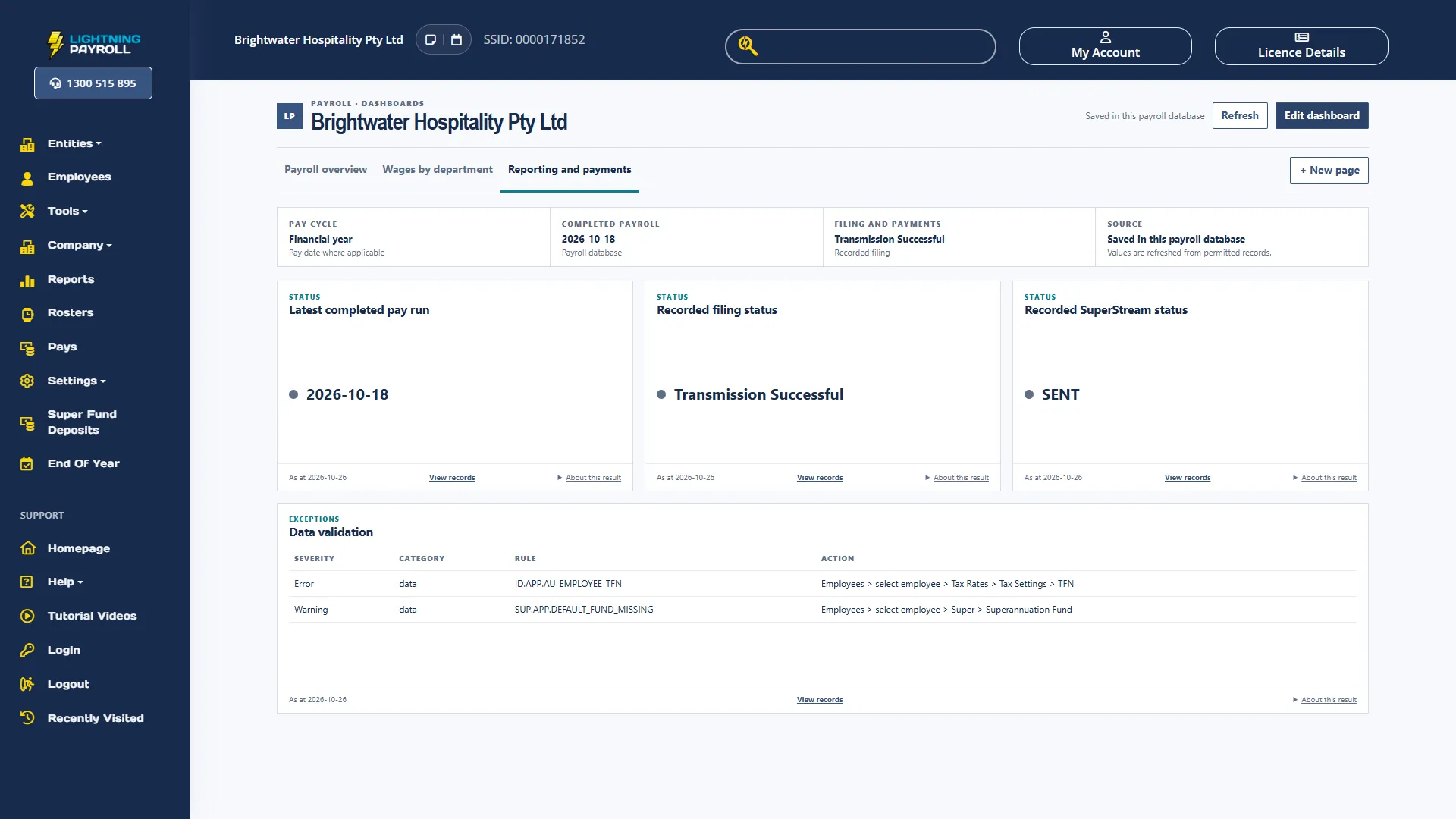
A page built from the Reporting and payments template, plus a Data validation card, shows your latest completed pay run, your recorded STP and SuperStream status, and setup problems to fix before your next pay run. Choose + New page, and on the empty page choose Reporting and payments. It adds Latest completed pay run, Recorded filing status, Recorded SuperStream status, Completed gross and Completed net. If gross and net are already on another page, remove them with the cross on each card. The cross removes a card straight away, without asking, but this only changes the page layout, never your payroll records, and you can add the card back from the shelf with its default settings.
Recorded filing status shows the status of the newest STP submission recorded in Lightning Payroll, such as a pay event or an update event. Transmission Successful means the ATO has received it. New or Sent/Awaiting Response means it has not been confirmed yet. For any other status, such as Failed or Transmission Unsuccessful, open Pays, choose Single Touch and then Single Touch Mailbox to see the response.
Recorded SuperStream status shows your newest SuperStream message of any kind, such as a contribution, registration or member verification request, so a newer message can hide an older failed contribution. A status of SENT means the message has gone, but it does not prove the fund has accepted the data or that the money has reached the fund. Check Super Fund Deposits for payments, and choose SuperStream Mailbox there to check a particular message or a status such as FAILED or PARTIAL.
Next, add Data validation from the shelf. Under Display choose Exceptions, so each finding gets its own row instead of a single count, set Widget width to Full width, and choose Save changes. Each row shows the severity (Error or Warning), a category, a rule code and an action naming the screen to fix it on, for example Employees > select employee > Tax Rates > Tax Settings > TFN. The row does not name the employee.
In the desktop app, choose View records on this card, or Tools >> Data Validation, to see the record each finding belongs to and to dismiss a warning. Dismissed warnings are left out of the card. In the online app, View records cannot open these findings, so open the screen named in each action and check each employee there.
Data validation does not refresh on its own. It updates when you open or change the page, or choose Refresh. No rows means no findings in the checks run, not that your payroll is fully compliant. Data validation, Recorded filing status and Recorded SuperStream status need access to the whole company, the filing card also needs access to Pays, and the SuperStream card needs access to Super Fund Deposits. Without that access the shelf and the template leave them out, and a card already on a shared page shows Limited access.