Answer
How do I customise a payroll dashboard and see wages by department?
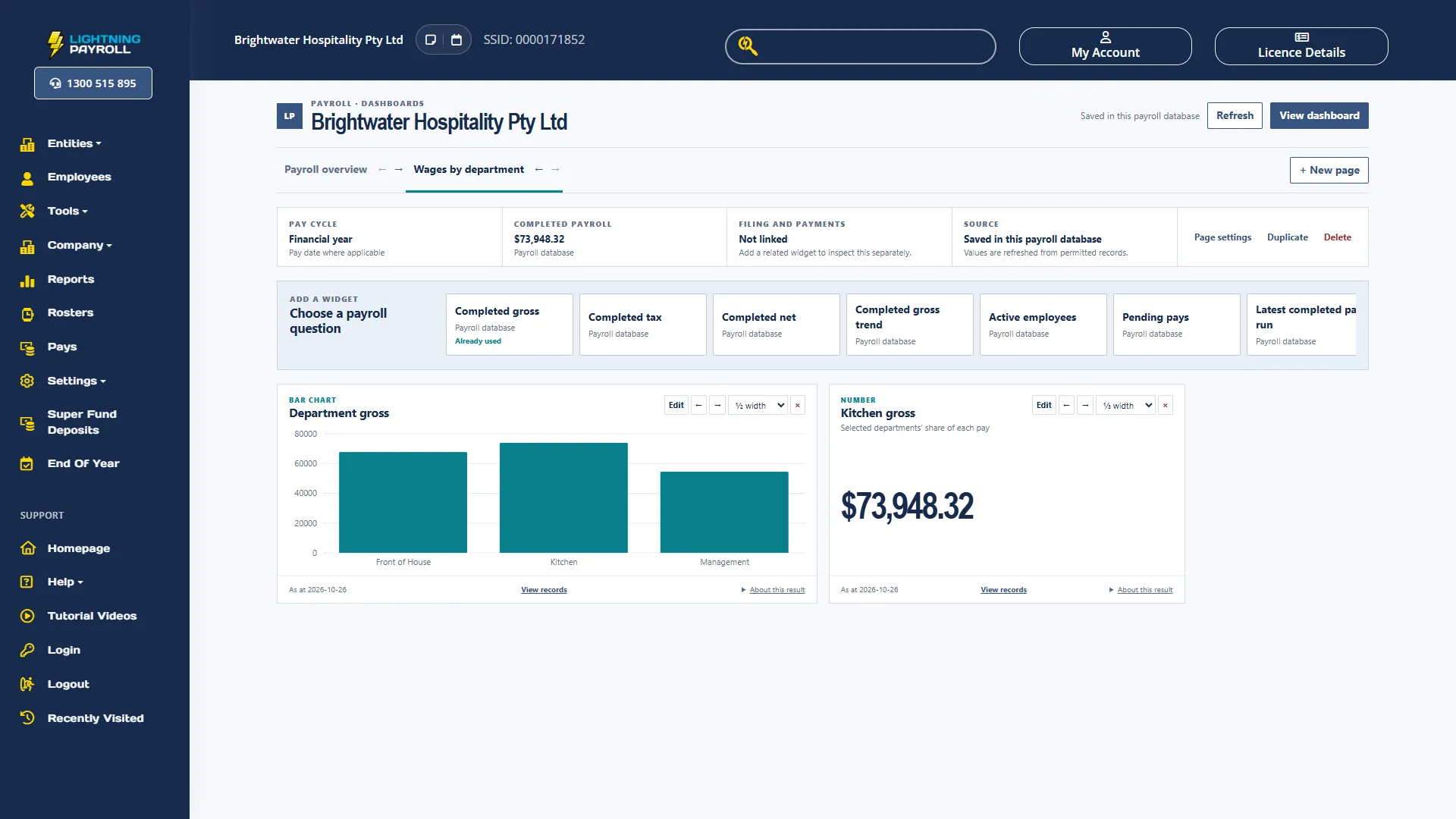
Choose Edit dashboard to change a page. In edit mode each card has an Edit button, arrows to move it earlier or later, a width picker (a third, half or full width) and a cross to remove it. Moves, width changes and removals are saved as soon as you make them. Changes in a card's or a page's settings are saved only when you choose Save changes, and Cancel or the cross on the settings panel discards them. There is no separate save for the whole page.
To change a card, choose Edit on it to open its Widget settings. There you can change the Title, the Display (for example Line chart or Bar chart), the Date basis and the Period, then choose Save changes.
To add a card, choose it from the shelf headed Choose a payroll question, which appears in edit mode and offers cards such as Completed hours and Leave balances. Adjust its settings and choose Save changes to add it to the end of the page. To give a card its own period, under Period change Use from Page period to Rolling days and enter the number of days in Days (it starts at 30), to Financial year, or to Fixed dates and enter Start and End. The card does not show its own period, so give it a title that does, for example Hours, last 14 days.
To build a wages by department page, choose + New page. It opens in edit mode as New dashboard. Choose Page settings in the strip across the top, enter a Page name, choose a Window under Default period (for a quarter, choose Fixed dates and enter Start and End), and choose Save changes. Pay figure cards left on Page period, such as Completed gross, Department gross, Completed hours and Pending pays, follow it. Cards such as Latest completed pay run, Leave balances, Data validation and the STP and SuperStream status cards always show the latest records, whatever the period.
Then choose Department gross from the shelf. It splits completed gross by each pay's department allocation, as a Bar chart or a Table, and the amounts are rounded so they add up to the total. Any share of a pay not allocated to a department shows as Unassigned Department, so if your pays have no department allocations, everything shows there. For how pays are allocated, see the FAQ How Do Department Assignments Work and Why Are Some Unassigned?
To show one department on its own, add Completed gross from the shelf and give it a title that names the department. Under Limit records, set Filter by to Departments, search, and tick one or more departments. The card then counts only the selected departments' share of each pay and says so under its title. Leaving Limit records blank uses every record you are allowed to view. Completed hours counts whole pays, so it cannot be limited to a department and shows Not supported here if you try.