


Answer
The online app lets you send an employee an onboarding invitation so they can fill in their own personal, tax, super, and bank details through the employee portal - rather than you entering everything manually.
In the online (web/mobile) app
- Go to Employees and select Add New Employee.
- On the mode-selection screen, choose Have Employee Onboard Themselves.
- Enter the employee's First Name, Last Name, and Email Address. These three fields are required.
- Under Onboarding Portal Settings, tick the sections the employee will be able to fill in during onboarding. By default, Personal Details, Tax Settings, Bank Accounts, and (for AU companies) Super Details are all ticked.
- Under Optional Access After Onboarding, choose any additional portal features to enable once onboarding is complete - for example, Payslips, Leave Balances, Leave Requests, Timeclock, or Timesheet. Timeclock and Timesheet are mutually exclusive; enabling one disables the other.
- Click Send Onboarding Email. The employee receives an email with a link to complete their setup through the portal.
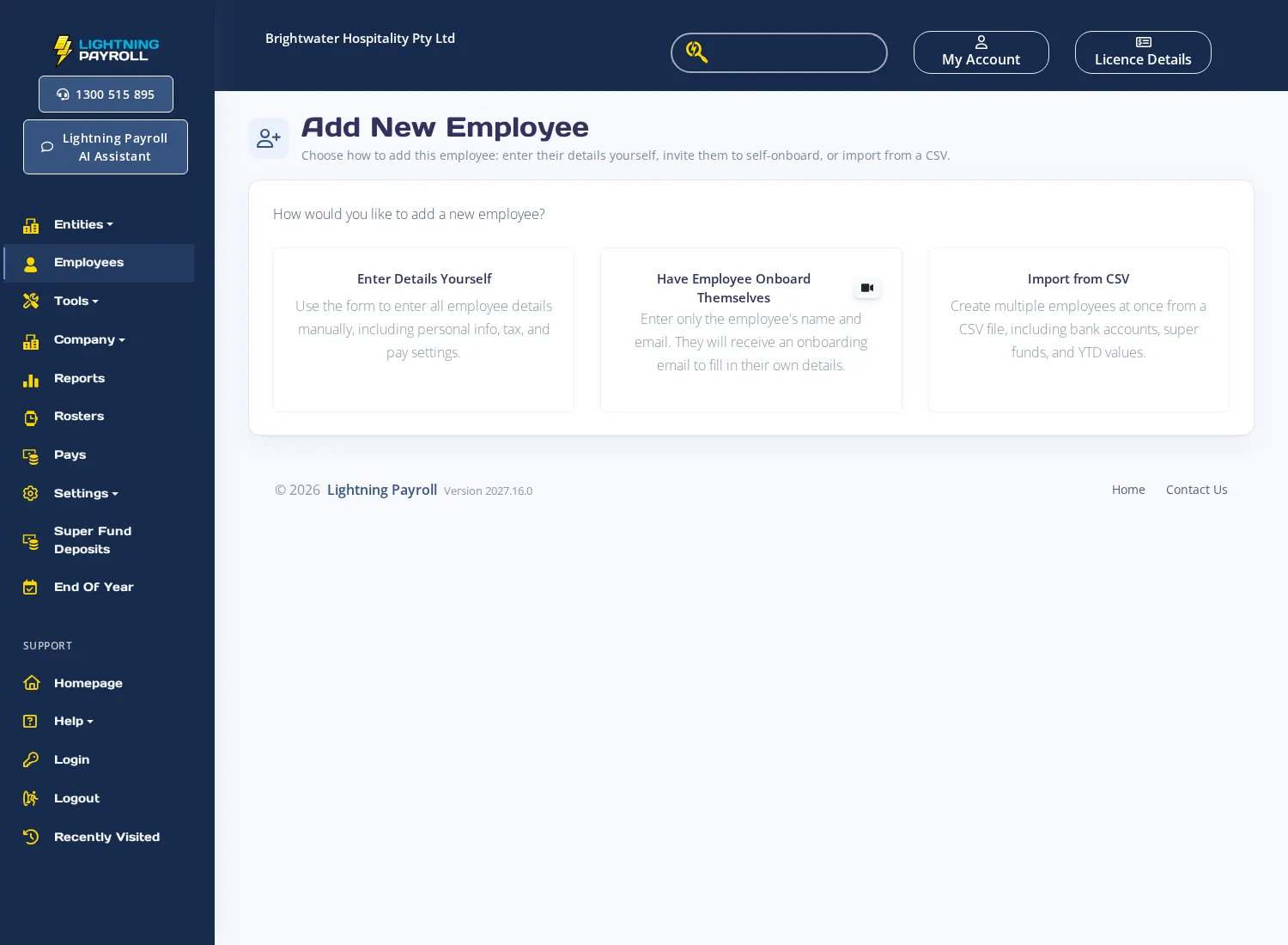
Once the employee receives their invitation and clicks the link, they are guided through a setup wizard where they can update the sections their employer has enabled. The invitation link can only be used once and expires after 24 hours. If it expires, or if the email was not delivered, go to the employee's Online Portal Settings tab (under Employees >> Details) and click Resend Employee Portal Email.
In the desktop app
Go to Employees and choose Actions >> New Employee. On the mode-selection dialog, select Have Employee Onboard Themselves. Enter the employee's name and email address, then choose which sections they can edit under Allow Employee to Edit (including Personal Details, Tax Settings, Super Details, Bank Accounts) and any Optional Access After Onboarding permissions. Completing the wizard sends the onboarding email.
Note: NZ companies do not have a Super Details option in the onboarding form, as KiwiSaver is managed separately.
For general information about the employee portal and its settings, see How Can I Setup the Online Employee Portal? For information on what triggers the portal account email, see What Generates An Employee Portal Account and Email?

