


Answer
Departments must exist before you can assign an employee to them. If you have not yet created your departments, see How Do I Setup Departments? first.
In the Desktop App
Open the employee record, then go to Employees >> Details >> Departments. Add each department the employee works in and set the Percentage Assigned for each one. The percentages represent how each pay is split across those departments. If an employee works entirely in one department, set that department to 100%.
To override the split for a specific pay, open the pay and click Department % in the pay editor.
To update department allocations across multiple past pays at once, use Tools >> Retrospective Tool.
Advanced Departmental Options in Desktop
If you need to allocate pay costs by department, job and activity, open Company >> Departments and select Enable Advanced Departmental Options. This adds Jobs and Activities tabs under Company.
Use the Department, Job and Activity fields on company shifts and pay rates to tag the work. Lightning Payroll uses those tags when it refreshes the pay to allocate the pay cost by percentage of gross. While Advanced Departmental Options is enabled, the manual Department % control is unavailable. Job and Activity allocations are tag-derived and cannot be entered as manual percentages.
To apply one department, job or activity to several employees' pay rates, select it in the relevant Company tab and use Bulk Assign to Pay Rates. This replaces the existing tag on every pay rate for each employee you select, so review the selected employees before confirming.
In the Online (Web/Mobile) App
Navigate to the employee record, then select Details >> Departments. The tab heading reads Assign this employee to departments and set how their pay is split across them.
- Click the add row button to add a department entry.
- Choose the Department Name from the drop-down list.
- Set the Percentage Assigned for that department.
- Save the row. Repeat for each additional department.
The combined percentages must not exceed 100%. If they do, a warning will appear.
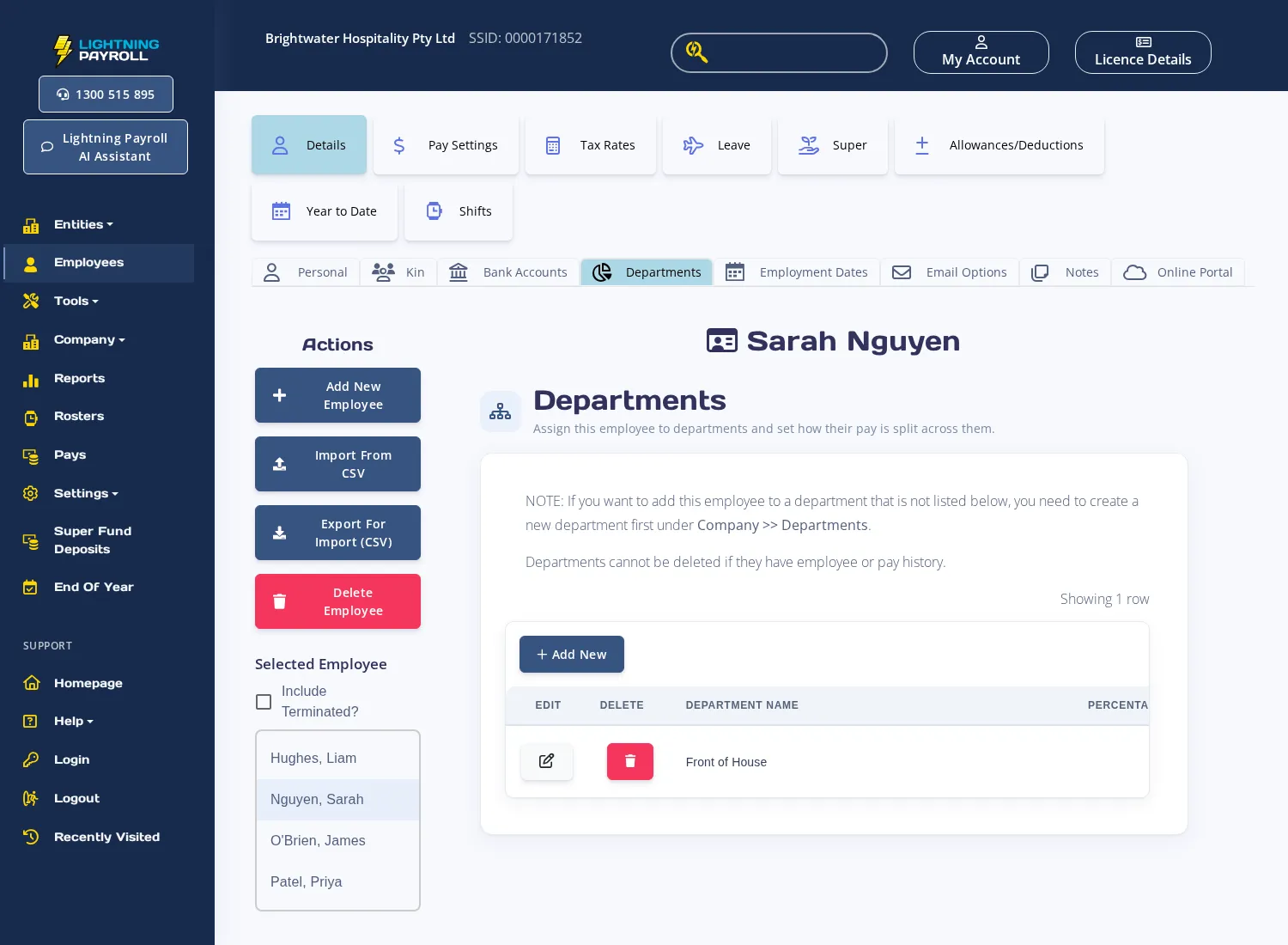
If the department you need is not in the list, go to Company >> Departments and add it there first.
To override the department split for a specific pay, open the pay from the Pays screen and select the Departments section within the pay editor.
To update department allocations across multiple past pays at once, use the Tools >> Retrospective Tool and select Departments as the change type.

