


Answer
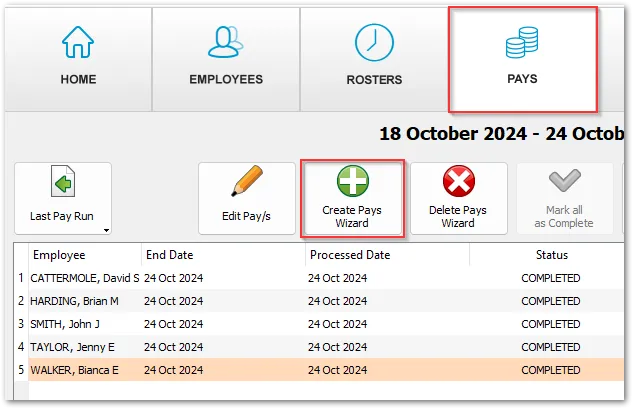
To add a pay click on Create Pays Wizard, select the employee(s) whom you wish to record a pay for within that period. Then select the date you would like this pay to be processed or if it were a past pay, the date it was processed. To create a pay in a past pay run, first move to that pay run on the Pays screen using Last Pay Run, then click Create Pays Wizard.
The tickbox at the bottom of the window which says Create Full Pay if ticked will filter the information from the Pay Settings for each employee.
To add the same bonus, leave or extra super contribution (or a back payment in Australia) to several employees at once, tick Bulk Add Item? in the Advanced section of the wizard, choose the Item Type and click Configure.
If the additional pay is for a bonus or other irregular payment please see here for an example on paying a bonus, commision, etc.
If the additional pay is for a back payment please see here for an example of making a back payment.
If you need to delete an additional pay row from the pay run, please see here to learn how to do this.

