


Answer
This guide explains the 'Automatically adjust ordinary hours worked when entering leave taken in a pay' setting in Lightning Payroll. This feature is designed to prevent overpayment by automatically adjusting ordinary hours when leave taken is recorded.
Accessing the Setting
- Open Lightning Payroll.
- Go to Settings > System Leave Settings in the online app, or Settings > System Leave in the desktop app.
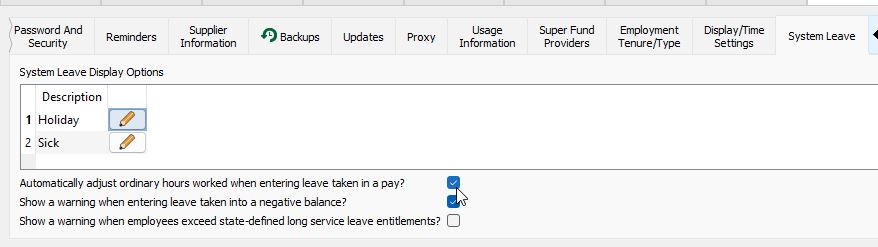
- Locate the option titled 'Automatically adjust ordinary hours worked when entering leave taken in a pay?'.
Understanding the Setting
By default, this setting is enabled (ticked). When active, it automatically adjusts the ordinary hours worked to account for any leave taken, ensuring the total hours paid do not exceed the standard working hours.
Example: For a full-time employee working 38 hours a week (5 days x 7.6 hours), taking a day off and entering 7.6 hours of annual leave will adjust the ordinary hours from 38 to 30.4 hours. This maintains the total at 38 hours paid.
Add Leave Before Changing Hours
The adjustment happens at the moment leave is added to the pay, not when hours are typed. If you type the ordinary hours first and then add leave, the leave hours are taken off the hours you typed.
Example: An employee normally works 80 hours a fortnight and takes an 8 hour rostered day off (RDO).
- Leave first: Ordinary Time starts at 80. Adding 8 hours of RDO reduces it to 72. The pay is 72 hours worked plus 8 hours RDO, 80 hours in total. This is correct.
- Hours first: Ordinary Time is typed as 72. Adding 8 hours of RDO reduces it to 64. The pay is 64 hours plus 8 hours RDO, only 72 hours in total, so the employee would be underpaid by 8 hours.
To avoid this, add leave taken first and then check Ordinary Time. If you have already typed the hours, re-enter the correct Ordinary Time after adding the leave. Always check the total hours in the pay before completing it.
Adjusting the Setting
- To prevent overpayment: Ensure the setting is ticked. Lightning Payroll will automatically reduce ordinary hours when leave is taken.
- To manage hours manually: Set the option to unticked. You will need to manually adjust the ordinary hours to avoid paying for more hours than worked. This is useful if you wish to add leave hours without reducing the ordinary hours, resulting in additional pay for the leave period.
Important Consideration
When the setting is unticked, and leave is entered without adjusting ordinary hours, it could result in overpayment. For instance, if 7.6 hours of leave are added without reducing the ordinary 38 hours, the total paid hours would be 45.6. It's crucial to manually adjust ordinary hours in such cases.
Need Further Assistance?
If you have any questions or require further assistance with this setting, please contact our support team.

