


Answer
If an employee is missing from a pay run, you can add them using the steps below.
In the desktop app
Go to the Pays tab and click Create Pays Wizard. Select the employee(s) you want to add, then click Create. If you tick Create Full Pay? (under Default Option), the program automatically uses the hours and pay rate set under Employees >> Pay Settings >> Pay Rates to pre-fill the pay details. You can still edit the pay afterwards on the Pays screen.
In the online (web/mobile) app
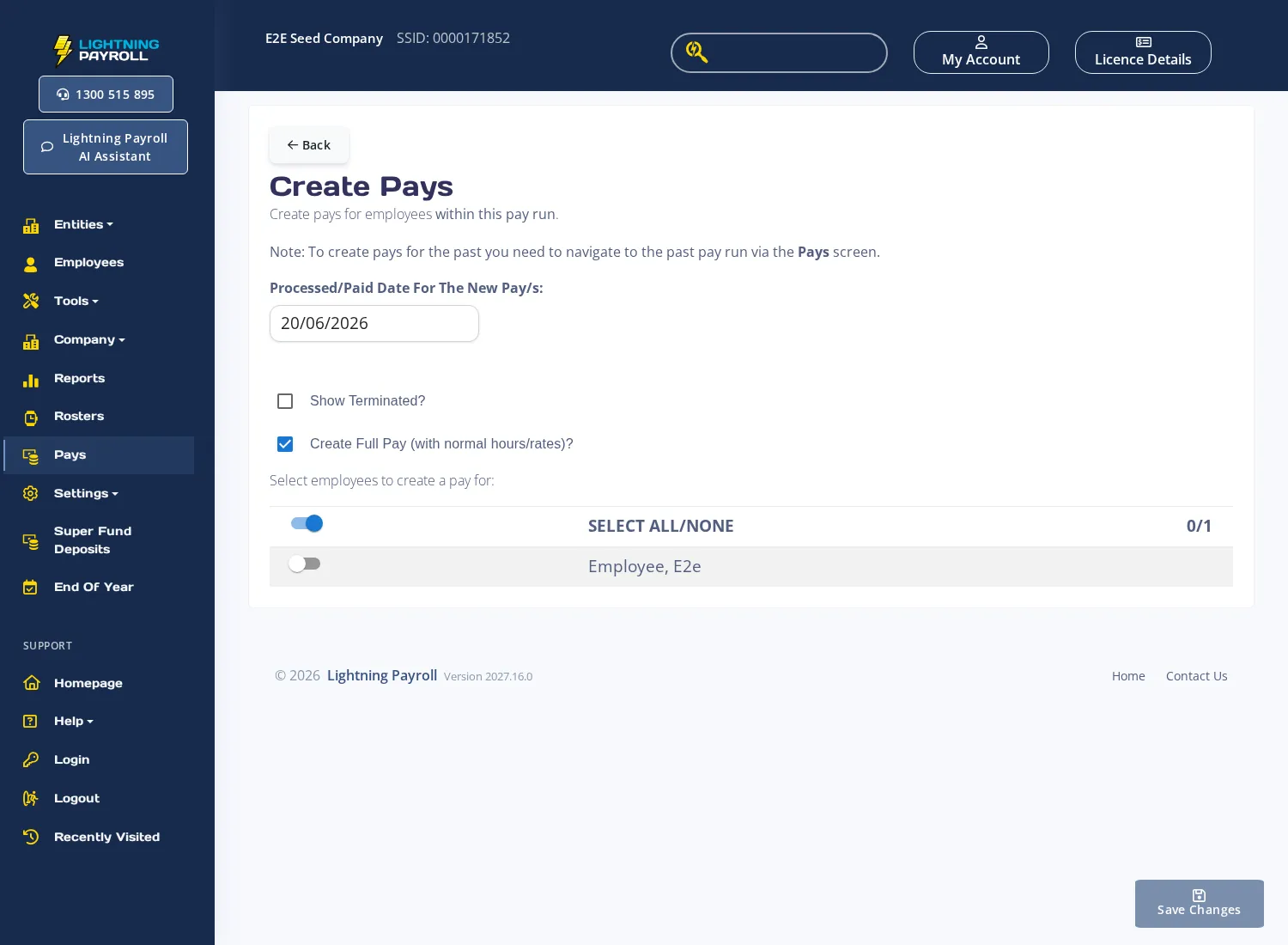
Go to Pays and click the Create Pays button. On the Create Pays screen, select the employee(s) to add and set the Processed/Paid Date For The New Pay/s. If you tick Create Full Pay (with normal hours/rates)?, the pay is pre-filled using the employee's default hours and pay rate. Click Save Changes to create the pays, then edit them as normal from the Pays screen.
Employee not visible in the list?
If you have recently added a new employee but cannot find them, they may have an incorrect Start Date. To fix this, go to Employees >> Details >> Employment Dates, update their Start Date to the correct date, then return to the Pays screen. The employee should now appear. Terminated employees are hidden by default - tick Show Terminated? to include them.
There are three active employee groups that can be hidden from the online app list: employees who already have a completed pay in this pay run, employees who have a completed pay on a different pay run that overlaps these dates, and employees who are paid on another pay period. This is so the same days are not paid twice, and so a pay is not created on the wrong pay period.
Tick Show All Active Employees? to bring those employees back into the list. If you select employees who are hidden because of an overlapping completed pay or a different pay period, Lightning Payroll shows Check before creating these pays and asks you to create the pays anyway. If the overlapping pay is wrong, correct or delete it and the employee will appear again.
In the desktop app, starting with version 2027.545, tick Show All Active Employees? in the Create Pays Wizard to show employees who already have a completed pay in another pay run covering the same dates. These employees are labelled (already paid for these dates). If you select one, the Already paid for these dates confirmation warns that another pay will count their year-to-date totals and leave accrual for those dates twice. Choose Yes only if you intend to create that additional pay. Employees locked by your licence limit remain hidden.

