


Answer
Lightning Payroll supports paying an employee into more than one bank account. You set a Default Account (which always receives the remainder of net pay) and any number of Additional Accounts (each with a fixed dollar amount that is paid first).
In the desktop app
- Open the employee and go to Employees >> Details >> Bank Accounts.
- The Default Account section shows the account that receives whatever is left after all additional accounts are paid. Enter the account details there if you have not already done so.
- Under Additional Accounts, add each extra account and enter a fixed Amount for that account. The amount is deducted from the employee's net pay first; the remainder goes to the default account.
- To change the order in which additional accounts are paid, edit the account and choose a different Rank; the other accounts renumber automatically.
- Each account is saved as soon as you confirm its window, so there is no separate step to save the employee record.
The Rank column shows Default for the default account and a number for each additional account. Any amount you enter against the default account is ignored - it always receives the remainder.
In the online (web/mobile) app
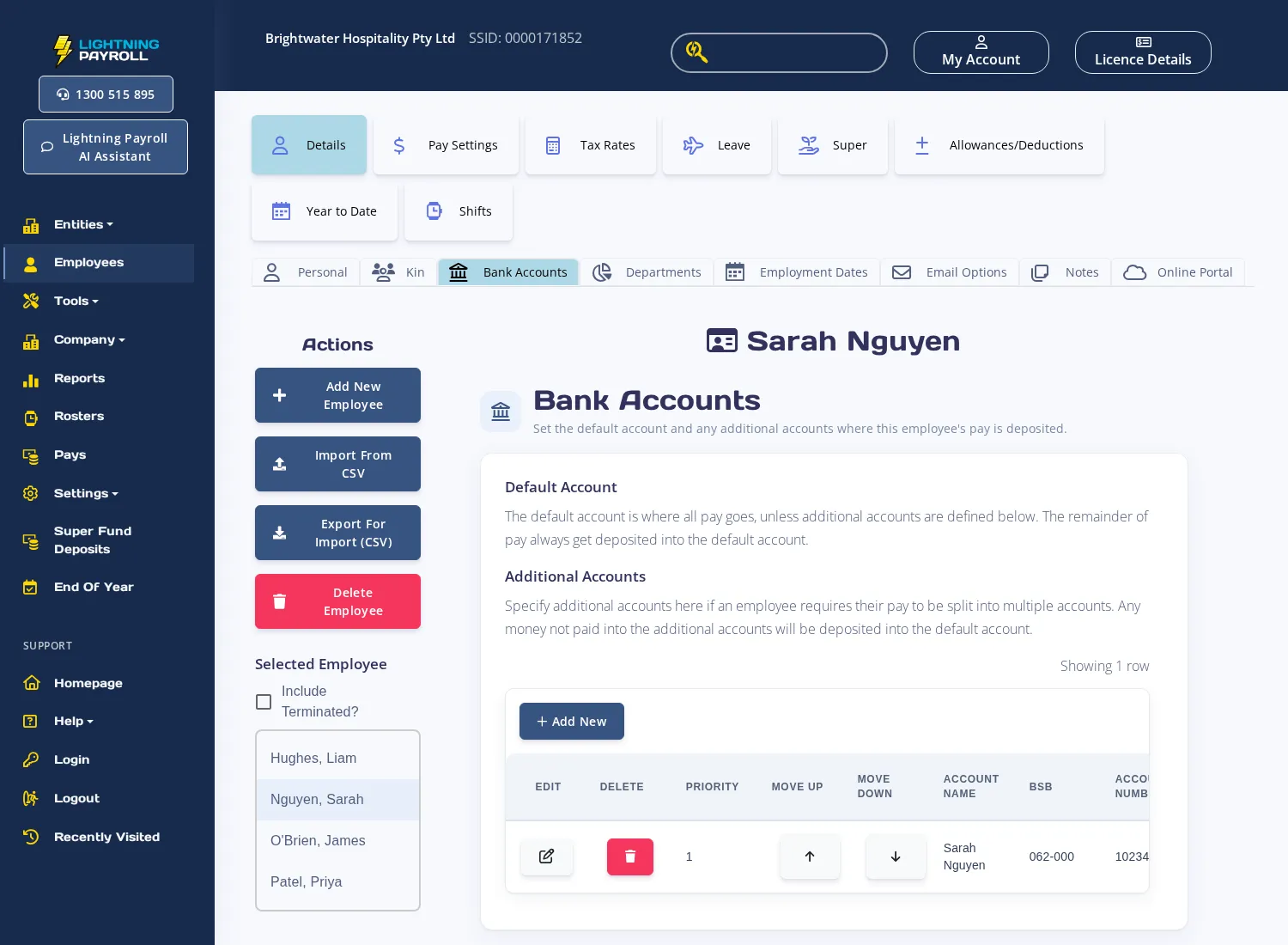
- Open the employee and select Details >> Bank Accounts.
- The Default Account section explains that all pay goes to the default account unless additional accounts are defined. The remainder always goes there.
- Under Additional Accounts, add an extra account. Fill in the account details and enter a fixed Amount.
- Use the Move Up and Move Down buttons to change the priority order of additional accounts.
- Changes save automatically when you add, edit, delete, or reorder an account.
If a fixed Amount is entered on the default account itself, the app will warn you that it is ignored - the default account always receives the remainder, not a fixed amount.
Field reference (AU)
- Account Name - a label for your reference.
- BSB - 6-digit BSB number.
- Account Number - the bank account number.
- Amount - the fixed dollar amount to pay into this account each pay run (additional accounts only).
- Alt. Transaction Reference - an optional reference that appears on the employee's bank statement instead of the default payroll reference.
Portal-owned accounts
If the employee has been granted permission to manage their own bank accounts through the employee portal, the Bank Accounts tab will be locked in both the desktop and online apps. To make changes on the employee's behalf, you must first disable that permission or use the portal refresh option. See also: Why Are Employee Details or Bank Account Changes Not Saving?
For NZ bank account number format requirements, see What Format Should I Use For An Employee's Bank Account Number?

