Answer
The Pays screen is the heart and soul of Lightning Payroll. It is the source of almost all reporting and the source of almost all calculations in the program. Pending pays are auto-generated for the current and previous pay runs, when not already completed. If you are catching up on pay runs earlier than this you'll have to create pays if needed.
The main controls on the Pays screen are:
- Last/Next Pay Run buttons will let you jump back or forwards in time, turning pay runs like pages in a book. Click and hold your mouse button for bigger jumps in time.
- Clicking Edit Pay/s will open the selected employee from the table, or the first in the list if no one is selected. If you open a pay and it is read-only/greyed-out, it is a completed pay that has been locked from editing (in Australia, a completed pay locks once it has been reported through Single Touch Payroll; in New Zealand, as soon as it is completed). Click the padlock button in the lower-left of the pay window to unlock it. You can also edit a pay by double clicking, or by selecting a pay with mouse or arrows and pressing enter.
- Clicking Create Pays Wizard allows you to enter additional pays into the pay run, or enter pays into a past, empty pay run should no pending pays be shown.
- The heading at the top of the screen shows the start and end dates of the pay period, and the pay cycle (either weekly, fortnightly or monthly).
- Clicking Delete Pays Wizard opens a wizard whereby you can select and delete any completed pay from the pay run, so long as they do not have a Single Touch Payroll history. In that case you'll only be able to edit.
- Mark all as complete switches the status of any Pending pays in the pay run to Complete.
- Timeclock (Portal) Sync is where you can pull employee-created shifts and leave requests from our server to prefill pending pays.
- Reports give a couple of popular pay reports. There are many more reports in the main Reports screen.
- Payslips lets you print, preview and email payslips for the current pay run or for multiple pay runs.
- Direct Entry lets you generate a direct entry banking file (ABA) to bulk upload payment information into your online business banking.
- The Single Touch area is where you report pay information to the ATO, or view past submission history in the Single Touch Mailbox. In New Zealand this area is called Payday Filing and reports to Inland Revenue.
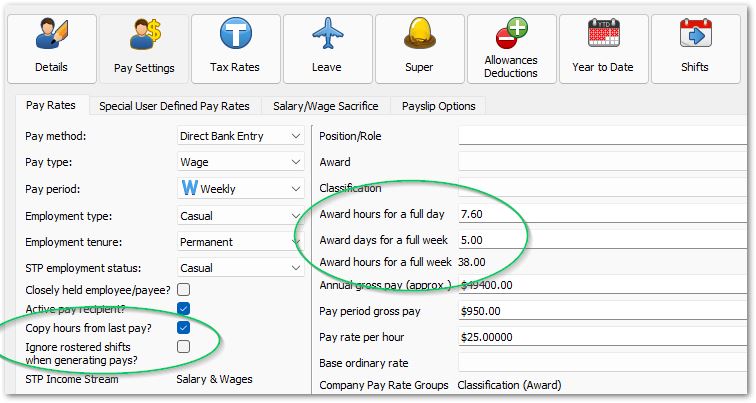
- Inactive Employees shows employees who are not terminated, but have been not marked as an Active Pay Recipient under Employees >> Pay Settings >> Pay Rates.
- Sort pays by and Then by let you sort the pays table by a chosen column.
- Jump to pay run date takes you to a pay run of your choice when you type in a date.
- Set Processed/Paid Date For Pay Run sets the processed date for pays within the given pay run. Accurate processed dates are critical for STP and YTD amounts. By default, a processed date is the date you complete/save the pay, unless a direct entry payment file is generated or a manual edit is made.
- Tick Show Totals? to show or hide the pay run totals at the bottom of the screen.
Pending Pays
Pays can either be Pending or Complete. Pending pays do not appear in reports, payslips or YTD figures and will disappear if left pending after a couple of pay periods have passed by. Once a pay is saved, it's status changes to Complete.
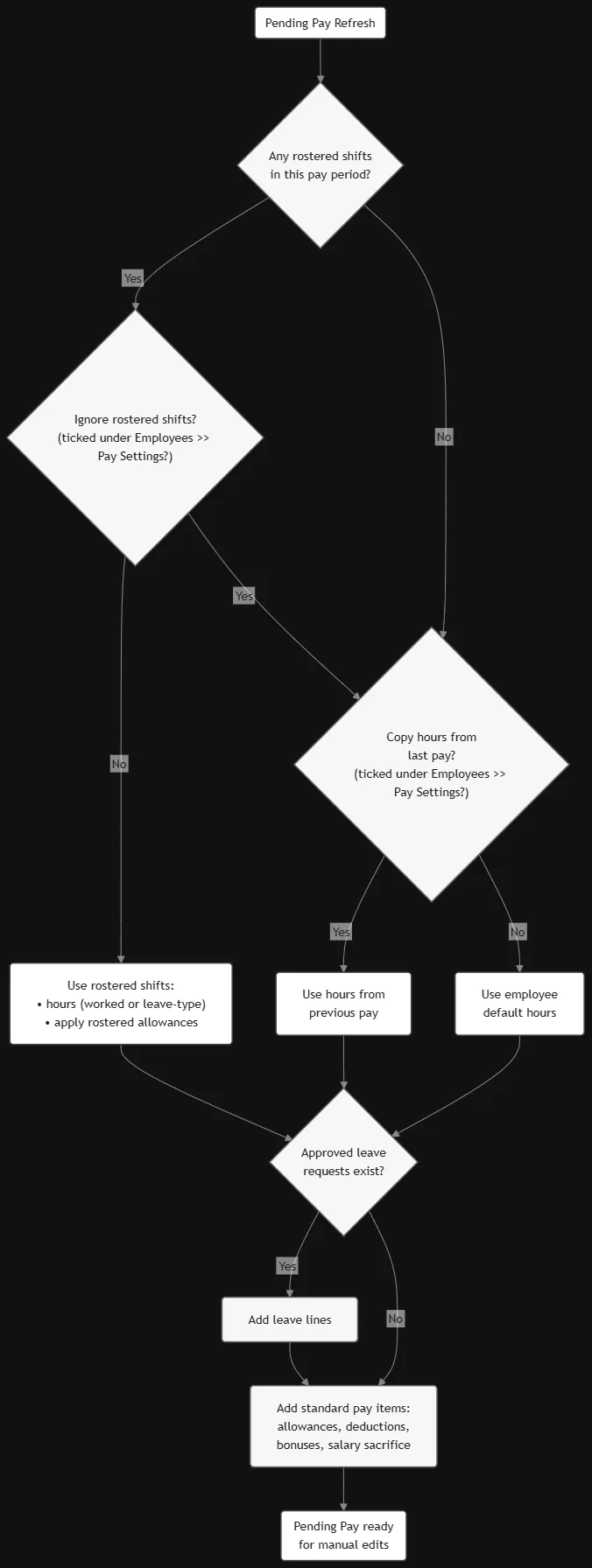
A Pending pay kicks off with amounts and pay items configured under an employee's Pay Settings. Pending pays will begin with hours from one of three sources:
- Award hours for a week (default, if not copying hours from last pay or using rosters)
- Copy hours from last pay - Takes 2nd Priority
- Rostered shifts (populated by a roster or timeclock/timesheet sync) - Takes 1st priority
Pending pays will also kick off with any pre-approved leave requests which fall within that pay period's date range.
The following flow chart gives an idea of how a pending pay refreshes/initialises. Note that rostered shifts are created either manually under Rosters >> Edit Shifts or via a Timeclock/Portal Sync on either the Rosters screen or the Pays screen.