


Answer
To set up Time Off in Lieu (TOIL) in Lightning Payroll so that employees accrue time rather than receive immediate payment, follow the steps below. This setup allows employees to bank hours worked (usually overtime) and take them as paid time off later.
1. Create a Custom Leave Item
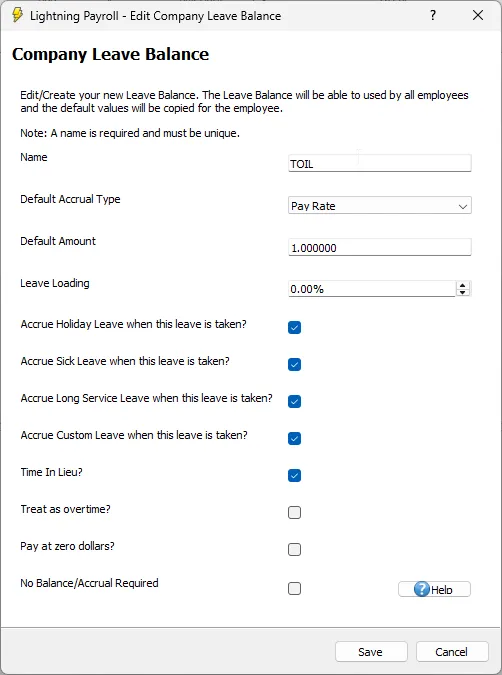
Navigate to Company >> Leave Balance and click the green plus button to add a new leave item.
Set it up as follows:
- Name: Enter a name like TOIL, Time in Lieu, or something relevant.
- Default Accrual Type: Choose Pay Rate if you want hours to accrue in proportion to a triggering pay rate (for example, 1 hour of TOIL for every 1 hour worked at this rate).
- Default Amount: Set this to 1.000000 for a 1:1 accrual ratio.
- Leave Loading: Set as required (often 0% for TOIL).
- Is Time In Lieu: Tick this box so the leave item behaves as TOIL.
Other options you can configure:
- Accrue Holiday/Sick/Long Service/Custom Leave: Tick these if you want those other leave types to continue accruing when TOIL is taken.
- Treat as overtime? Leave this unticked. It is ignored when 'Is Time In Lieu' is ticked.
- Pay at zero dollars? Tick only if no payment should occur at all. For TOIL, this is usually left unticked.
- No Balance/Accrual Required: Leave this unticked. TOIL requires tracking a balance.
2. Create the Triggering Pay Rate
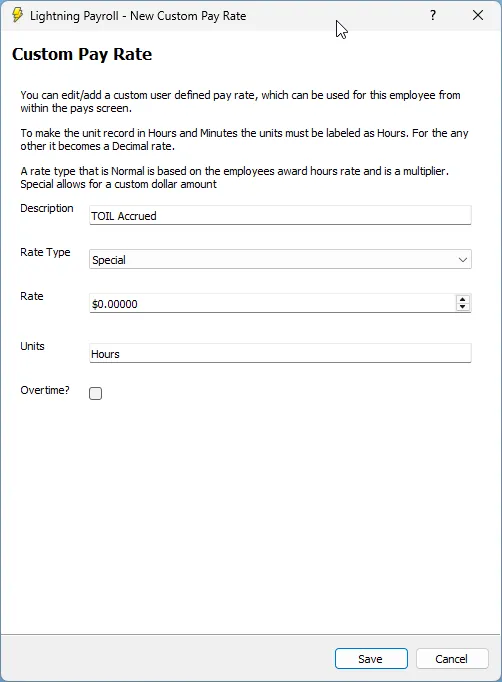
Next, go to Employees >> Pay Settings >> Special User Defined Pay Rates. Click the green plus button to create a new rate.
Configure it like this:
- Description: Something like TOIL Accrued.
- Rate Type: Select Special.
- Rate: Enter $0.00000.
- Units: Set to Hours.
This $0 special rate is used purely to trigger the leave accrual.
Tip: If you want to use the same TOIL pay rate across multiple employees, you can set it up once under Company >> Pay Rate Groups. This lets you share a standard TOIL trigger rate across employees without recreating it for each person.
For instructions, see our related guide: How can I set up awards, classifications or pay rate groups?
3. Link the Pay Rate to the Leave Item
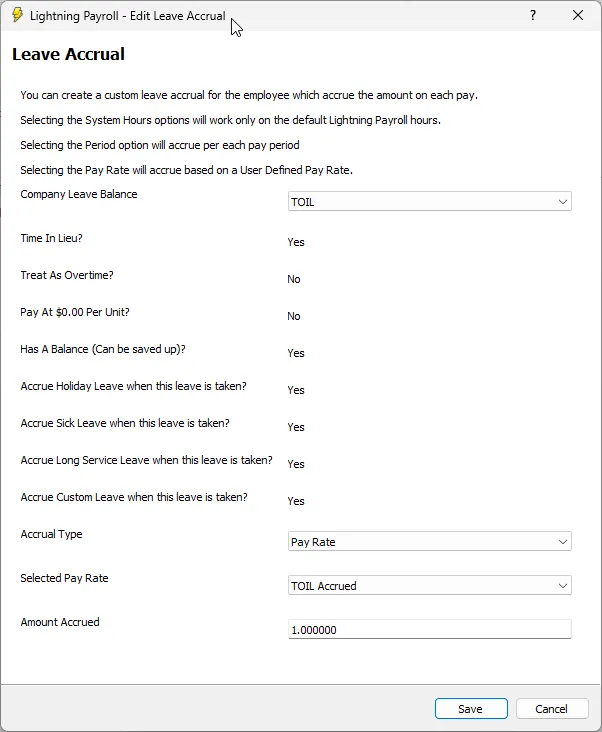
Go to Employees >> Leave >> Custom Leave Accruals and click the green plus button to add a new rule.
Choose the custom TOIL leave item and the pay rate you created (for example, TOIL Accrued).
4. Using TOIL in the Pays
Now, during payroll, when the employee works TOIL-eligible hours, use the TOIL Accrued rate. This will:
- Add hours to the employee's TOIL leave balance at a 1:1 ratio.
- Not pay any money immediately (because the rate is $0).
- Allow those hours to be taken later as paid leave.
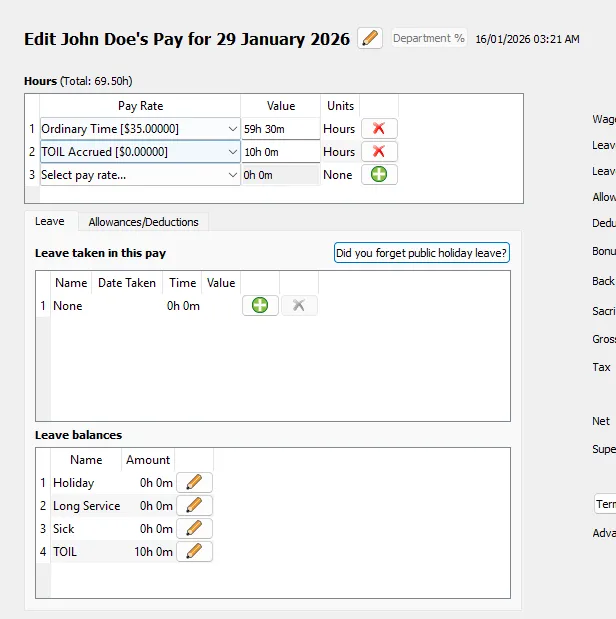
When the employee later takes TOIL, use the TOIL leave item to pay them for those hours, the same as any other leave type.
How Superannuation Works With TOIL
In Lightning Payroll, any leave item marked as Is Time In Lieu follows specific ATO rules for superannuation and STP reporting:
- If the employee takes TOIL as leave (they take time off and are paid for it in a pay run), those hours are treated as Ordinary Time Earnings (OTE) and superannuation is payable on them.
- If the employee's accrued TOIL is cashed out instead of taken as leave, it is treated as overtime for reporting, and no superannuation is payable on the cashed-out amount.
The 'Treat as overtime?' setting is ignored for TOIL leave items. Lightning Payroll applies the correct super and STP rules automatically.
For more details, see our related FAQ: How does super work on Time In Lieu leave?

