Answer
Workers compensation payments in Lightning Payroll are entered as a built-in leave type, not as a deduction or allowance. Paid parental leave and unpaid leave work the same way. These leave types are already built in, so you do not need to create them under Company >> Leave Balance. Follow the steps below to enter the payment against a pay run.
If an employee is on paid parental leave (commonly known as maternity leave), unpaid leave, or on leave whilst receiving workers compensation, there are Paid Parental, Unpaid and Workers Compensation leave types that can be selected when processing pays.
Use Paid Parental when you are recording a parental-leave payment in the pay. Use Unpaid when you are recording an unpaid absence. The Unpaid leave type has a $0 hourly rate; Paid Parental uses the employee's saved paid-parental hourly rate, which you can set for the payment.
You can select any of these options in the Leave taken in this pay section as shown below.
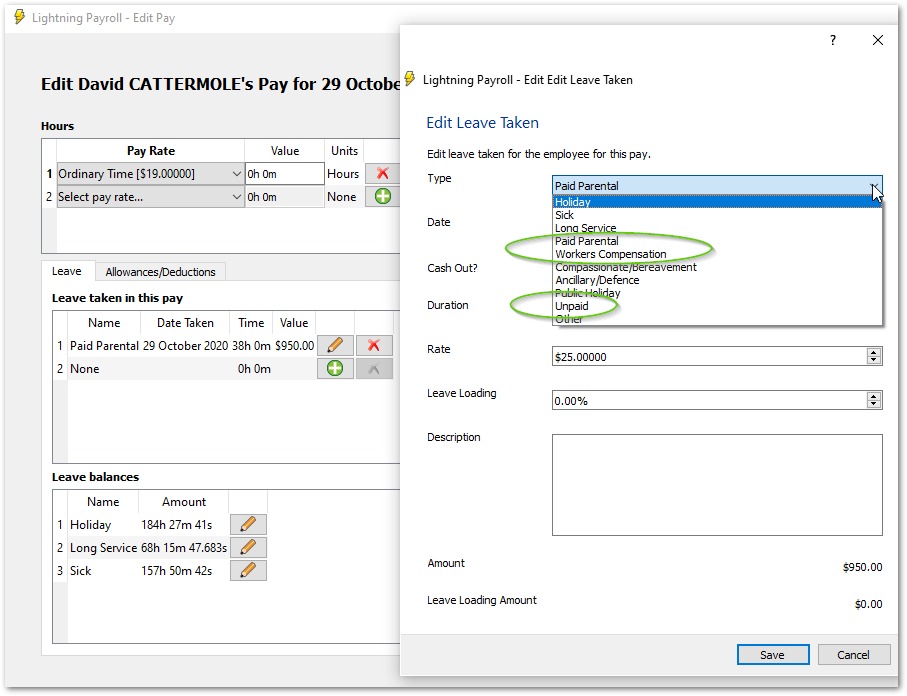
Once you have selected Paid Parental, Unpaid or Workers Compensation, you can set the duration and the hourly rate for the leave.
For paid parental leave and workers compensation, if you only have a daily or weekly rate, you can calculate the hourly rate by dividing the dollar figure by the number of hours the employee normally works in a day or week respectively.
For example:
If you need to pay $1000 per week and the employee typically works 38 hours per week, the hourly rate would be $1000 / 38, or $26.32.
If you need to pay $150 per day and the employee typically works 8 hours per day, the hourly rate would be $150 / 8, or $18.75.
Lightning Payroll will remember this hourly amount (since it is unlikely to match their normal hourly rate) and save it automatically for the next time they receive this special leave type. In the desktop app this is stored under Employees >> Leave >> Advanced Leave Settings; in the online (web/mobile) app it is stored under Employees >> Leave >> Advanced Pro Rata Leave Settings.
Clicking Save will add the leave to the pay.
Super and Leave Accrual Settings
Paid parental leave, unpaid leave and workers compensation may or may not attract leave accruals and superannuation, depending on your state legislation or industry awards.
If you need to adjust whether leave or superannuation accrues on paid parental leave or workers compensation:
- Desktop app: go to Employees >> Leave >> Advanced Leave Settings.
- Online (web/mobile) app: go to Employees >> Leave >> Advanced Pro Rata Leave Settings.
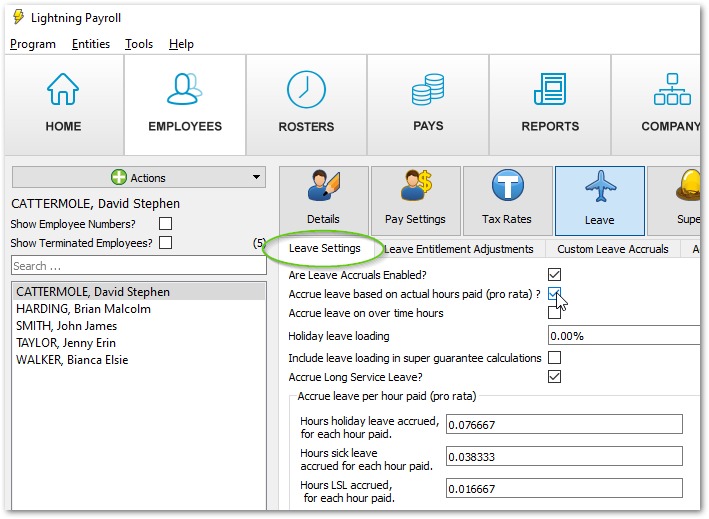
Note: If you are not able to select any of the advanced settings, it means the employee has not been set to accrue leave on a per hour paid (pro rata) basis. You can turn this on under Employees >> Leave >> Leave Settings.