


Answer
When you add a new or migrating employee to Lightning Payroll, you can enter their existing leave balances so that the program starts from the correct opening figures.
During the New Employee Wizard (Desktop App)
The desktop Add Employee Wizard includes an Initial Leave Balances step. On the Set Initial Leave Balances page, enter the employee's current balances for annual leave, sick leave, and long service leave. These are the balances as they stood at the start of the employee's first pay in Lightning Payroll.
After Setup - Desktop App
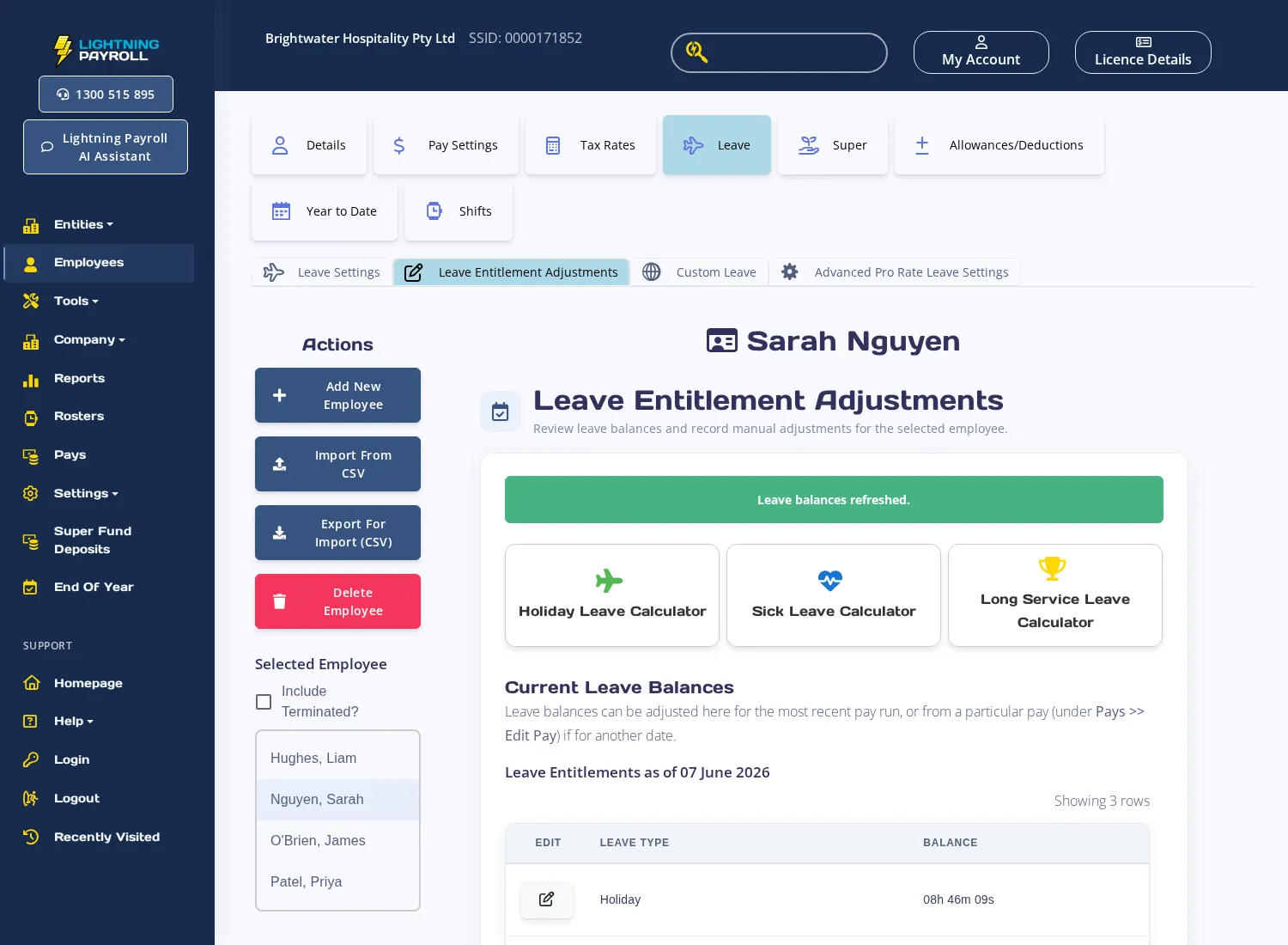
If you skipped the wizard step or need to correct an opening balance later, go to Employees >> Leave >> Leave Entitlement/Adjustments. Click the pencil (edit) button next to each leave type in the balances table at the top of the screen and enter the opening balance. The Manual Leave Adjustments/Initial Balances table below lists these entries.
After Setup - Online (Web/Mobile) App
In the online app, select the employee and open the Leave tab. Navigate to Leave Entitlement Adjustments. Under Current Leave Balances, click the edit button next to each leave type and enter the opening balance.
What Balance to Enter
Enter the balance as it stood before the employee's first pay is processed in Lightning Payroll. The first pay will add a new accrual on top of the opening figure you set. For example, if the employee's previous payslip showed 45.5 hours of annual leave and they accrue 2.92 hours per pay, after the first pay the balance will read 48.42 hours.
For information on correcting or adjusting leave balances after processing has begun, see How Do I Enter Existing Leave Balances?.

