Answer
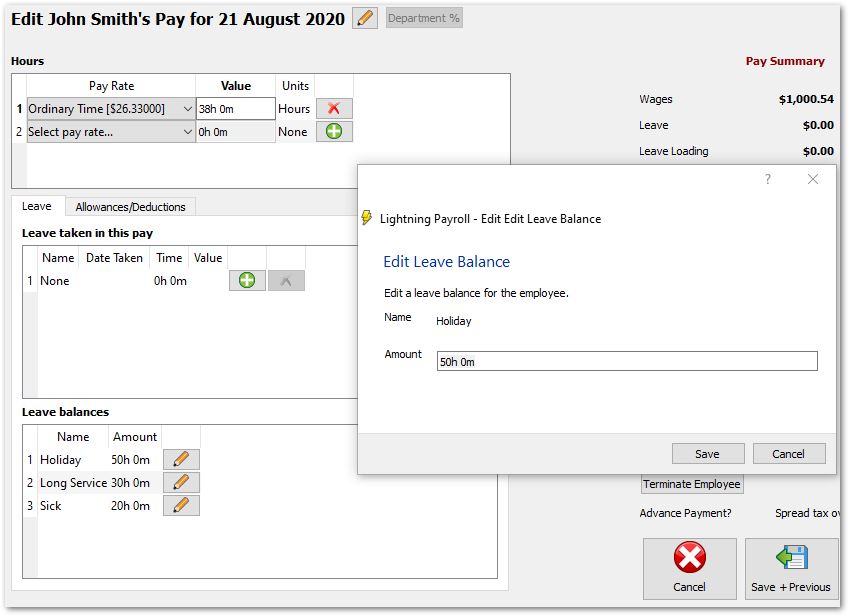
If you are new to Lightning Payroll and are setting up an employee who already has existing leave balances, you can enter those opening amounts under Employees >> Leave >> Leave Entitlement Adjustments. Under Current Leave Balances, click the pencil (edit) button next to each leave type and enter the opening balance. Each amount is then listed under Manual Leave Adjustments (Manual Leave Adjustments/Initial Balances in the desktop program).
Enter the balance as at the date the employee starts being paid in Lightning Payroll. Because Lightning Payroll also generates a small accrual in the employee's first pay, your opening figure should be the balance that existed before that first pay, and the program adds the new pay's accrual on top.
For example:
Say the employee's leave balance on their most recent payslip shows 45 hours and 30 minutes of annual leave (45.5 hours). When you record this as the initial balance and then run their first pay, you will notice a small amount of leave accrues. If the employee works 38 hours a week, they accrue about 2 hours and 55 minutes of annual leave (2.92 hours) in that pay. After the first pay the balance therefore reads 48 hours and 25 minutes (48.42 hours) - the 45.5 hours you entered plus the 2.92 hours accrued.
You can also review or adjust a balance at a particular pay run date under Pays >> Edit Pay.