


Answer
For an Australian company, create the custom leave balance at company level before assigning the leave type to an employee. This defines the leave type that employees in the company can accrue.
Desktop App (Australian Companies)
Go to Company >> Leave Balance. Use the green plus button to add a new custom leave balance, giving it a descriptive name (for example, RDO or Time Off in Lieu). Once saved, the leave type is available to assign to individual employees.
Online (Web/Mobile) App (Australian Companies)
Go to Company >> Leave Balances. The screen shows Custom Leave Balances, which can be selected by the employees within this company. Add a new row for each leave type you want to make available, then save.
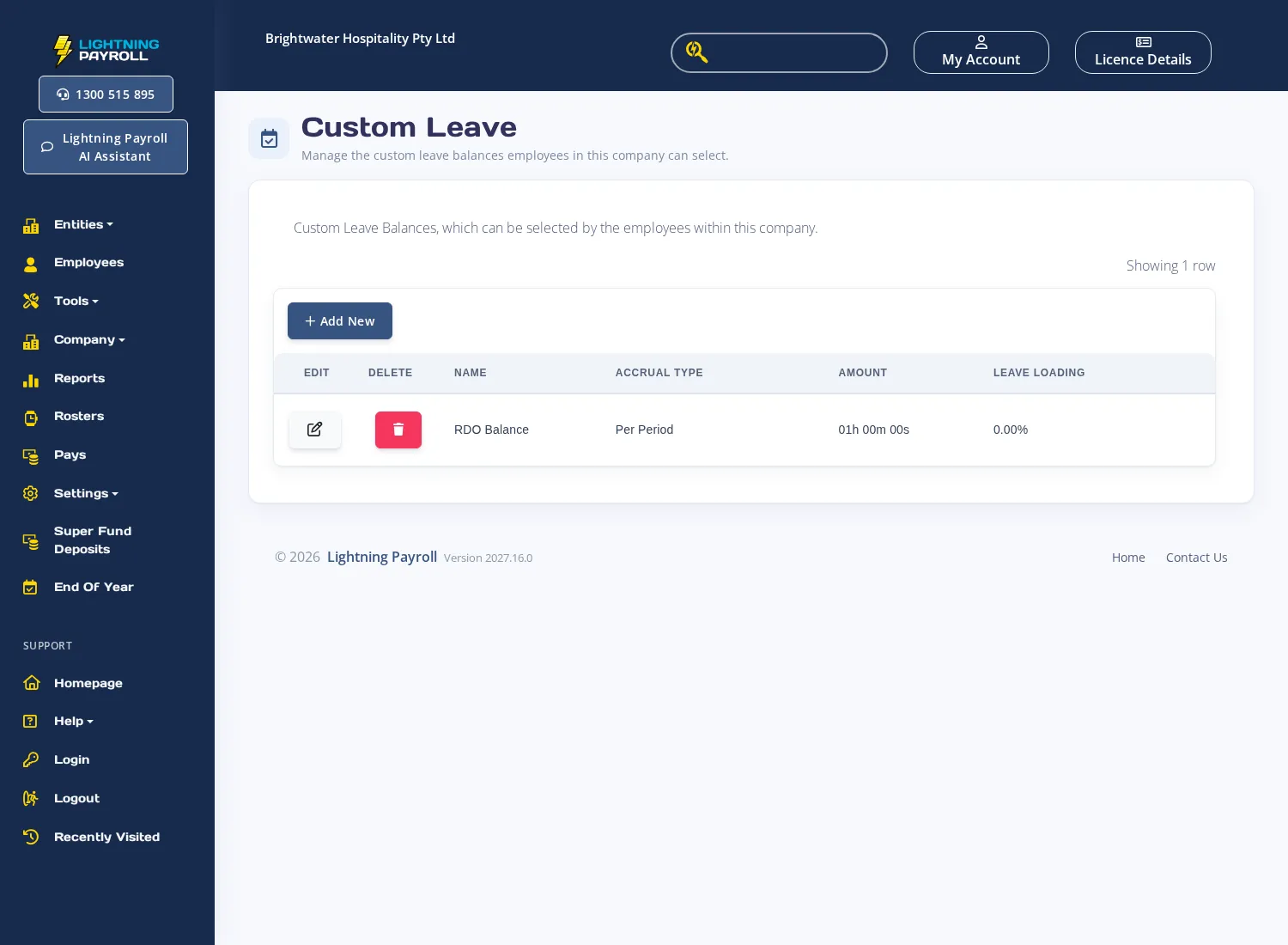
Assigning Custom Leave to an Employee
Once the company leave balance exists, add it to each employee who needs it:
- In the desktop app: go to Employees >> Leave >> Custom Leave Accruals and use the green plus button to add the leave type and configure the accrual rule.
- In the online app: open the employee, then go to Employees >> Leave >> Custom Leave Accruals and add the accrual rule for that employee.
Custom Leave Accruals is available for Australian companies only, so an NZ company can't assign a custom leave type to its employees. For New Zealand companies, see How Do I Handle Leave Types That Are Not In The Leave Dropdown?
For more detail on adding custom leave types and examples such as RDOs and Time Off in Lieu, see How Do I Add Additional or Custom Leave Types?

