


Answer
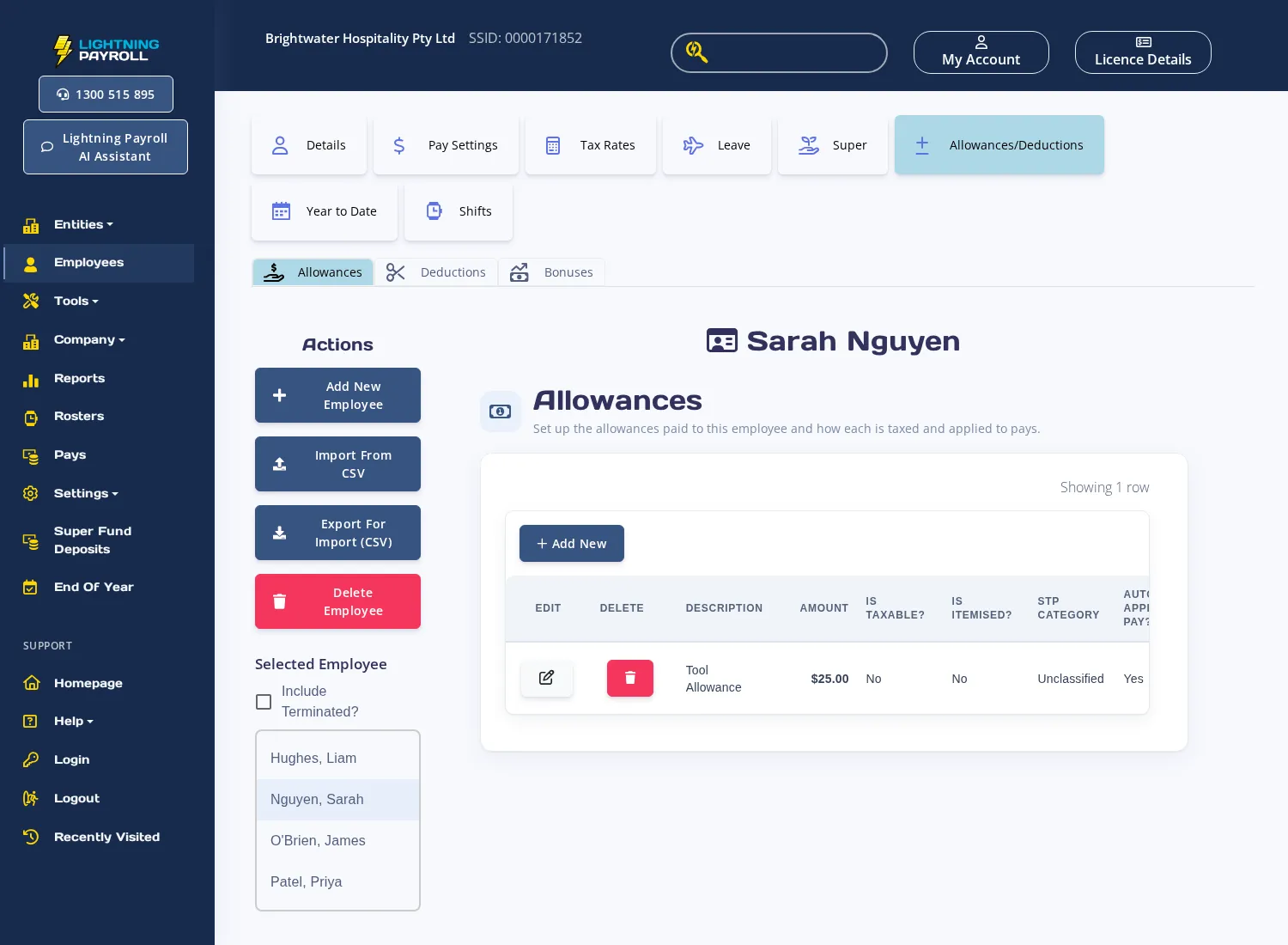
To set up allowances for a specific employee, select the employee and navigate to Employees >> Allowances/Deductions >> Allowances. The screen lists all allowances currently attached to that employee.
To add a new allowance, click the add row button. Fill in the following fields:
- Description — a short label for the allowance (required).
- Amount — the dollar amount paid per pay.
- STP Category — select the appropriate Single Touch Payroll category (e.g. Cents per KM, Laundry, Overtime Meals, Tools, Other). This field is required and must not be left as Unclassified.
- Is Taxable? — tick if the allowance is subject to withholding tax.
- Is Itemised? — tick if the allowance should be reported separately in STP and on payment summaries rather than rolled into gross wages.
- Auto Apply to Pending Pays? — tick to have the allowance added automatically to each new pay created for this employee.
- Included in Super Calculations? — tick if the allowance forms part of Ordinary Time Earnings and should be included when calculating superannuation.
Save the row to apply the changes. The allowance will appear on the employee’s next pending pay if Auto Apply to Pending Pays? is enabled.
Company-Wide Allowances
If the same allowance applies to multiple employees, set it up once under Company >> Allowances. When creating or editing a company allowance you can select which employees receive it using the Employees field. Company allowances share the same tax, itemisation, super, and STP category settings as employee allowances.
For the desktop app equivalent, see How Do I Enter Allowances?

