


Answer
The General Ledger Codes screen lets you map your pay items to accounting codes and control how payroll data is exported to your accounting software. Navigate to Company >> GL Codes in the online app.
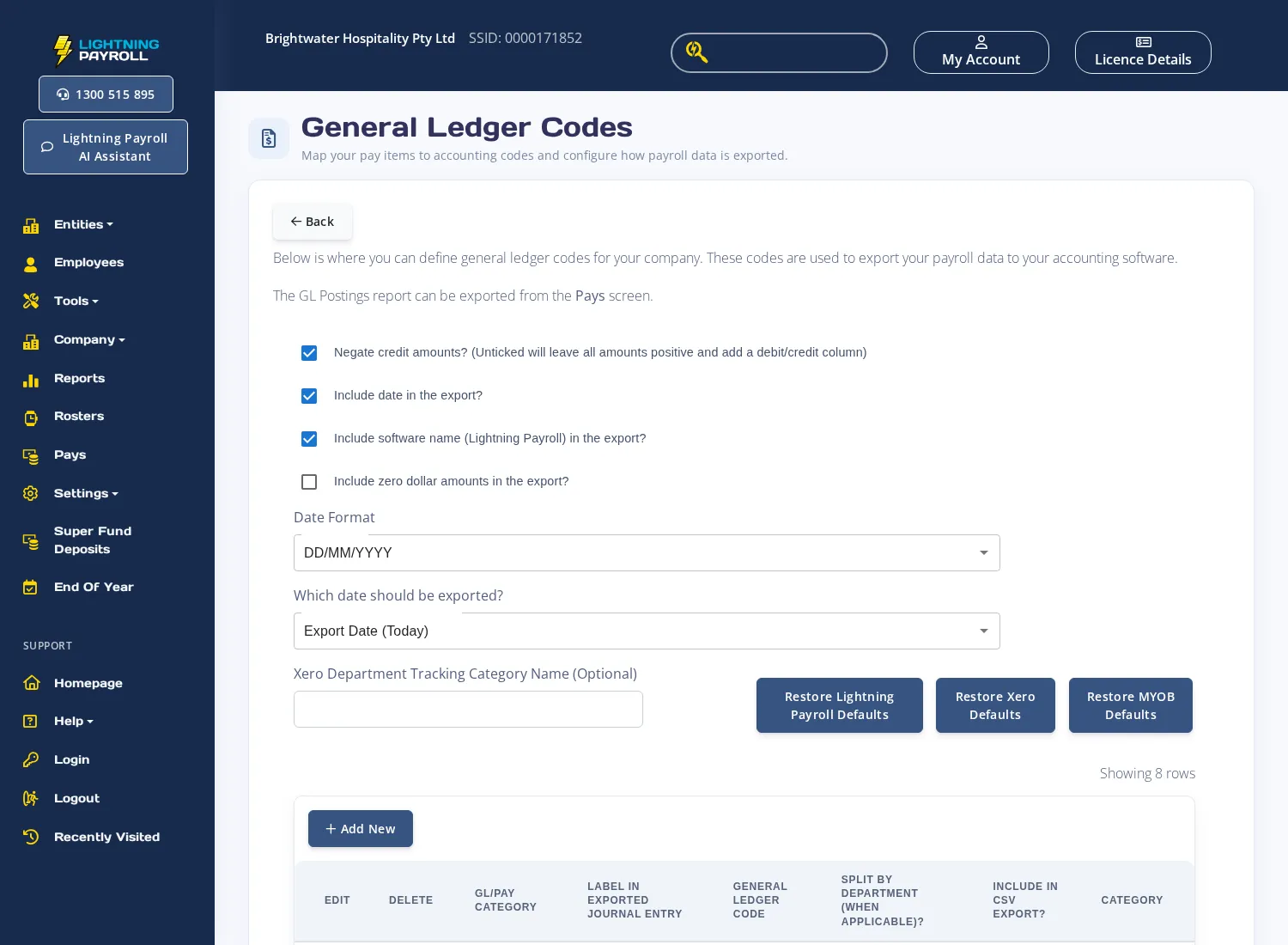
Export Settings
At the top of the screen, configure how the CSV export is formatted:
- Negate credit amounts? - when ticked, credit amounts are negated. When unticked, all amounts remain positive and a separate debit/credit column is added.
- Include date in the export? - adds a date column to the CSV.
- Include software name (Lightning Payroll) in the export? - adds the software name as a column (online app only).
- Include zero dollar amounts in the export? - includes rows with a $0.00 value (online app only).
- Date Format - choose the date format that matches your accounting package's import requirements.
- Which date should be exported? - select which date from the pay run to include.
- Xero Department Tracking Category Name (Optional) - if you use Xero department tracking, enter the tracking category name here.
Restore Defaults
Use the restore buttons to reset GL codes to a known starting point for your accounting software:
- Restore Lightning Payroll Defaults - resets to the standard Lightning Payroll default codes.
- Restore Xero Defaults - sets codes to match Xero's default account structure.
- Restore MYOB Defaults - sets codes to match MYOB's default account structure.
Editing GL Codes Per Pay Item
The table lists every pay item. Select a row to edit its settings:
- GL Code - enter the account code from your accounting software.
- Split By Department (When Applicable)? - when enabled, you can assign separate GL codes to each department. This makes the main GL code for the row redundant, as the department codes are used instead.
- Include In CSV Export? - controls whether this item appears in the exported file.
- Is Debit? - marks the row as a debit entry.
To post a named post-tax deduction to its own account, add a row and choose the GL/Pay Category labelled Deduction (Individual) followed by the deduction's description. A deduction mapped this way is taken out of the combined post-tax deduction line.
Farm Focus GL Codes
If you have the Farm Focus add-on, a checkbox labelled Enable Farm Focus GL Codes appears at the top of the screen. Enabling it switches the table to Farm Focus code mapping mode. Click Download Farm Focus Codes to retrieve your Farm Focus account codes, then map each pay item to the appropriate code.
If you do not have Farm Focus and the feature is available on your plan, an upgrade prompt will appear in its place.
Exporting GL Postings
Once your codes are configured, export the GL postings from the Pays screen. The export options (CSV and PDF) are available after selecting a pay run.
For information on configuring and exporting GL files in the desktop app, see How Do I Configure and Export GL (General Ledger) Files in Lightning Payroll To My Accounting Software?

