


Answer
After completing a pay run you may need to adjust the processed/paid date (the date the payment is made to employees) or the pay end date (the last day of the pay period) on one or more pays. Common reasons include correcting a date entry error, aligning with a bank payment date, or adjusting the pay period boundaries for reporting.
Accessing the screen
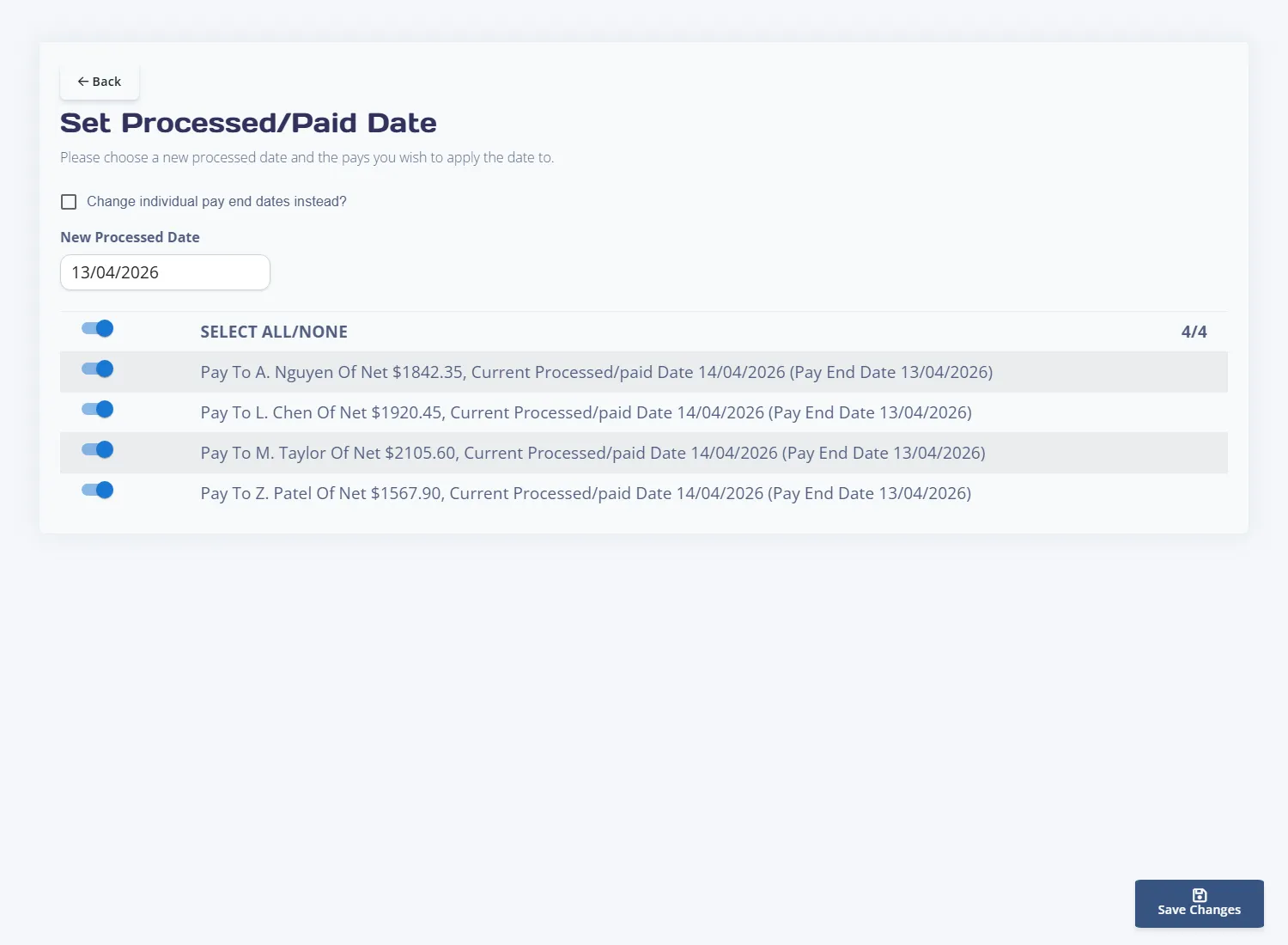
In the desktop app: open the pay run, then select Set Processed/Paid Date For Pay Run from the pay run actions.
In the online (web/mobile) app: navigate to the Pays screen, open the relevant pay run, then click Set Processed/Paid Date.
Changing the processed/paid date (default mode)
By default the screen opens in processed date mode. This changes the date recorded as the payment date on each selected pay.
- Use the New Processed Date date picker to choose the correct date.
- In the pay list below, tick the pays you want to update. Each row shows the employee name, net amount, and the current processed date.
- Click Save Changes.
The processed date is used for Single Touch Payroll (AU) and Payday Filing (NZ) reporting, so ensure it matches the actual date funds are transferred.
Changing the pay end date instead
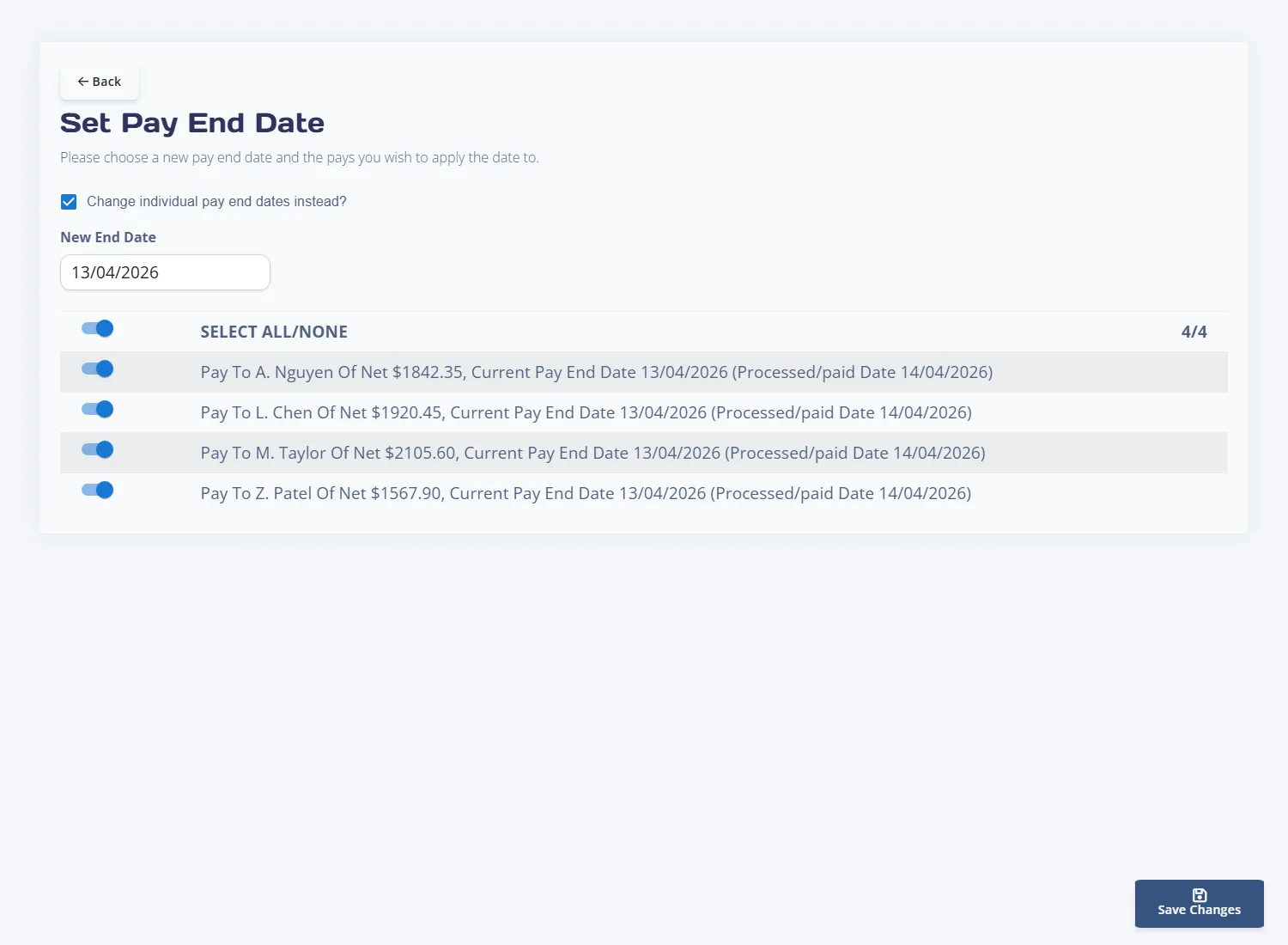
Tick the Change individual pay end dates instead? checkbox to switch to end date mode. The screen relabels to reflect the change:
- The date picker becomes New End Date.
- Each pay row now highlights the current pay end date with the processed date shown in brackets for reference.
This is useful when a pay period boundary needs adjusting after the pay run was completed — for example, if the period end date was entered incorrectly during pay creation.
Important notes
- You can select individual pays or all pays in the run. Only ticked pays are updated.
- Both modes update the selected pays immediately on save. The change is reflected in reports and filing submissions.
- If you need to change both the processed date and the end date, run the process twice — once in each mode.

