


Answer
To set up a deduction for an employee, go to the Employees tab >> select the employee on the left >> Allowances & Deductions >> Deductions, then click the green plus symbol to add the deduction and click Save.
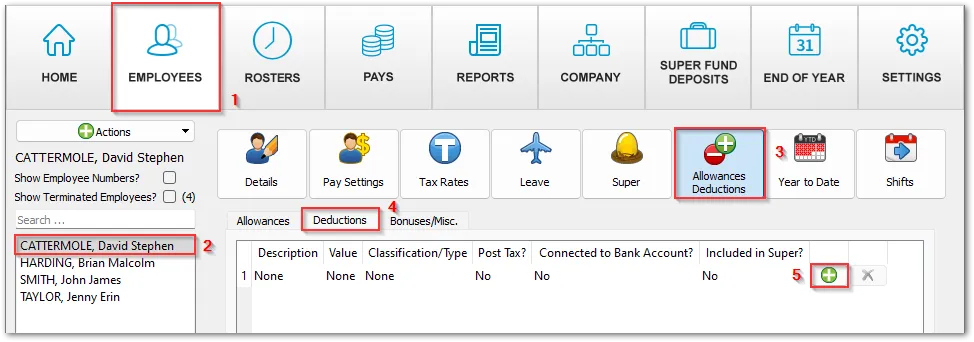
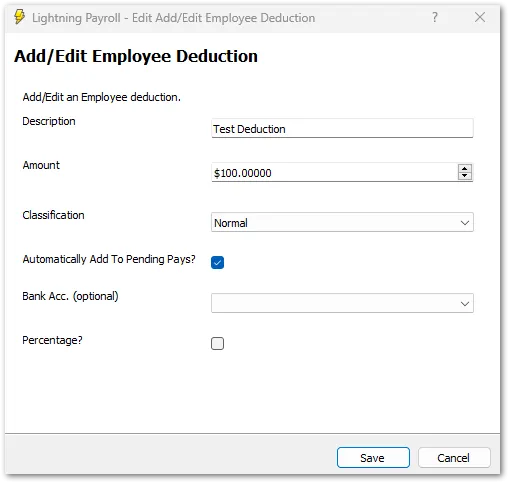
This deduction can then be seen in the Pays tab >> Edit Pay for this employee >> Allowances/Deductions >> Deductions. You can edit the amount manually by clicking the pencil icon.
A common type of deduction is a child support payment. If you mark a deduction as a child support payment, it will check the minimum protected earnings amount against the net before allowing you to save the pay. These protected earnings amounts are updated each January.
You can also link a deduction to a secondary bank account for an employee (entered under Employees >> Details >> Bank Accounts). This includes the deduction as an additional line entry in the direct entry banking file. If you are linking a deduction to a bank account, you will likely not need an amount entered against the account itself under Employees >> Details >> Bank Accounts.
Note: if the deduction is required in a completed pay that is locked (in Australia a pay locks once it has been completed and reported through Single Touch Payroll; in New Zealand it locks as soon as it is completed), you will need to unlock that pay by clicking the padlock in the bottom-left corner. Then click Allowances/Deductions, click the green plus symbol under Deductions, and click Save.

