


Answer
Use Employee Files as the source of truth for contracts, licences, tickets and right-to-work evidence. Correct setup at upload time is what keeps dashboard status, reminders and requests accurate later.
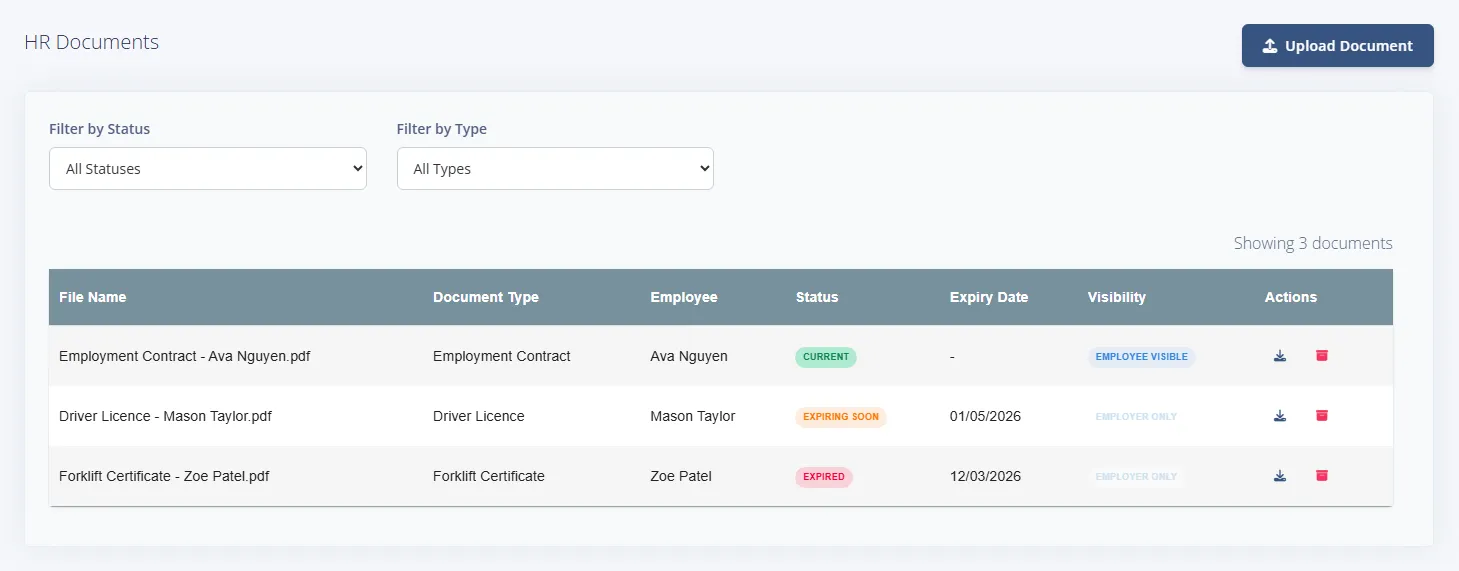
Step 1: Prepare the record in the document list
- Confirm the employee and document type are correct before upload.
- Use the status, type and employee filters to avoid duplicate uploads.
- Check whether the employee already has a current copy. If you are replacing it, archive the old document once the new one is uploaded so only one copy stays current.
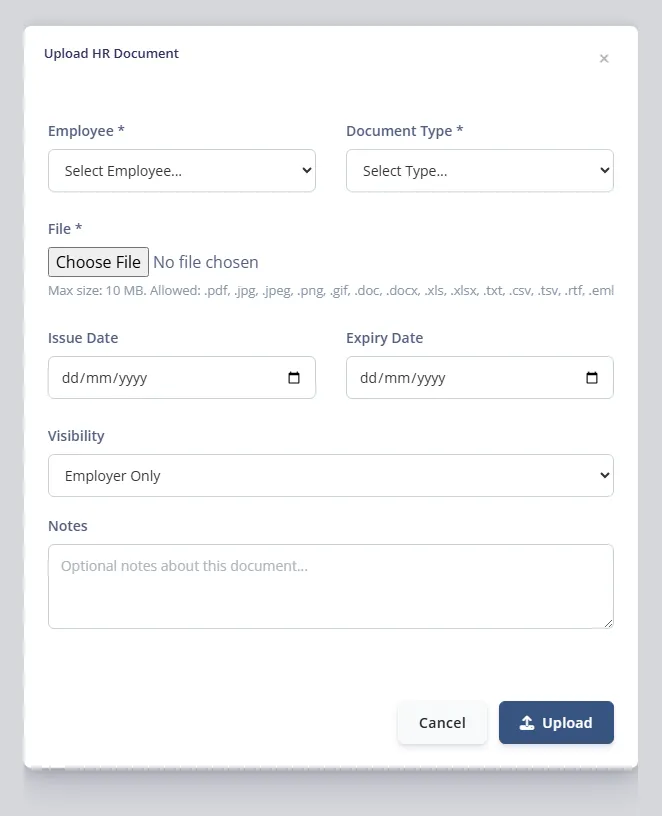
Step 2: Complete all key upload fields
- Select the right Document Type so reminders and missing-document checks work.
- Set expiry dates for licences/certificates to enable expiry tracking.
- Set visibility: Employer Only for internal records, employee-visible for shared documents.
- Add clear filenames to improve search and audit reviews (maximum file size is 10 MB).
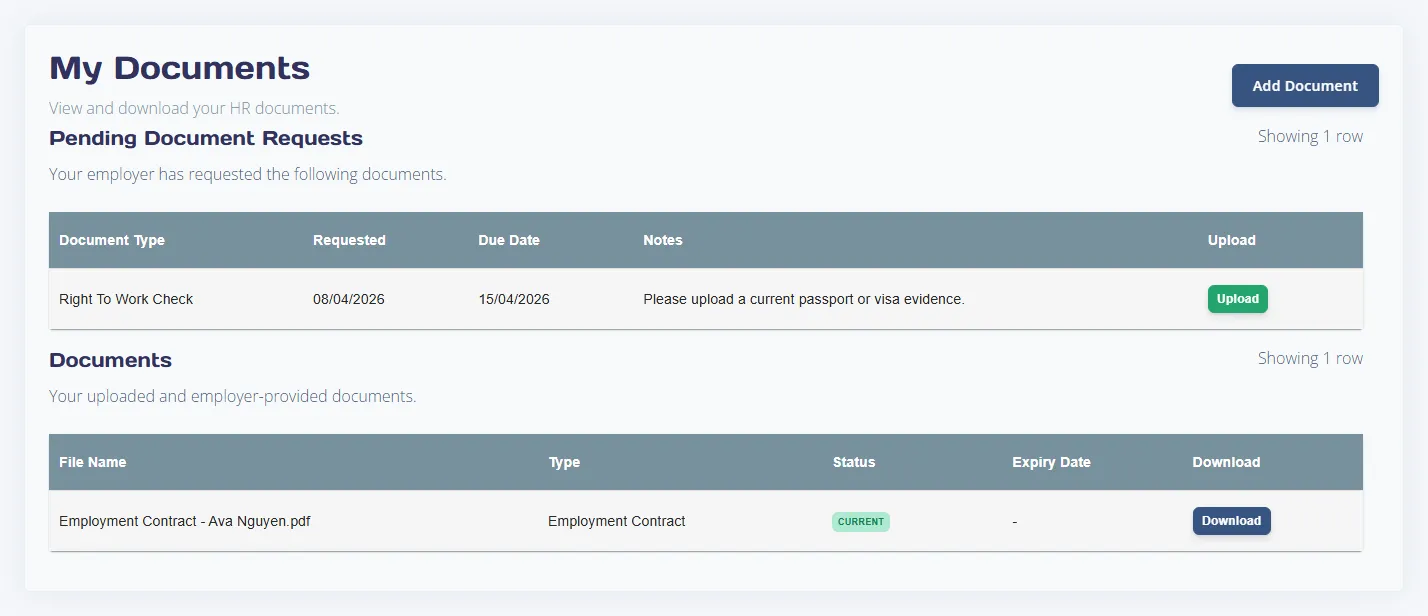
Step 3: Validate the employee-side outcome
After upload, check the employee portal view for visibility-sensitive files. If the employee cannot see a document you intended to share, review visibility settings first.
Common mistakes to avoid
- Uploading under the wrong employee.
- Leaving expiry blank for time-limited evidence.
- Choosing the wrong visibility and creating unnecessary follow-up.

