


Answer
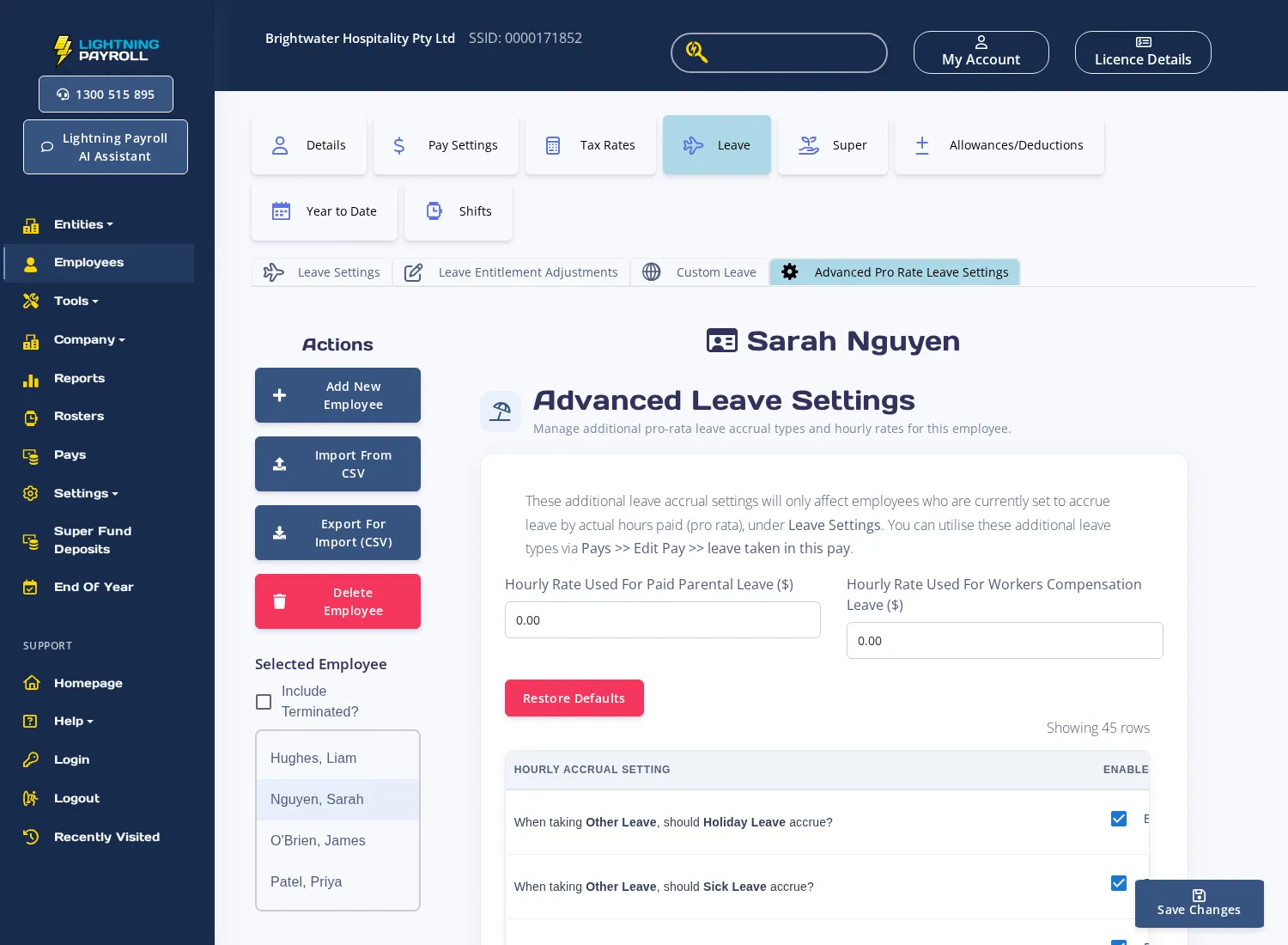
The Advanced Leave Settings tab (desktop) or Advanced Pro Rata Leave Settings tab (online app) lets you set custom hourly rates for paid parental leave and workers compensation leave, and control which leave types and superannuation accrue while an employee is on those absences.
These settings only apply to employees whose leave is set to accrue by actual hours paid (pro rata). If the settings appear greyed out or unavailable, first enable pro-rata accrual under Employees >> Leave >> Leave Settings.
Setting the Hourly Rate
In the desktop app: Go to Employees >> Leave >> Advanced Leave Settings. Enter the relevant amount in Hourly Rate Used For Paid Parental Leave or Hourly Rate Used For Worker's Compensation Leave.
In the online (web/mobile) app: Go to Employees >> Leave >> Advanced Pro Rata Leave Settings. Enter the relevant amount in Hourly Rate Used For Paid Parental Leave ($) or Hourly Rate Used For Workers Compensation Leave ($), then click Save Changes.
If you only have a weekly or daily rate, convert it to an hourly rate before entering it. For example, if the employee is paid $1,000 per week and normally works 38 hours per week, the hourly rate is $1,000 ÷ 38 = $26.32.
Lightning Payroll saves this rate automatically the first time you enter a paid parental or workers compensation leave row in a pay, so the field may already be populated on return visits.
Controlling Leave and Super Accruals
Below the hourly rate fields is a table listing each combination of leave type and accrual target (annual leave, sick leave, long service leave, custom leave, and superannuation). Tick or untick the Enabled? checkbox for each row to control whether that accrual applies while the employee is on paid parental leave or workers compensation leave. Click Save Changes when done.
By default, leave accruals and superannuation are turned off for paid parental leave and workers compensation. Whether these should accrue depends on your state legislation or industry award — check the applicable award or seek advice before enabling them.
To return all rows to their original defaults, click Restore Defaults and confirm the prompt.
For instructions on entering a paid parental leave or workers compensation row in a pay run, see How Do I Enter Paid Parental Leave, Unpaid Leave or Worker's Compensation Payments?

