Answer
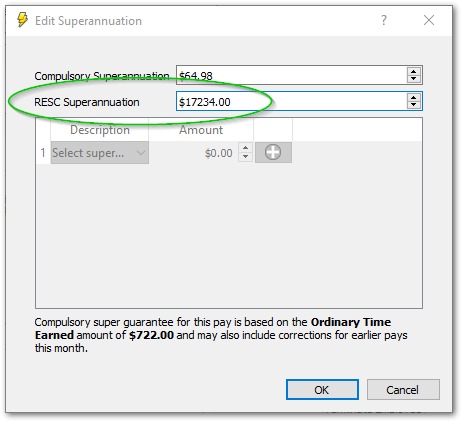
If you need to make a one-off top-up of RESC (Reportable Employer Super Contribution) before the end of the financial year (EOFY), there are two ways to do it. For most employers, Method 1 is more popular — creating an extra pay with RESC only — because it lets you pay the extra super now without also paying any additional Super Guarantee (SG).
Note: The old July 28 SG due date belonged to the quarterly system that ended on 30 June 2026. Since July 1st 2026, the ATO's Payday Super measure requires Super Guarantee amounts to be paid on payday.
Method 1 — Pay RESC Only
This method suits anyone who simply wants to pay the RESC amount before 30 June without paying extra SG.
- Navigate to the desired pay run in Pays.
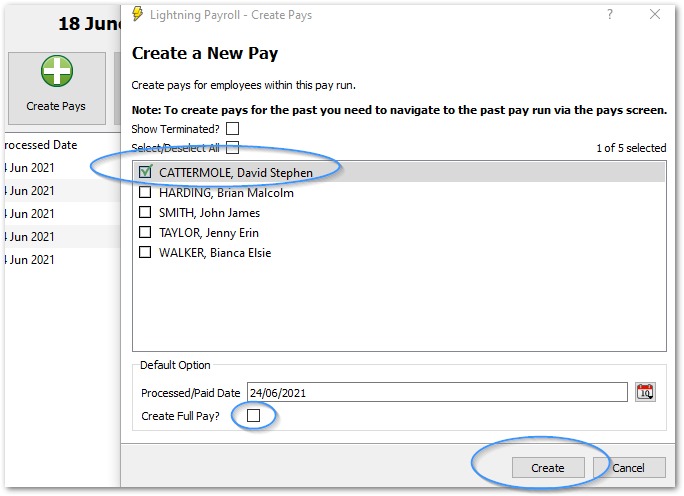
- Select Create Pays Wizard.

- Tick the relevant employees, then untick Create Full Pay?.
This creates an additional $0.00 pay for each employee.
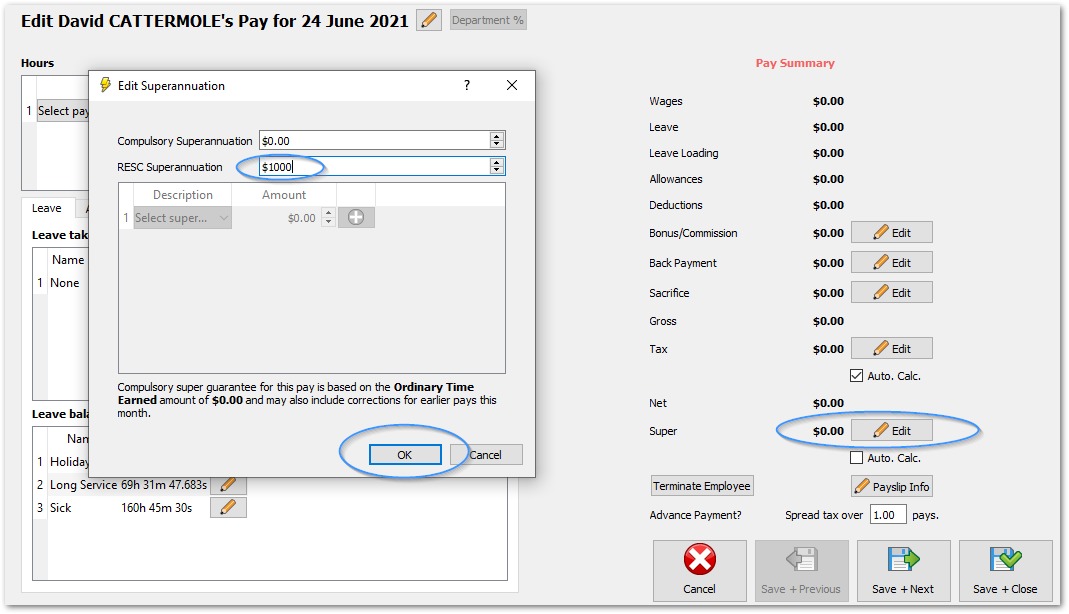
- Edit each new pay and click Edit beside Super.
Enter the RESC amount only (leave SG at $0.00).
- Pay the contribution via the Payday Super section:
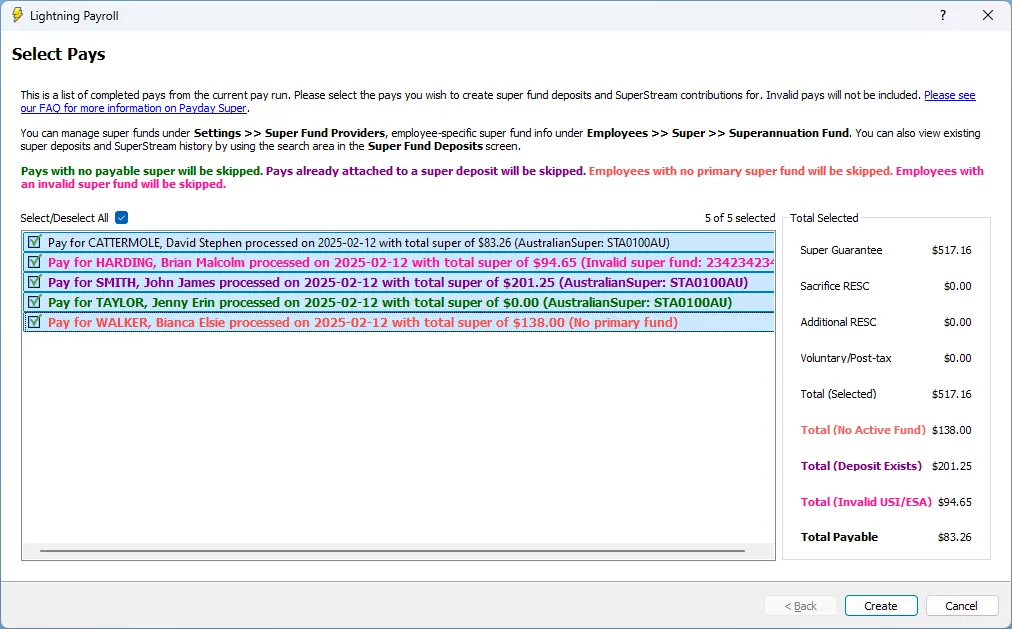
- Go back to the pay run list and click Payday Super (top-right of the screen).

- Select the RESC pays you just created and click Create.
- Follow the prompts to lodge the SuperStream file and make payment.
- Go back to the pay run list and click Payday Super (top-right of the screen).
- If you prefer the older workflow you can still use Super Fund Deposits, but Payday Super is faster for a single pay run. The deposit screen remains useful for bulk payments across several pay runs.
Need more detail? See our dedicated Payday Super FAQ.
Method 2 — Pay June SG + RESC Together
If you would rather add the RESC to the employee's last pay of the year, so it is paid together with that pay's SG, use this method instead.
- Edit the employee's last pay of the year under Pays >> Edit Pay/s.
- Click Edit beside Super.
- Add the extra RESC amount to the RESC field, leaving the SG amount as calculated.
- The additional super is then available for payment through Payday Super (or Super Fund Deposits, if you prefer) together with that pay's SG, and will be reported in your next Single Touch Payroll (STP) lodgement.