


Answer
The online app includes an End of Year Assistant - a short wizard that lets you generate, download, and optionally email PAYG Payment Summaries (group certificates) for your employees. Since the introduction of Single Touch Payroll (STP), payment summaries are no longer required, as employee income is reported directly to the ATO and is visible in their myGov income statements. However, the assistant is available if you wish to provide a summary to your staff. For lodging your end-of-year finalisation with the ATO via STP, see How Do I Process End of Year Using Single Touch Payroll?
Starting the Assistant
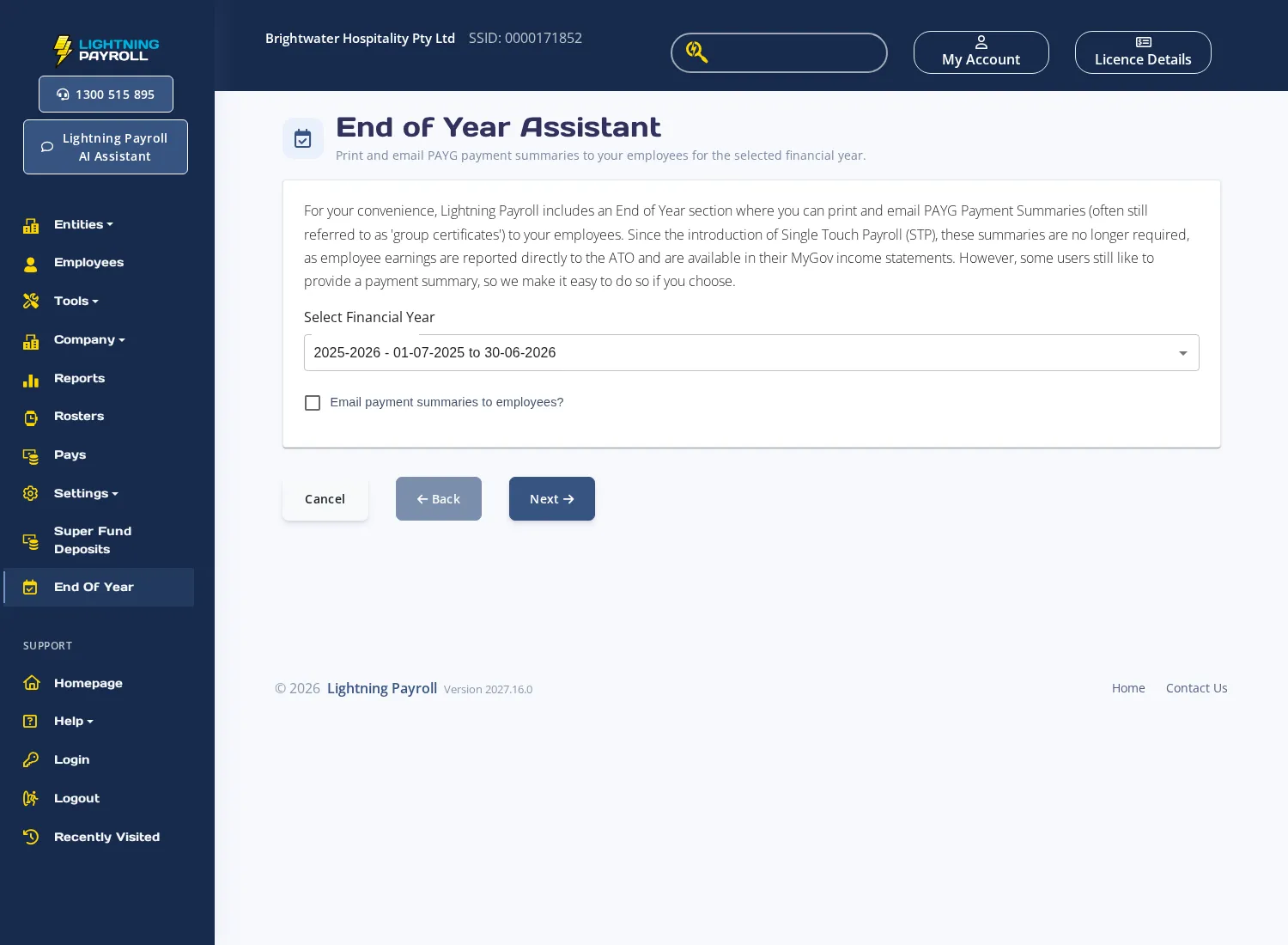
Click End Of Year in the left-hand navigation menu. The End of Year Assistant page opens. Use the Select Financial Year drop-down to choose the financial year you want to process.
If you would like to email payment summaries to employees as part of this process, tick the Email payment summaries to employees? checkbox before proceeding. Click Next.
Select Employees
The wizard moves to the Select Employees step, which lists all employees who have payment summary data in the chosen financial year. Select or deselect employees as needed, then click Next. If no employees appear, no pay data was found for the selected period.
Payment Summaries
The Payment Summaries step shows a summary of the calculated figures for each employee. Select an employee in the table on the left to review their individual figures in the Summary Display panel on the right.
To download PDFs, use the two buttons at the bottom of the employee table:
- Payment Summaries - downloads a combined PDF containing an individual payment summary for each selected employee.
- Summary Report - downloads a single-page summary report across all selected employees.
Email Pay Summaries (Optional)
If you ticked the email option in the first step, an additional Email Pay Summaries step appears after the download step. This screen lists only employees who have the Email Payment Summaries option enabled in their employee record. Select the employees you want to send to, then click Send Emails Now. A confirmation message will appear once the emails are sent.
To enable or disable email payment summaries for an individual employee, go to their employee record and adjust the Email Payment Summaries Enabled? setting under their email options.
Finishing
Once you have downloaded and/or emailed summaries, click Next on the final step to exit the wizard. The assistant does not lock or close off any data - you can return to it at any time during the year to re-generate summaries.
For a general overview of all EOFY lodgement options, see How Do I Process EOFY and Lodge With the ATO? For information on whether payment summaries are still required under STP, see Do I Still Need To Provide Payment Summaries With the Transition to Single Touch Payroll?

