


Answer
If you have multiple Lightning Payroll database files and would like all of your business entities managed from a single database, it is important to note that Lightning Payroll databases cannot be merged.
Instead, the process outlined below is the next best solution. It allows you to export and import employee records only between database files so they can be recreated under another company within a different database.
This process does not merge company data, entities, or settings. Company profiles must always be created manually.
Important Clarification About Company Data
The employee export and import tools work exclusively with employee records. They have no impact on:
- Company or entity details
- Business settings
- Pay item structures at a company level
If you are importing employees into another database, you must first recreate the company profile they will belong to. This is done by navigating to Entities >> Add New Company in the destination database.
Employees are always imported into the currently selected company. If the correct company is not selected at the time of import, the employees will be created under the wrong entity.
How The Export And Import Process Works
Lightning Payroll includes a dedicated export and import feature designed to transfer employee data between database files.
From the Employees screen, above the employee list, open the Actions menu. Here you will find options to export and import employees.
The export feature creates a CSV file containing key employee information for the selected financial year. This file is generated in the exact format required by the Lightning Payroll import tool.
The export includes:
- Employee personal details
- Leave balances
- Superannuation fund information
- Year-to-date earnings in an STP-friendly structure
You can then open your other Lightning Payroll database file, select the appropriate company, and import the CSV file. This recreates the employee profiles under that company so payroll processing can continue.
Important Limitations And Manual Setup
Some employee settings require manual configuration after import. This applies to any pay items that belong to a collection, including:
- Allowances
- Salary sacrifice arrangements
- Deductions
- Any other multi-item pay components
These items must be manually added back to each imported employee profile.
Please also be aware that the export only includes data from the current financial year. Historical payroll records are not transferred and the original database should be retained for reference.
Steps To Export Employees
First, select the employees you wish to export.
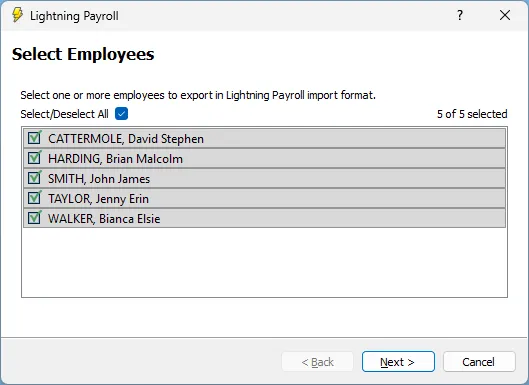
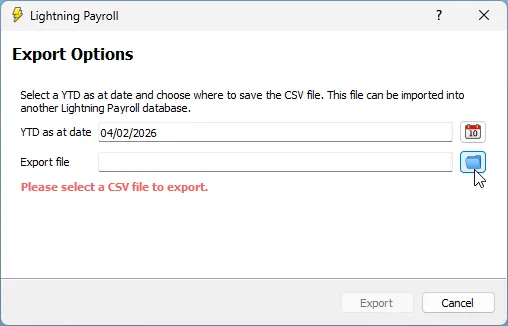
Click Next, choose a filename and save location, then confirm the YTD as at date. This is set to today's date by default.
Importing Employees Into The New Database
Before importing, ensure the destination database has the correct company already created and selected.
The import process is accessed from Employees >> Actions in the destination database.
For a full step-by-step walkthrough, please refer to the following FAQ:

